
What if your documents could talk back to you?
Imagine uploading a 200-page PDF and getting back a podcast, a study guide, a mind map, and a video, all in under 5 minutes, completely free. That is exactly what Google NotebookLM does, and most people have no idea it exists.
NotebookLM is Google’s AI research assistant that uses only your uploaded sources to answer questions, explain topics, and create study material. When it answers, it cites the exact source and page. When the answer is not in your documents, it says so rather than guessing.
This guide shows you every step, from opening the tool for the first time to generating your first podcast.
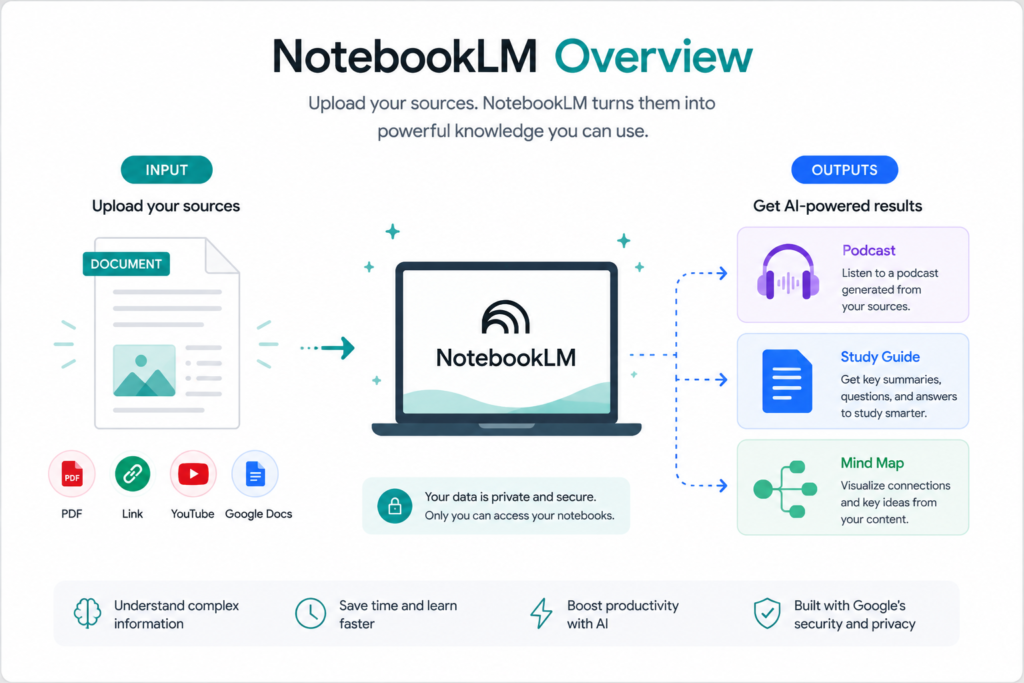
What can NotebookLM do?
NotebookLM lets you have an interactive chat with your documents, ask specific questions and get cited answers. It can generate AI podcasts, create explainer videos, build mind maps, produce study guides, and generate FAQs, all from the documents you upload.
Free vs paid plan
NotebookLM is free to start. The free plan is more than enough for beginners. Here is what you get on each plan:
| Feature | Free | Plus ($19.99/month) |
|---|---|---|
| Notebooks | 100 | 500 |
| Sources per notebook | 50 | 300 |
| Chat queries per day | 50 | 500 |
| Audio Overviews per day | 3 | 20 |
| Video Overviews | Limited | Full access |
| Deep Research | Limited | Full access |
| Sharing | Basic | Advanced |
Tip: Start with the free plan. It is more than enough to get started and learn the tool.
Step by step: How to use NotebookLM
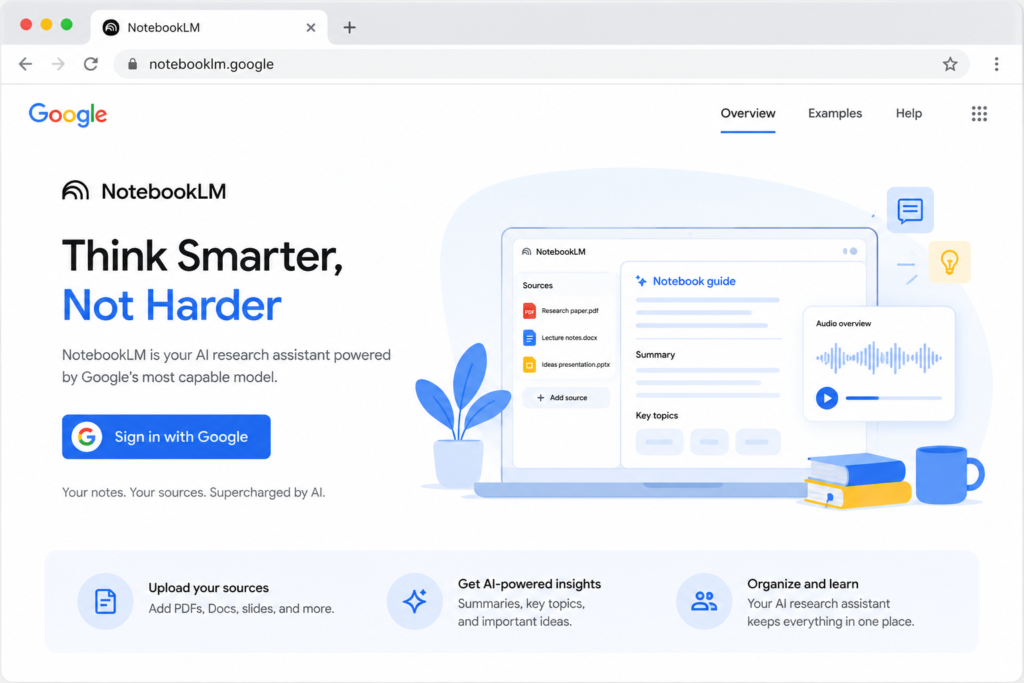
Step 1 — Go to notebooklm.google.com
Open your browser and go to notebooklm.google.com. Click Sign in and use your Google account. No payment needed.
Step 2 — Click “+ New Notebook”
Once you are inside, click the big “+ New Notebook” button on the homepage. A dialog box appears asking for a name. Use something clear like “Marketing Research 2026” or “History Notes” so you can find it easily later.
Step 3 — Upload your sources
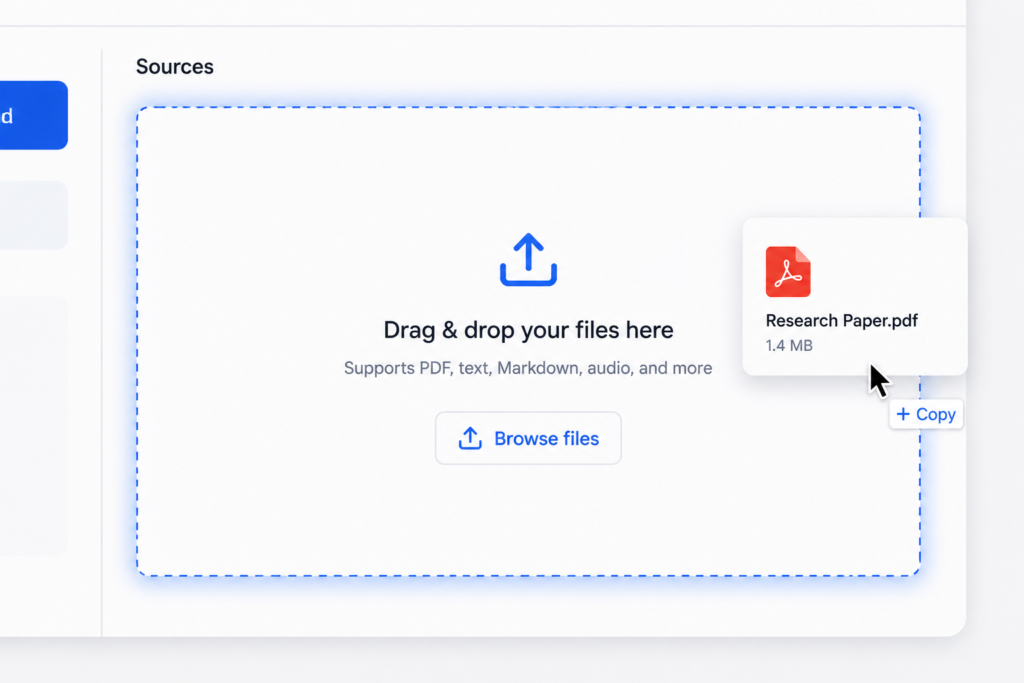
This is the most important step. Click “Add sources” inside your notebook. You can upload many different types of content:
| Source type | Examples |
|---|---|
| PDF files | Books, research papers, reports |
| Google Docs | Your own notes and documents |
| Website URLs | Any public webpage |
| YouTube links | Lectures, tutorials, videos |
| Audio files | Podcasts, recordings |
| Plain text | Copy pasted content |
Each source can hold up to 500,000 words, which means one notebook can absorb a textbook, a stack of PDFs, a few websites, and a YouTube lecture at the same time. Wait a few seconds for the green checkmark. That means your source is indexed and ready.
Step 4 — Ask questions in the chat
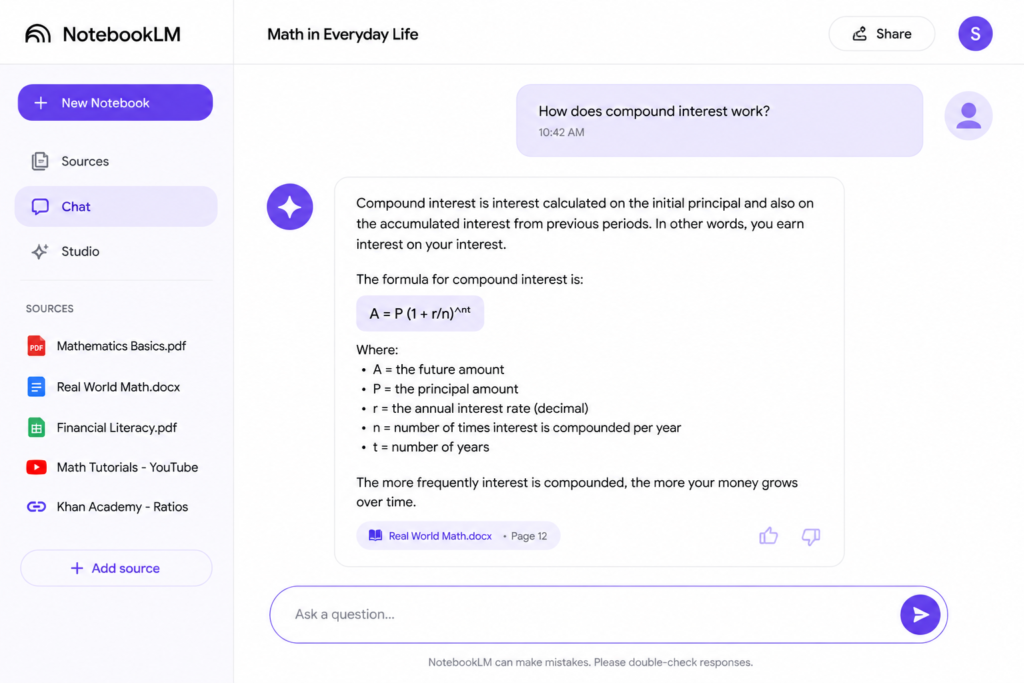
Once your sources are loaded, go to the chat box and start asking questions. Every answer comes with a citation showing exactly where the information came from in your documents.
Good questions to start with:
- “Summarize all my sources in 5 bullet points”
- “What are the main arguments in this document?”
- “Create a timeline of the key events”
- “What does the author say about X?”
- “Compare the two documents and find differences”
Step 5 — Open the Studio panel
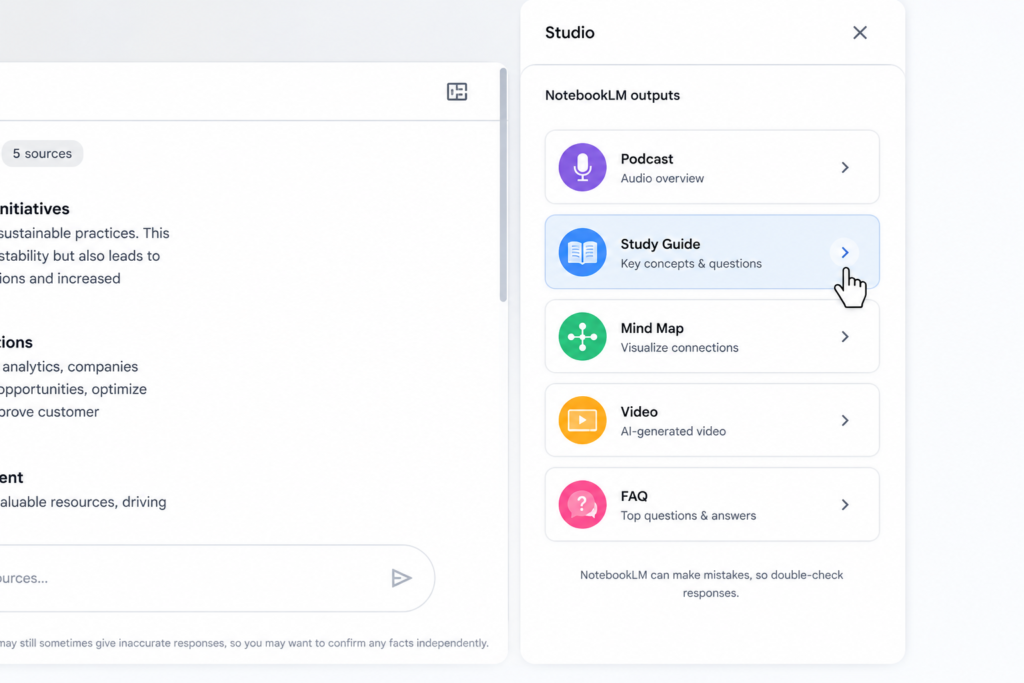
On the right side of the screen, click “Studio”. This panel is where NotebookLM transforms your documents into different formats. You can create multiple outputs at the same time, in different languages, tailored to different purposes.
Step 6 — Generate your output
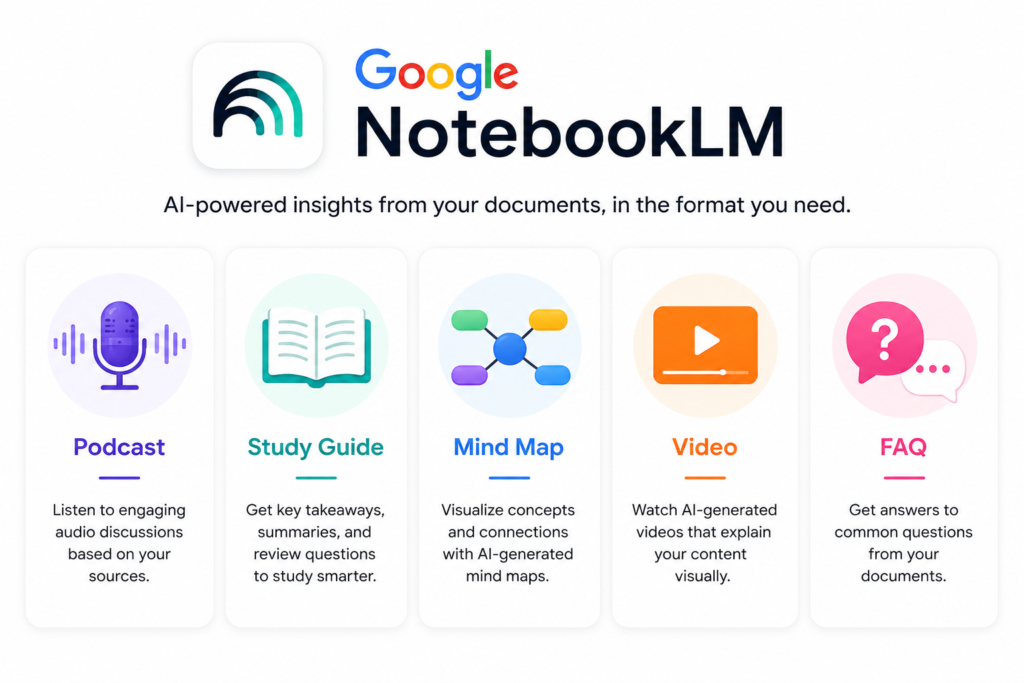
Pick the output format that fits your need. Here is what each one does:
Audio Overview (Podcast)
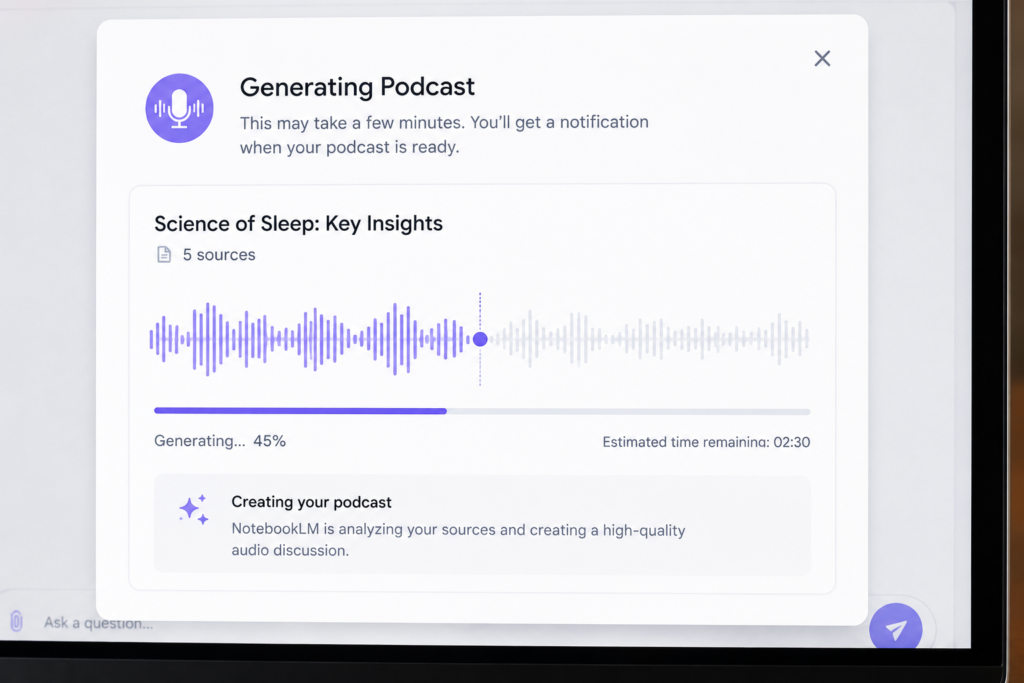
Click “Generate” under Audio Overview. Two AI hosts will discuss your documents in a natural conversation. You can choose from four formats: Deep Dive, The Brief, The Critique, and The Debate. Available in 80 plus languages.
Best for: Commuting, revision while walking, auditory learners
Study Guide
Click “Study Guide” in the Studio. NotebookLM generates structured notes, key concepts, timelines, and summaries automatically from all your sources in one click.
Best for: Students, exam preparation, quick review
Mind Map
Click “Mind Map” in the Studio. NotebookLM generates a visual diagram that organizes high level information based on your sources, showing how ideas connect to each other.
Best for: Visual learners, brainstorming, connecting ideas across multiple documents
Video Overview
Click “Video” in the Studio. You can customize the format, language, and visual style. Choose from whiteboard, kawaii, watercolor, or classic styles. NotebookLM then generates a narrated visual video from your documents.
Best for: Presentations, sharing with others, visual explanations
FAQ
Click “FAQ” in the Studio. NotebookLM automatically generates the most likely questions a reader would ask about your documents, then answers each one with citations.
Best for: Creating content, preparing for presentations, understanding a topic quickly
Who is NotebookLM for?
| Who | How to use it |
|---|---|
| Students | Upload lecture notes, get study guides and flashcards instantly |
| Researchers | Upload papers, ask questions, get cited answers |
| Content creators | Upload references, get summaries and outlines for articles |
| Professionals | Upload reports, get briefing documents in seconds |
| Teachers | Upload curriculum, generate FAQs and quizzes automatically |
5 power tips to get better results
- Name your notebooks clearly — “Physics Chapter 5” beats “Notebook 3” every time
- Upload multiple sources together — NotebookLM connects ideas across all of them automatically
- Use the Critique format — it finds weaknesses in arguments, great for research and writing
- Ask it to compare sources — “What do source 1 and source 2 disagree on?”
- Always check citations — click every citation to verify the answer in your original document
Start using NotebookLM today
Most people spend hours reading documents they could understand in minutes. NotebookLM does not replace your thinking. It speeds up the parts that waste your time so you can focus on what actually matters.
Go to notebooklm.google.com right now. It is free, takes 2 minutes to set up, and will change how you handle information forever.
Ready to explore more AI tools? Check out our next guide: ChatGPT Voice: Talk to AI Like a Real Conversation