
What if you never had to type to ChatGPT again?
Most people still type every single message to ChatGPT. But there is a faster, more natural way, just talk. ChatGPT Voice Mode lets you have a real back-and-forth spoken conversation with AI, hands-free, anywhere, anytime.
You talk. It listens. It responds out loud. You can interrupt it mid-sentence, change topics, ask follow-up questions, all exactly like talking to a real person.
This guide shows you exactly how to enable it, use it, and get the most out of it, on both mobile and desktop.

What is ChatGPT Voice Mode?
ChatGPT Voice Mode turns the chat window into a real spoken conversation. You speak naturally, ChatGPT processes your voice in real time, and responds out loud with a lifelike voice you choose. The exchange feels smooth and immediate, with no typing needed.
There are two versions:
| Version | What it does | Available on |
|---|---|---|
| Standard Voice Mode | Basic speech to text and text to speech | Free plan (mobile) |
| Advanced Voice Mode | Natural, emotional, real-time conversation with interruptions | Free (limited daily), Plus, Pro |
Free vs paid plan
| Feature | Free | Plus ($20/month) | Pro ($200/month) |
|---|---|---|---|
| Standard Voice Mode | ✅ Yes | ✅ Yes | ✅ Yes |
| Advanced Voice Mode | Short daily preview | ✅ High limits | ✅ Unlimited |
| Voice with video (camera) | ❌ No | ✅ Mobile only | ✅ Yes |
| Screen sharing in voice | ❌ No | ✅ Yes | ✅ Yes |
| Choose from 9 voices | ✅ Yes | ✅ Yes | ✅ Yes |
Tip: Start with the free plan. The daily preview of Advanced Voice Mode is enough to test it and decide if you want to upgrade.
Step by step: How to use ChatGPT Voice Mode on mobile
Step 1 — Download the ChatGPT app
Voice Mode works best on the mobile app. Download it for free:
Open the app and sign in or create a free account at chatgpt.com.
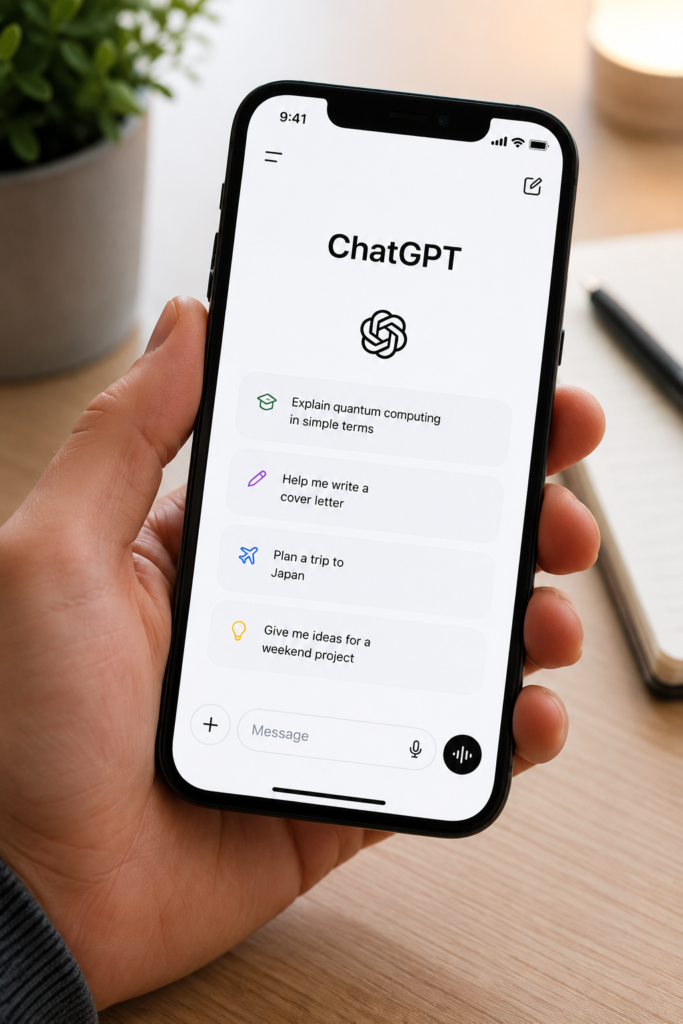
Step 2 — Find the voice icon
Open any chat or start a new one. Look at the bottom right corner of the text input bar. You will see a small headphone or waveform icon. Tap it.
Note: If you do not see the icon, update your ChatGPT app to the latest version. Voice Mode requires the most recent update.
IMAGE 2 — Replace with your generated image A realistic close-up of a smartphone chat input bar, a glowing headphone icon highlighted with a subtle arrow pointing at it, clean white UI, soft background
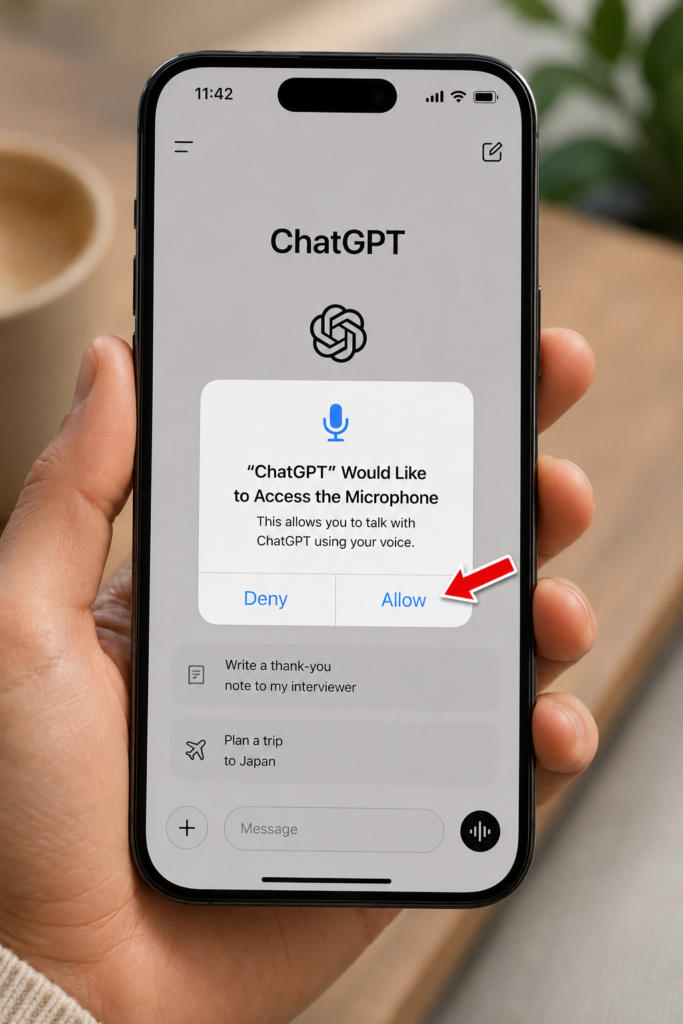
Step 3 — Allow microphone access
The first time you tap the icon, your phone will ask for microphone permission. Tap Allow. Without this, Voice Mode cannot work.
If you accidentally tapped Deny, fix it here:
- iPhone: Settings → Privacy and Security → Microphone → Enable for ChatGPT
- Android: Settings → Apps → ChatGPT → Permissions → Microphone → Allow
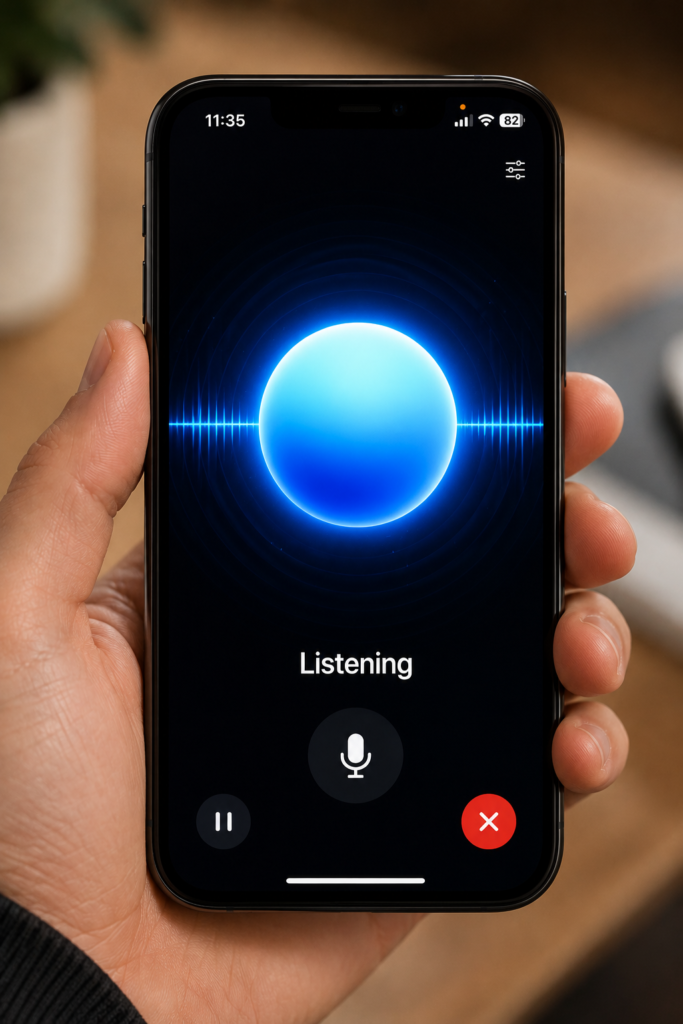
Step 4 — The blue orb appears
Once microphone access is granted, the screen changes. A glowing blue orb or animated waveform appears. This means ChatGPT is listening and ready. You will hear a short chime sound.
Start speaking naturally. No need to press any button. Just talk.
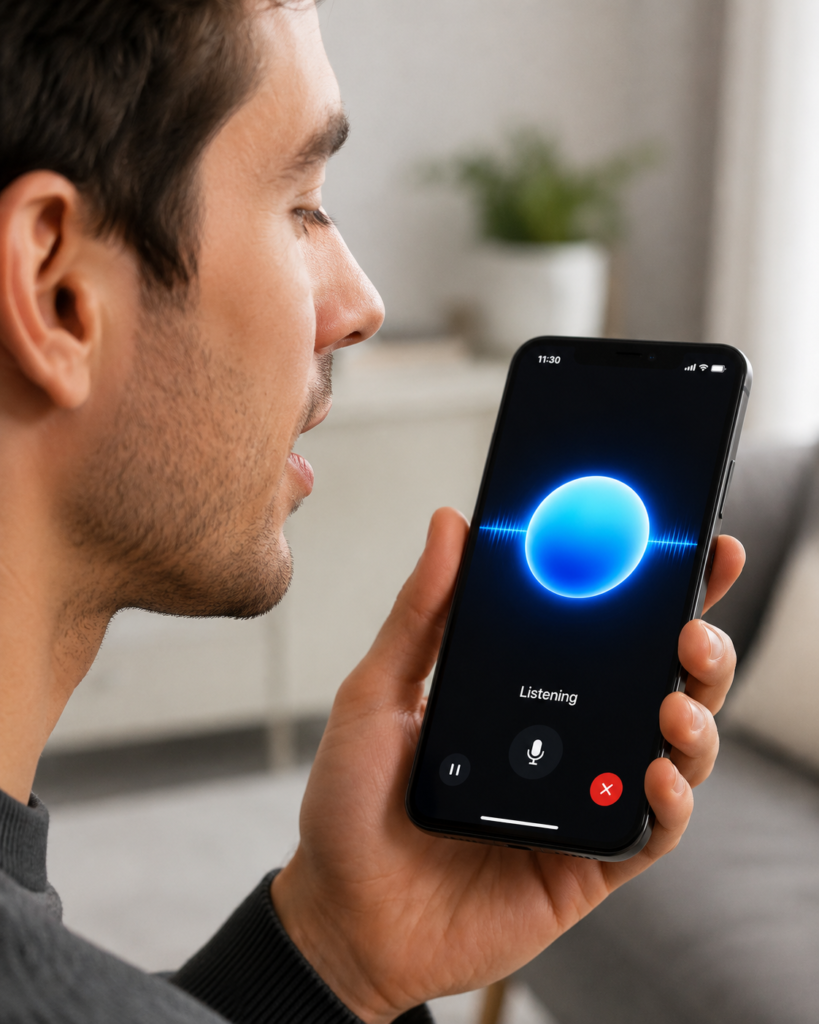
Step 5 — Have a real conversation
Talk to ChatGPT exactly like you would talk to a person:
- Ask a question and wait for the answer
- Interrupt mid-sentence if you want to add something
- Ask follow-up questions naturally
- Change topics at any time
- Say “stop” or “wait” to pause it
Tip: Speak clearly and at a normal pace. If ChatGPT misunderstands you, move to a quieter space or use headphones with a built-in microphone for better accuracy.
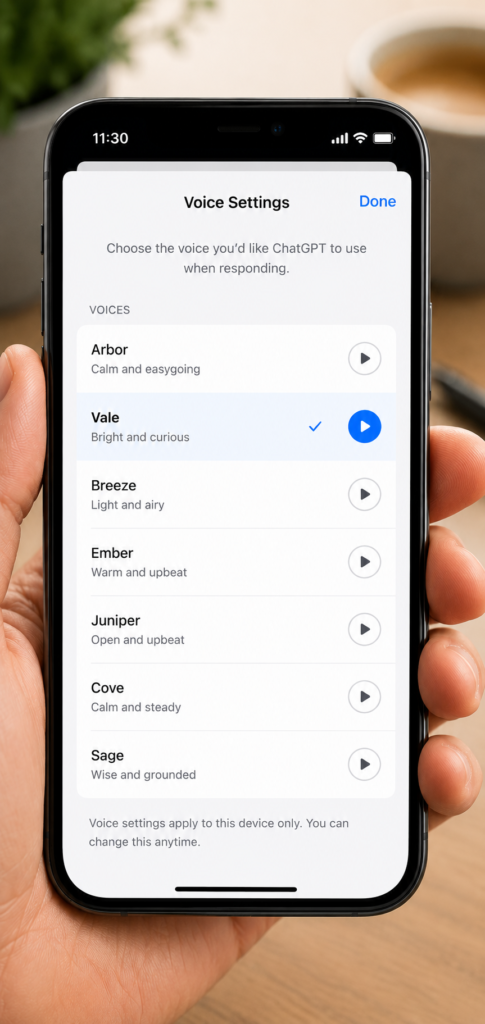
Step 6 — Choose your voice
You can pick from 9 different voices, each with its own character and tone. To change your voice:
- During a voice session, tap the three-dot menu
- Select Voice Settings
- Listen to each voice preview
- Tap the one you prefer
| Voice name | Character | Best for |
|---|---|---|
| Spruce | Calm and affirming | Slow guidance, learning |
| Vale | Bright and curious | Brainstorming, ideas |
| Ember | Warm and confident | General conversations |
| Breeze | Friendly and light | Casual daily use |
| + 5 more | Various tones | Try them all and decide |
Step 7 — Exit voice mode
To end the voice conversation, tap the X button or swipe down. You return to the normal text chat. Your entire voice conversation is saved as text in the chat history.
How to use ChatGPT Voice Mode on desktop
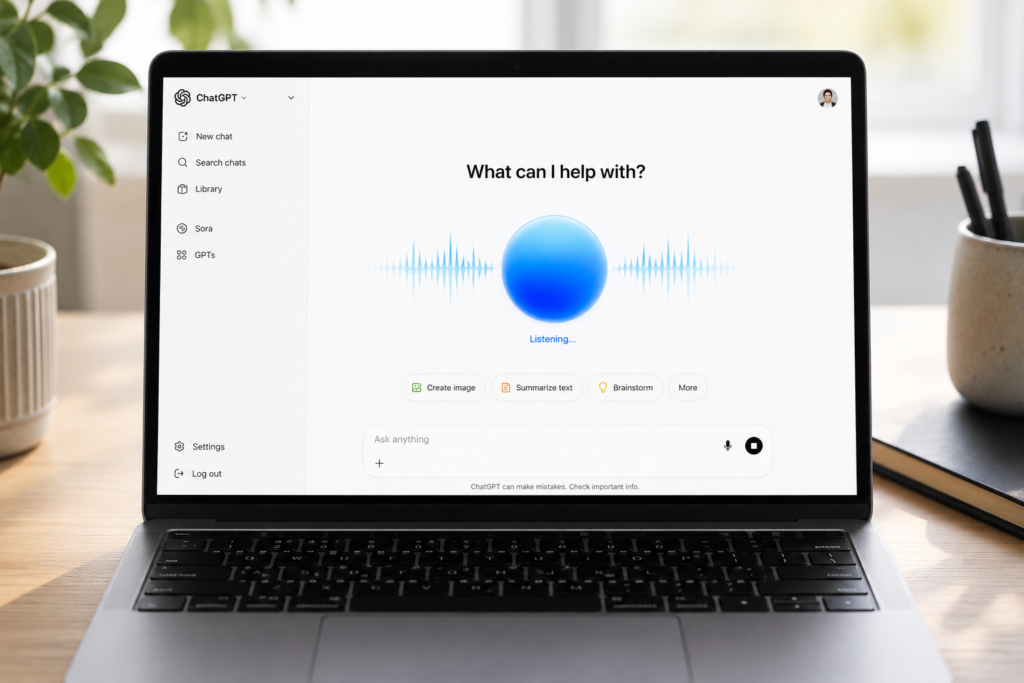
Voice Mode also works on desktop, but with slightly different steps:
- Go to chatgpt.com in your browser
- Look for the waveform icon at the bottom right of the input box
- Click it and allow microphone access in your browser
- The blue orb appears and you start talking
Mac shortcut: If you have the ChatGPT desktop app, press Option + Space from anywhere on your computer to open Voice Mode instantly without switching windows.
Best ways to use ChatGPT Voice Mode
| Use case | What to say |
|---|---|
| Hands-free help | Ask questions while cooking, driving, or exercising |
| Language practice | “Let’s have a conversation in French, correct my mistakes” |
| Job interview prep | “Interview me for a marketing manager position” |
| Brainstorming | “I want to start a blog, help me think of ideas” |
| Email dictation | “Write an email to my client about the project delay” |
| Learning a topic | “Explain how blockchain works like I am 12 years old” |
| Daily planning | “Help me plan my day, I have 3 meetings and a deadline” |
5 power tips for better voice conversations
- Use headphones — a built-in mic gives much better recognition than your phone speaker
- Start with context — say “I am a student studying biology” before asking questions for better answers
- Interrupt freely — you do not have to wait for ChatGPT to finish, just start talking
- Use it for language learning — 10 to 15 minute sessions are ideal, any longer gets tiring
- Switch voices for different tasks — a calm voice for studying, a bright voice for brainstorming
ChatGPT Voice vs Gemini Live vs Pi.ai
| Feature | ChatGPT Voice | Gemini Live | Pi.ai |
|---|---|---|---|
| Free access | Limited daily | ✅ Yes | ✅ Yes |
| Voice quality | ⭐⭐⭐⭐⭐ | ⭐⭐⭐⭐ | ⭐⭐⭐ |
| Natural interruptions | ✅ Yes | ✅ Yes | Limited |
| Video during voice | ✅ Plus only | ✅ Yes | ❌ No |
| Best for | All round use | Free daily use | Companion feel |
Start talking to ChatGPT today
Typing is slow. Voice is natural. Once you try ChatGPT Voice Mode, going back to typing feels unnecessary for most everyday tasks.
Download the app, tap the waveform icon, and say your first sentence. The whole setup takes less than 60 seconds.
Go to chatgpt.com or download the app and try it right now.
Want to go further? Read our next guide: ChatGPT on WhatsApp: Add AI to Your Favorite Messaging App