
What if you could create any image just by describing it?
No Photoshop. No design skills. No stock photo subscriptions. Just type what you want and ChatGPT creates it in seconds.
ChatGPT now has a built-in image generator powered by GPT Image 1.5, the most advanced AI image model available in 2026. You can generate images from scratch, edit existing photos, add text to visuals, and refine results through conversation, all without leaving the chat window.
This guide shows you exactly how to use it step by step.
What is ChatGPT image generation?
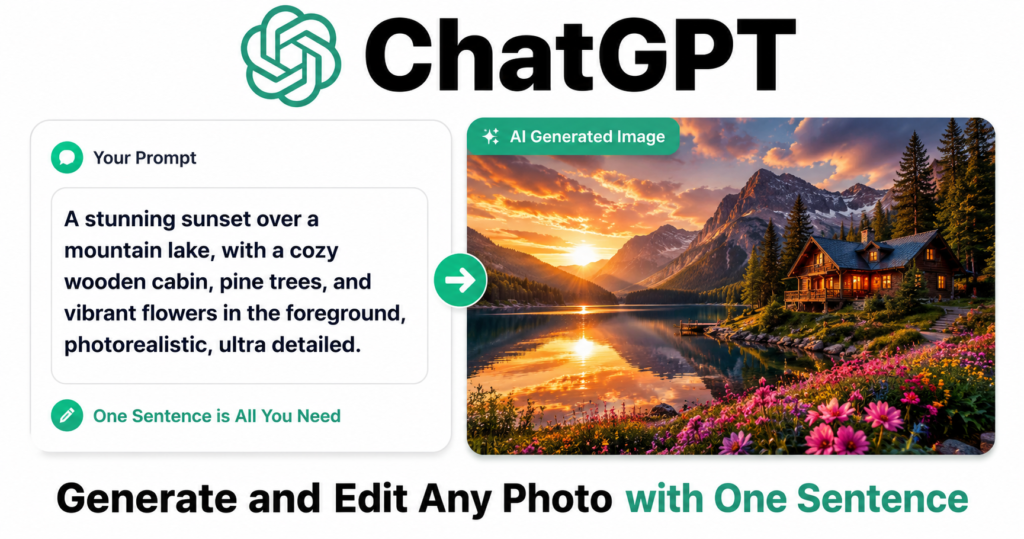
ChatGPT image generation is a built-in feature that lets you create and edit images using plain text descriptions. In 2026, ChatGPT uses GPT Image 1.5, a model built natively into the chat interface. Unlike older tools, it understands your instructions better, renders accurate text inside images, and lets you edit specific parts through follow-up messages without starting over.
| What you can create | Example prompt |
|---|---|
| Social media visuals | “A modern Instagram post for a coffee shop, morning light, minimal design” |
| Blog featured images | “A flat illustration of a person using AI on a laptop, teal and white colors” |
| Product mockups | “A white t-shirt on a hanger, clean studio background, professional product photo” |
| Logos and icons | “A minimal logo for a tech blog called TicForge, blue and black colors” |
| Illustrations | “A step by step diagram showing how email works, flat design, colorful” |
| Edited photos | Upload a photo and say “Remove the background and make it white” |
Free vs paid plan
| Plan | Cost | Image generation | Limit |
|---|---|---|---|
| Free | $0 | Limited access | Very few per day |
| Plus | $20/month | ✅ Full access | ~50 images every 3 hours |
| Pro | $200/month | ✅ Full access | Much higher limits |
Tip: The free plan gives you a small daily preview to try image generation. If you need it regularly, the Plus plan at $20/month is worth it.
Step by step: How to generate an image with ChatGPT
Step 1 — Open ChatGPT and start a new chat
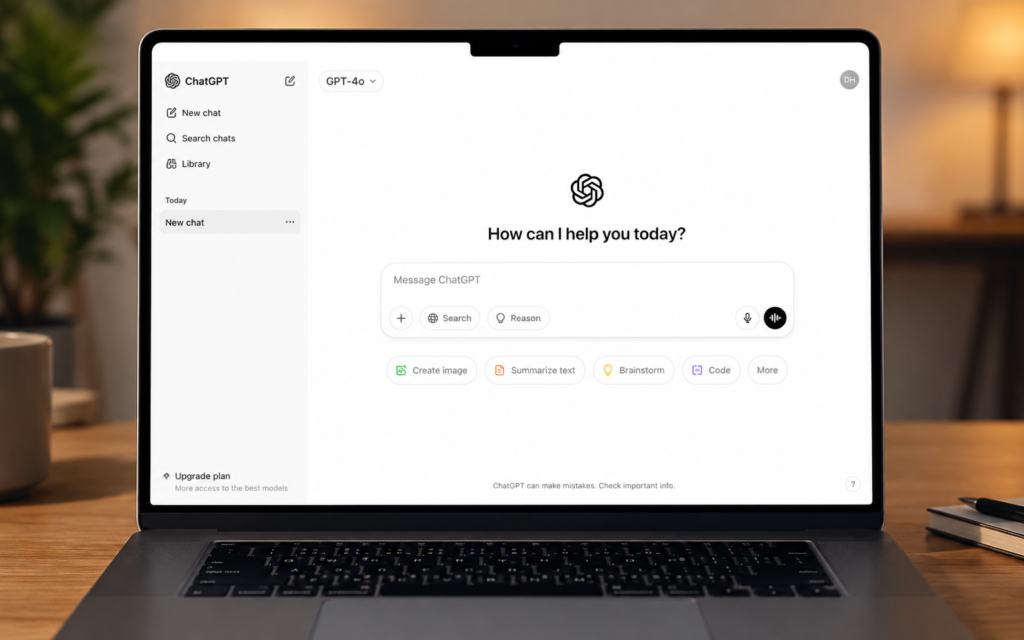
Go to chatgpt.com and sign in. Click New Chat. Make sure you are using GPT-4o as your model, which is the default for Plus users. This is the model that has image generation built in.
Step 2 — Type your image prompt
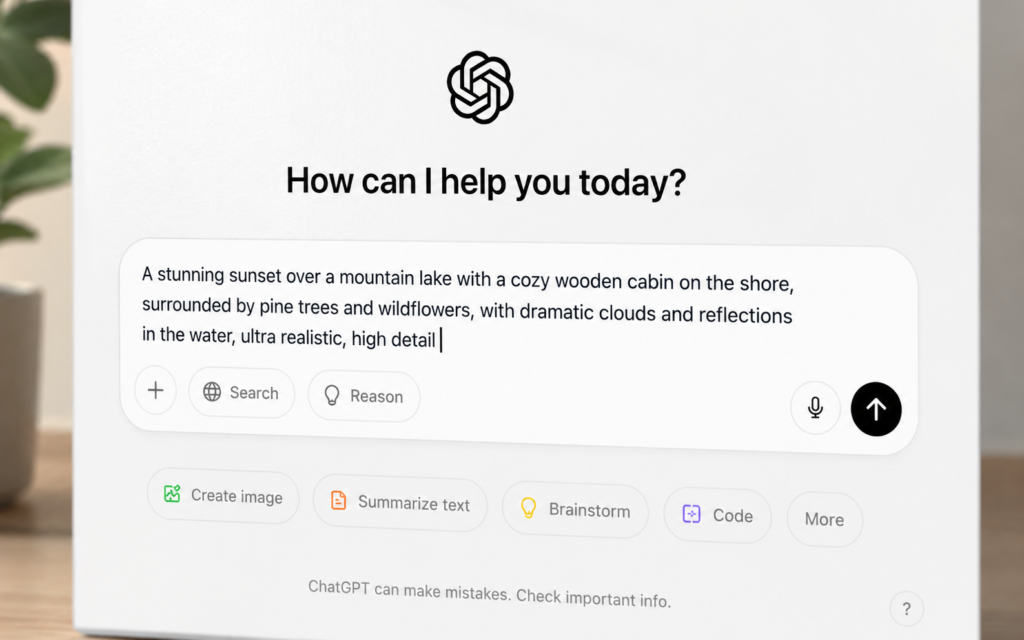
Simply describe the image you want in the chat box and press Enter. You do not need any special commands. Just describe it naturally.
Examples to try right now:
- “Generate a flat illustration of a robot reading a book, colorful, white background”
- “Create a professional banner for a blog about AI tools, blue and white, modern”
- “A realistic photo of a cup of coffee on a wooden desk, morning light, close up”
Tip: The more specific your description, the better the result. Include style, colors, mood, and composition in your prompt.
Step 3 — Wait for the image to generate
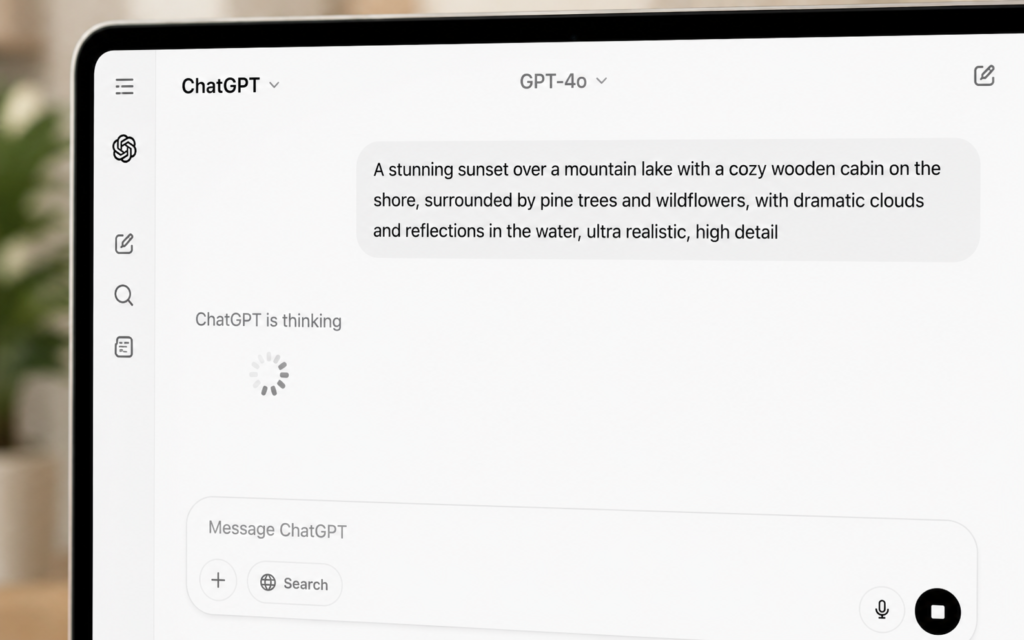
ChatGPT takes 5 to 15 seconds to generate your image. A loading animation appears while it works. The image appears directly in the chat when ready.
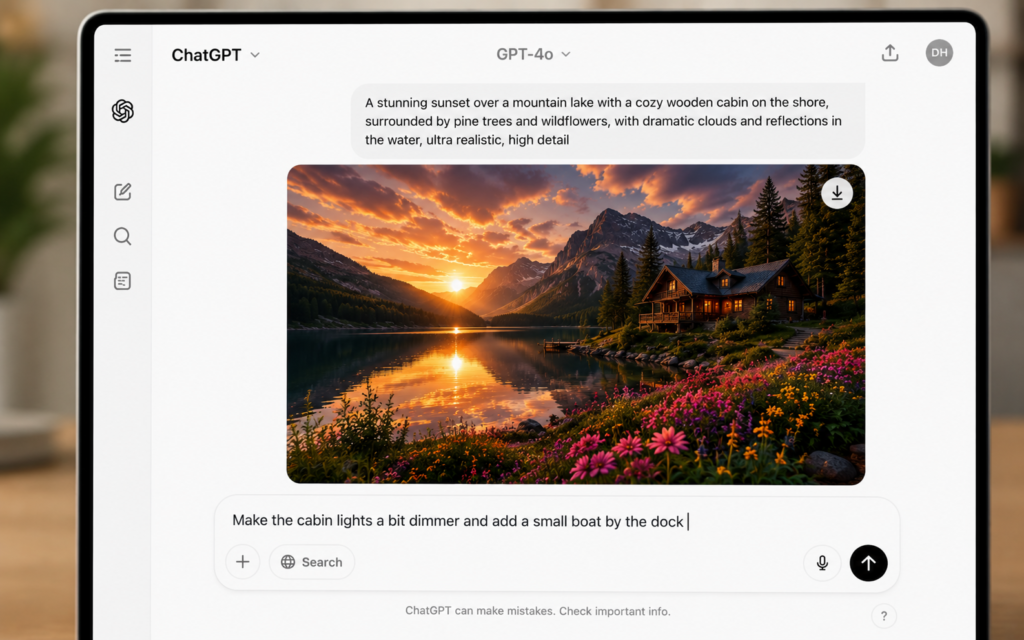
Step 4 — Download or refine the image
Once the image appears, you have two options:
- Download it — click the download icon on the image to save it to your device
- Refine it — type a follow-up message to change anything you do not like
Refinement examples:
- “Make the background white instead of gray”
- “Add the text TicForge at the bottom in bold”
- “Make it more minimalist and remove the extra details”
- “Change the color scheme to blue and orange”
Step 5 — Edit an existing photo
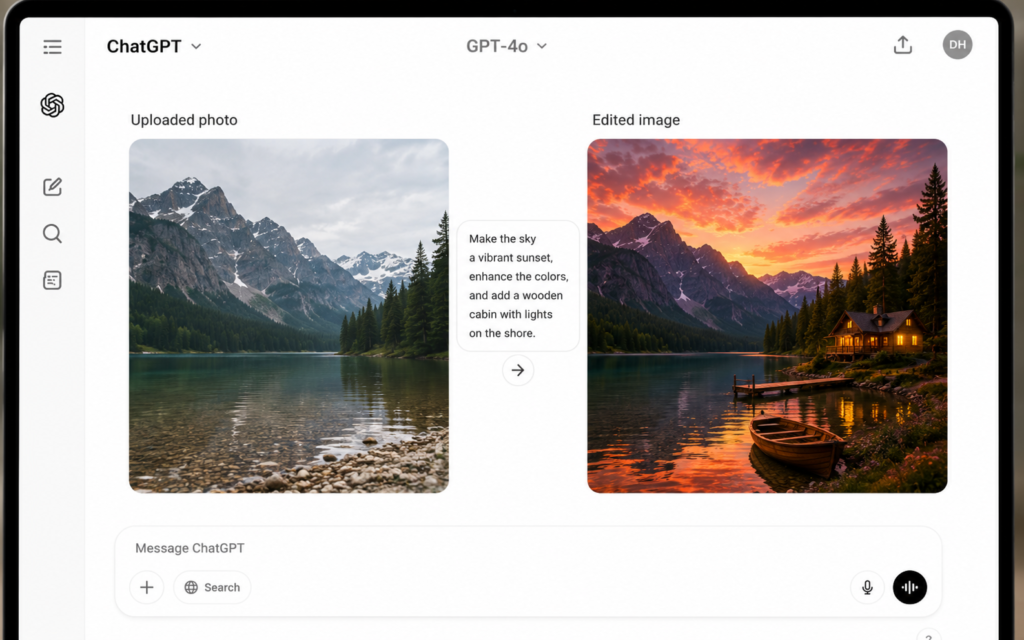
You can also upload your own photo and ask ChatGPT to edit it. Click the paperclip icon in the chat box, upload your image, then type your editing instruction.
Editing examples:
- “Remove the background from this image”
- “Change the sky in this photo to a sunset”
- “Make this image look more professional”
- “Add a shadow under the product in this photo”
Step 6 — Choose the right image size
ChatGPT generates images in three sizes. You can specify which one you need in your prompt:
| Size | Pixels | Best for |
|---|---|---|
| Square | 1024 x 1024 | Instagram posts, profile pictures, icons |
| Landscape | 1792 x 1024 | Blog featured images, banners, YouTube thumbnails |
| Portrait | 1024 x 1792 | Pinterest pins, Instagram stories, phone wallpapers |
Just add the size to your prompt: “Generate a landscape 1792×1024 image of…”
How to write better image prompts
| Element | What to include | Example |
|---|---|---|
| Subject | What is in the image | “A person working on a laptop” |
| Style | How it should look | “Flat illustration, realistic photo, watercolor” |
| Colors | Color scheme or palette | “Blue and white, pastel colors, dark mode” |
| Mood | The feeling of the image | “Professional, warm, energetic, calm” |
| Background | What is behind the subject | “White background, blurred office, outdoor” |
| Size | Dimensions you need | “1200 x 630 pixels, square format” |
What can you use ChatGPT images for?
| Use case | What to generate |
|---|---|
| Blog articles | Featured images, step illustrations, diagrams |
| Social media | Instagram posts, Pinterest pins, Twitter banners |
| Business | Product mockups, presentation visuals, logos |
| Personal | Wallpapers, profile pictures, gift cards |
| Education | Diagrams, infographics, concept illustrations |
ChatGPT Image vs Midjourney vs Adobe Firefly
| Tool | Best for | Price | Ease of use |
|---|---|---|---|
| ChatGPT Image | Text in images, editing, everyday use | $20/month (Plus) | ⭐⭐⭐⭐⭐ Very easy |
| Midjourney | Artistic quality, cinematic visuals | $10/month | ⭐⭐⭐ Medium |
| Adobe Firefly | Professional editing, brand safety | $9.99/month | ⭐⭐⭐⭐ Easy |
Start creating images today
You do not need design skills, expensive software, or a stock photo subscription. Open ChatGPT, type what you want to see, and download your image in seconds.
Try this as your first prompt right now:
“A modern flat illustration of a person using AI on a laptop, blue and white colors, white background, 1200×630 pixels”
Want to go further with AI tools? Read our next guide: Meta AI on Instagram: The Assistant Hidden Inside Your DMs