
What if AI could handle your inbox for you?
The average person spends 28% of their workday reading and writing emails. That is more than 2 hours every single day, just on email. Gmail now has a built-in AI assistant called Gemini that can read your emails, summarize long threads, draft replies, and even search your inbox using natural language.
No copy-pasting. No switching apps. Everything happens right inside Gmail.
This guide shows you exactly how to find it, enable it, and use every feature step by step.
What is Gemini in Gmail?
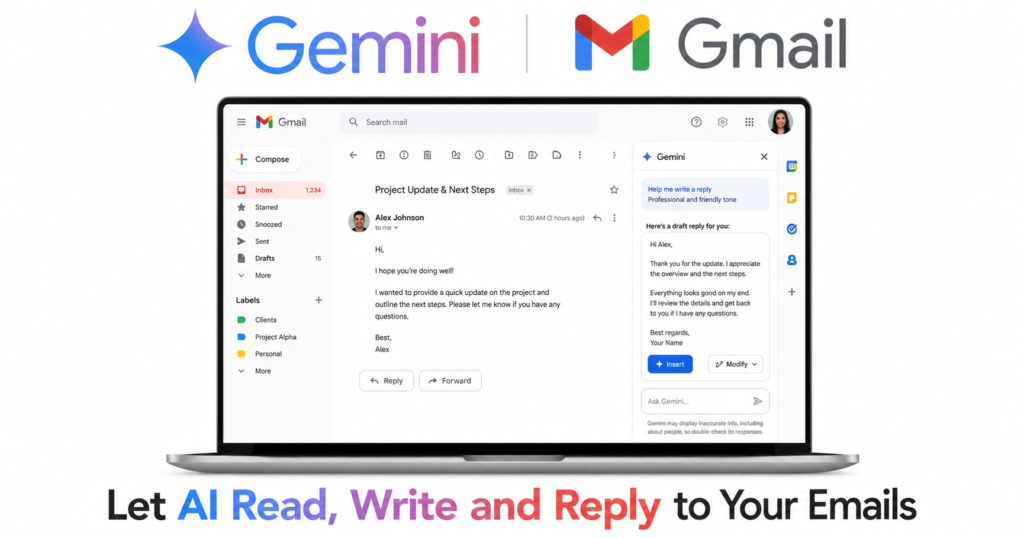
Gemini is Google’s AI assistant built directly into Gmail. It sits in a side panel inside your inbox and can read your emails, understand the context of conversations, and take actions on your behalf. It builds on older Gmail features like Smart Reply and Smart Compose but goes much further by generating complete emails and summaries from scratch.
| Feature | What it does |
|---|---|
| Summarize emails | Turns long email threads into a short 3-line summary |
| Draft emails | Writes a complete email from a one-line description |
| Reply to emails | Generates a full reply based on the conversation context |
| Search inbox | Find emails using natural language like “invoices from last month” |
| Ask questions | “Did John confirm the meeting?” and Gemini searches your inbox |
Free vs paid: What do you need?
Important: Gemini inside Gmail requires a paid Google plan. It is not available on the standard free Gmail account.
| Plan | Cost | Gemini in Gmail |
|---|---|---|
| Gmail Free | $0 | ❌ Not available |
| Google AI Pro | $19.99/month | ✅ Full access |
| Google Workspace Business | From $6/user/month | ✅ Full access |
Tip: Google AI Pro at $19.99/month also includes Gemini in Google Docs, Sheets, Slides, and Drive, plus 2TB of storage. It is worth it if you use Google apps daily.
Step by step: How to use Gemini in Gmail
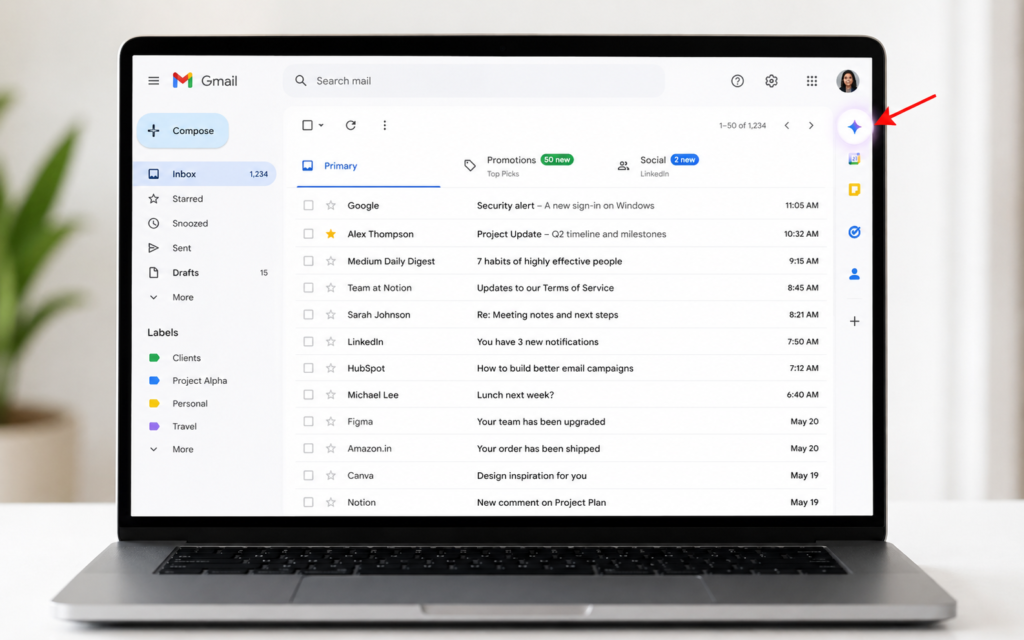
Step 1 — Open Gmail and find the Gemini icon
Go to mail.google.com and sign in. Once Gemini is available on your account, you will see a Gemini icon in the top right corner of Gmail. It looks like a small star or sparkle symbol.
Click it to open the Gemini side panel.
Step 2 — Enable smart features if prompted
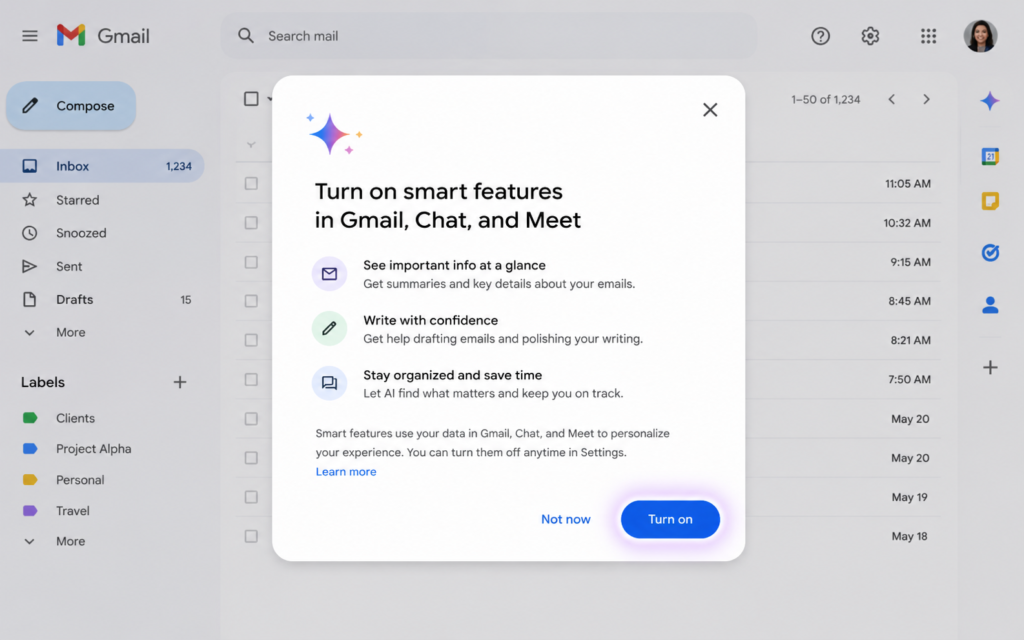
The first time you open Gemini in Gmail, it may ask you to enable smart features. Click Turn On. This allows Gemini to read the content of your emails so it can understand context and give relevant suggestions.
Privacy note: Google states that Gemini does not use your Gmail inbox to train its AI models. Your emails are read only to power the features you use.
Step 3 — Summarize a long email thread
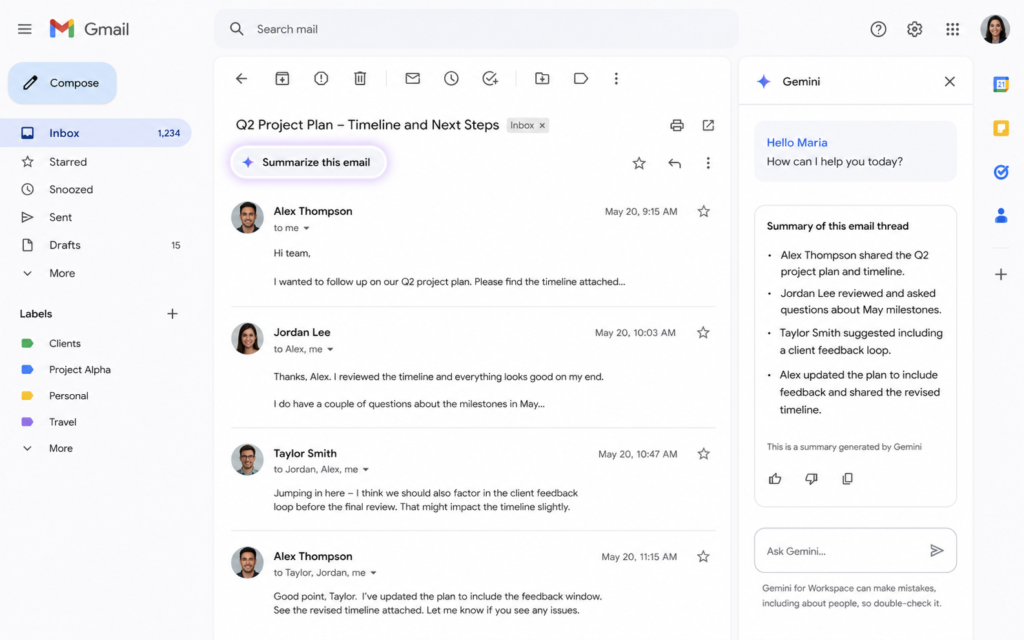
Open any long email thread. At the top of the conversation you will see a “Summarize this email” button, or you can open the Gemini side panel and type:
“Summarize this email thread”
Gemini reads the entire thread and gives you a short 3 to 5 line summary of what was discussed, what decisions were made, and what actions are needed. No more reading 20 emails to understand what happened.
Step 4 — Draft a new email from scratch
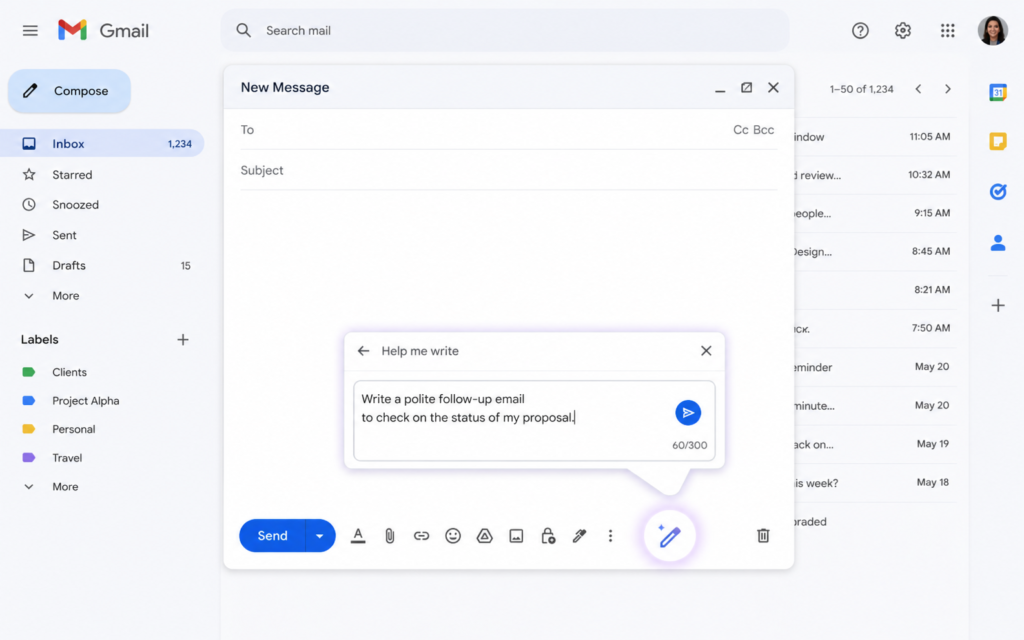
Click Compose to start a new email. Inside the compose window, click the Gemini pencil icon at the bottom. A prompt box appears. Describe what you want to say in one sentence and Gemini writes the full email.
Example prompts to try:
- “Write a professional email to reschedule tomorrow’s meeting to Friday”
- “Write a follow-up email to a client who has not replied in 3 days”
- “Write a thank you email after a job interview”
- “Write an email asking my team to submit their weekly reports by Thursday”
Step 5 — Generate a reply to an email
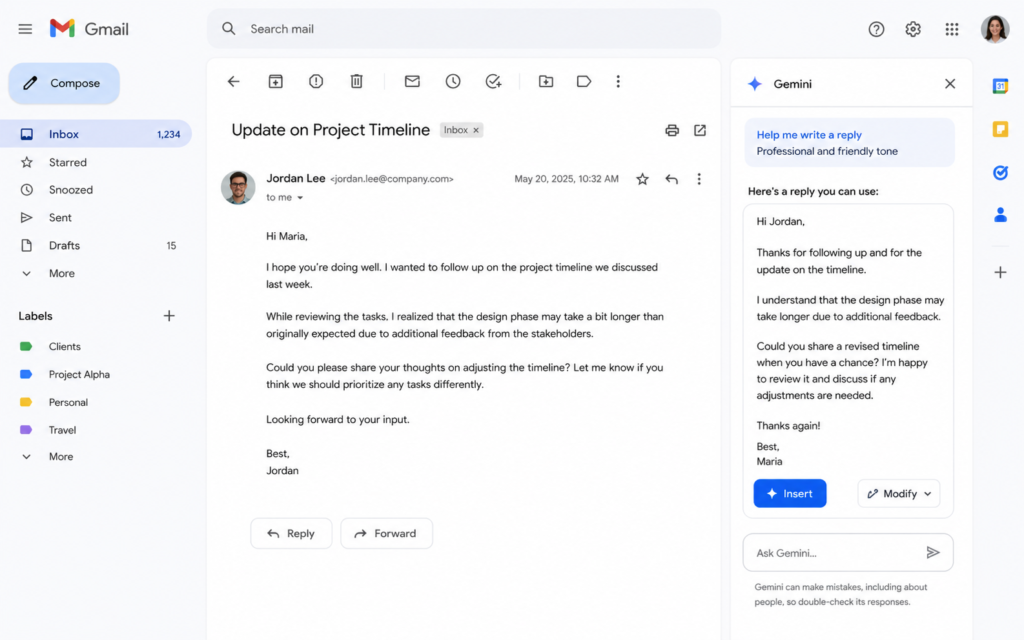
Open any email you need to reply to. Gemini reads the full conversation and suggests a complete reply automatically. You will see a “Reply with Gemini” option or you can open the side panel and type:
“Write a reply confirming I will attend the meeting”
Gemini generates the full reply based on the context of the thread. Click Insert to drop it into the reply box, then edit as needed before sending.
Step 6 — Search your inbox with natural language
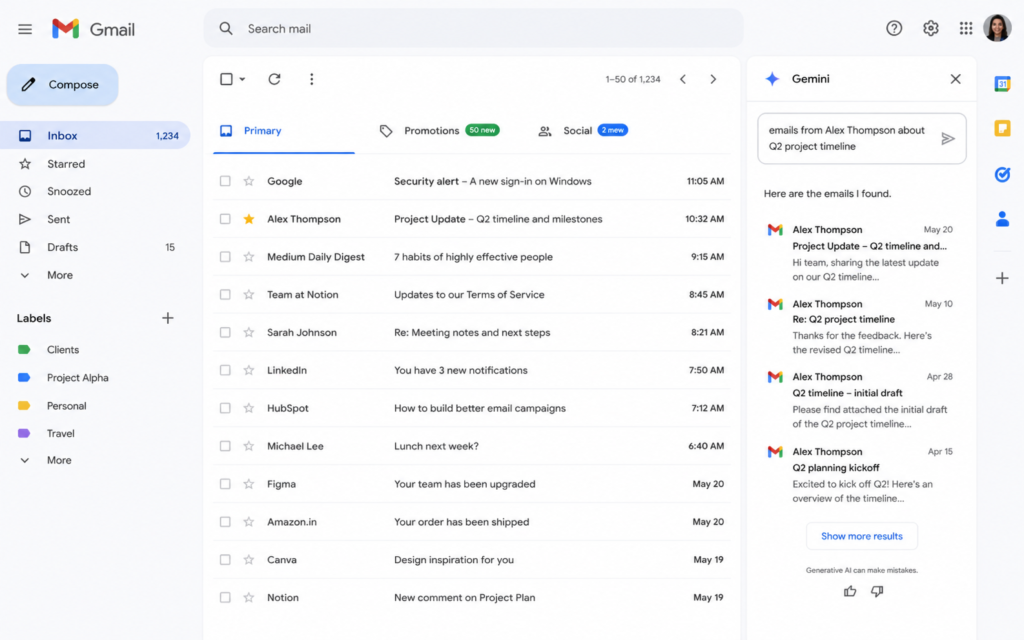
Instead of typing keywords in the Gmail search bar, open the Gemini side panel and ask questions like a person:
- “Show me all invoices from last month”
- “Did my client confirm the delivery date?”
- “Find the email where Ahmed sent me the contract”
- “What did my boss say about the project budget?”
Gemini searches your entire inbox and pulls up the exact emails that answer your question.
Who is Gemini in Gmail for?
| Who | How to use it |
|---|---|
| Busy professionals | Summarize 50 unread emails in 2 minutes every morning |
| Sales teams | Draft personalized follow-up emails in seconds |
| Freelancers | Write professional client emails without spending 20 minutes on wording |
| Managers | Search inbox for decisions made across long email threads |
| Students | Draft formal emails to professors or institutions quickly |
5 power tips for Gemini in Gmail
- Be specific in your prompts — “Write a formal email” gets generic results. “Write a formal email to a supplier asking for a 10% discount on our next order” gets a great draft.
- Use it every morning — open Gmail, select all unread emails, and ask Gemini to summarize what needs your attention today.
- Edit before sending — always review Gemini’s draft and add personal touches before clicking send.
- Ask follow-up questions — after a summary, ask “what action is needed from me?” for even more clarity.
- Use @ to reference files — type @ inside the Gemini panel to reference a Google Doc or Drive file directly in your prompt.
Gemini in Gmail vs writing emails manually
| Task | Manually | With Gemini |
|---|---|---|
| Read a 20-email thread | 10 to 15 minutes | 30 seconds |
| Write a professional email | 5 to 10 minutes | 20 seconds |
| Find an old email | 2 to 5 minutes searching | 10 seconds with natural language |
| Reply to 10 routine emails | 45 to 60 minutes | 10 to 15 minutes |
Take back 2 hours of your day
Email does not have to take hours. With Gemini in Gmail, you read faster, write better, and find anything instantly. The side panel is always one click away.
Go to mail.google.com, click the Gemini icon, and send your first AI-written email today.
Want to go further? Read our next guide: ChatGPT Image: Generate and Edit Any Photo with One Sentence