
Stop explaining yourself to Claude every single conversation
Every time you open a new chat with Claude, you start from zero. You explain your project, your preferences, your writing style, your context, all over again. It wastes time and gets frustrating fast.
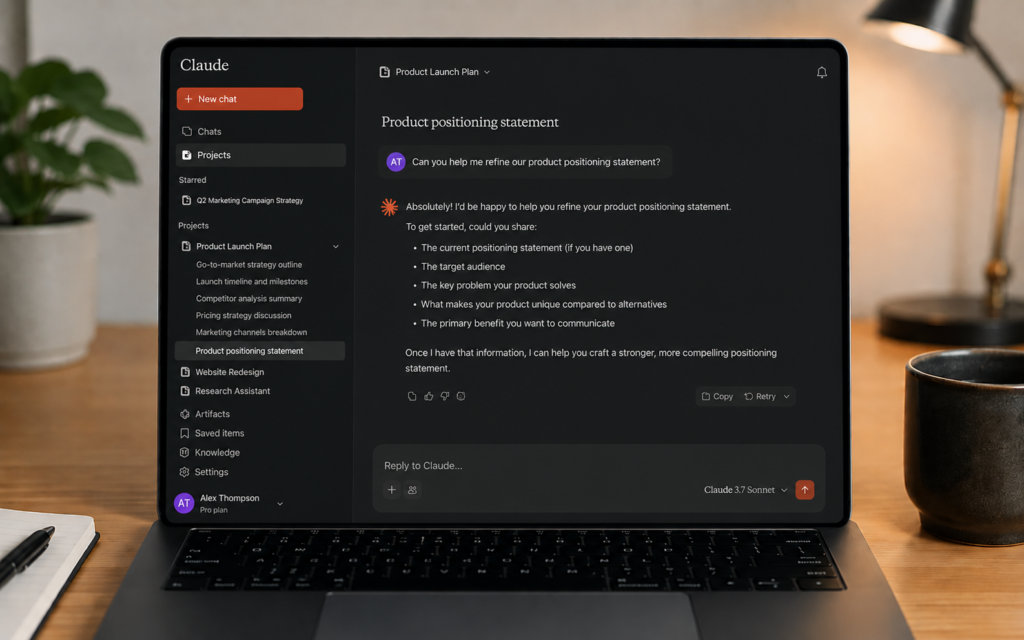
Claude Projects fixes this completely. A Project is a dedicated workspace where Claude remembers your files, your instructions, and your entire chat history. You set it up once and Claude always has the full context it needs, every single conversation.
This guide shows you exactly how to create and use Claude Projects step by step.

What is a Claude Project?
A Claude Project is a self-contained workspace inside Claude. Each Project has its own chat history, its own uploaded files, and its own custom instructions. Claude only uses the context from the Project you are working in, so your marketing work never bleeds into your financial analysis, and your client projects stay completely separate from each other.
| Feature | Regular Claude chat | Claude Project |
|---|---|---|
| Remembers past conversations | ❌ Starts fresh every time | ✅ Full chat history saved |
| Uploaded files | One conversation only | ✅ Persistent across all chats |
| Custom instructions | ❌ None | ✅ Your own rules and context |
| Separate workspaces | ❌ Everything mixed | ✅ One workspace per project |
| Share with team | ❌ No | ✅ Team and Enterprise plans |
Free vs paid plan
| Plan | Cost | Projects | Files per project |
|---|---|---|---|
| Free | $0 | 5 projects | Limited |
| Pro | $20/month | Unlimited | Up to 30MB per file, unlimited files |
| Team | $25/user/month | Unlimited + sharing | Same as Pro |
Tip: The free plan gives you 5 projects which is enough to get started. Create one project per major area of your life: work, studies, personal, writing, and research.
Step by step: How to create your first Claude Project
Step 1 — Open Claude and find Projects
Go to claude.ai and sign in. On the left sidebar you will see a Projects section. Click it, or go directly to claude.ai/projects.

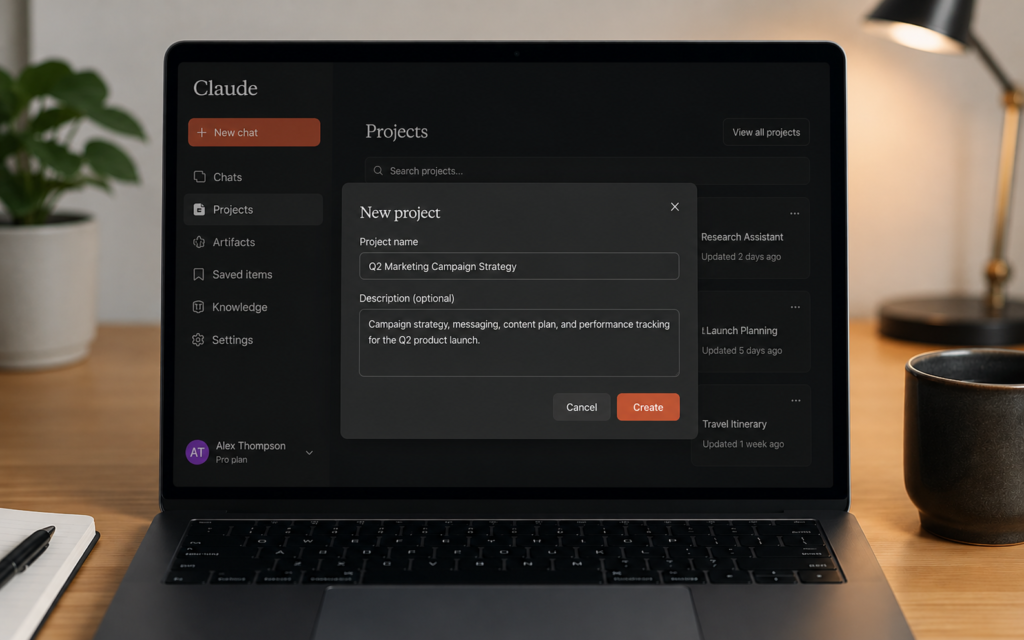
Step 2 — Create a new project
Click New Project in the upper right corner. You will be asked for a name and an optional description.
Name your project clearly and specifically. A good name is descriptive enough to recognize at a glance:
| Bad name ❌ | Good name ✅ |
|---|---|
| Marketing | TicForge Blog — Article Writing |
| Work stuff | Client X — Website Project 2026 |
| Research | University Thesis — AI Ethics |
| Writing | My Novel — Chapter Drafts |
Important: Claude does not read the project name or description. The actual context must live in your instructions and uploaded files. The name is only for you to stay organized.
Step 3 — Write your project instructions
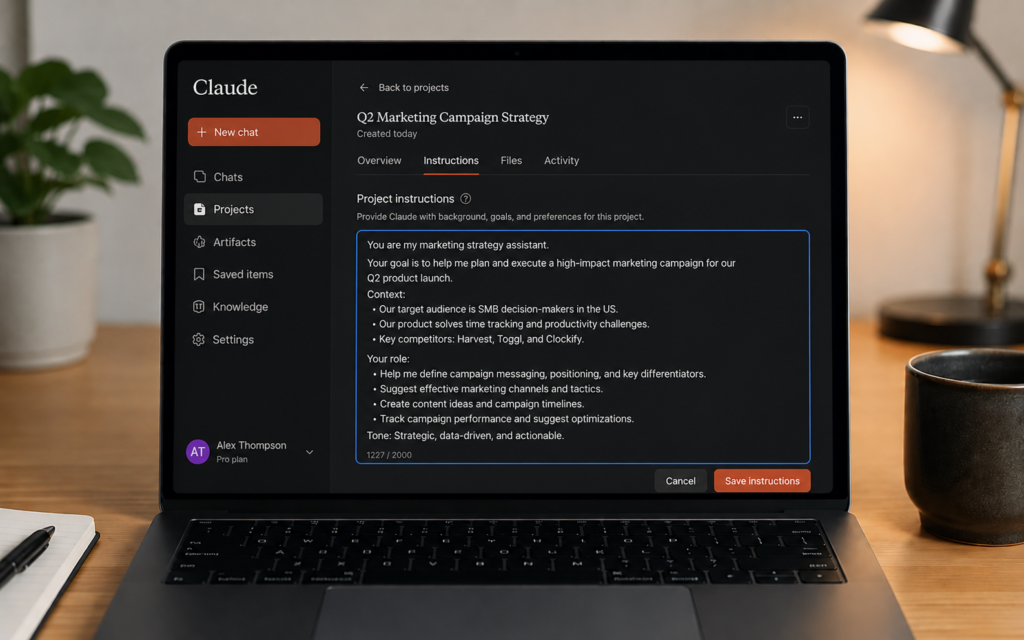
This is the most important step. Instructions are the permanent context Claude reads at the start of every conversation in this project. Write everything Claude needs to know to help you properly.
Example instructions for a blog writing project:
“You are helping me write articles for TicForge.com, an AI tutorial blog for beginners. Always use short sentences under 20 words. Use active voice. Add subheadings every 250 to 300 words. Never use em dashes. Structure every article with step by step numbered steps. Start every article with an intriguing question or bold statement. Target audience is complete beginners with no technical background.”
Tip: Include your role, your audience, your tone, your format rules, and things Claude should never do. The more specific you are, the better every conversation will be.
Step 4 — Upload your files
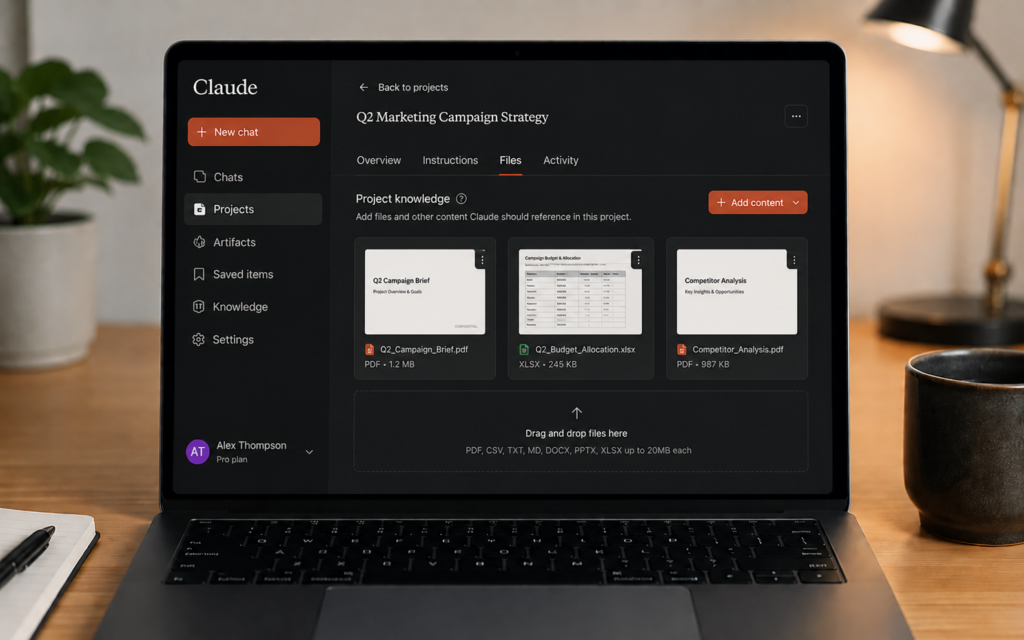
Click Add content or the upload button inside your project. You can upload files that Claude will reference in every conversation without you needing to re-upload them each time.
What to upload depending on your project type:
| Project type | Files to upload |
|---|---|
| Blog writing | Your writing style guide, SEO rules, past articles, content calendar |
| Student research | Lecture notes, research papers, textbook chapters, past assignments |
| Business | Company documents, brand guidelines, product catalog, FAQs |
| Creative writing | Your character profiles, world building notes, plot outline, past chapters |
| Freelance work | Client brief, brand voice guide, previous deliverables, feedback notes |
Supported file formats include PDF, DOCX, CSV, TXT, HTML and more. Each file can be up to 30MB.
Step 5 — Start a conversation inside the project
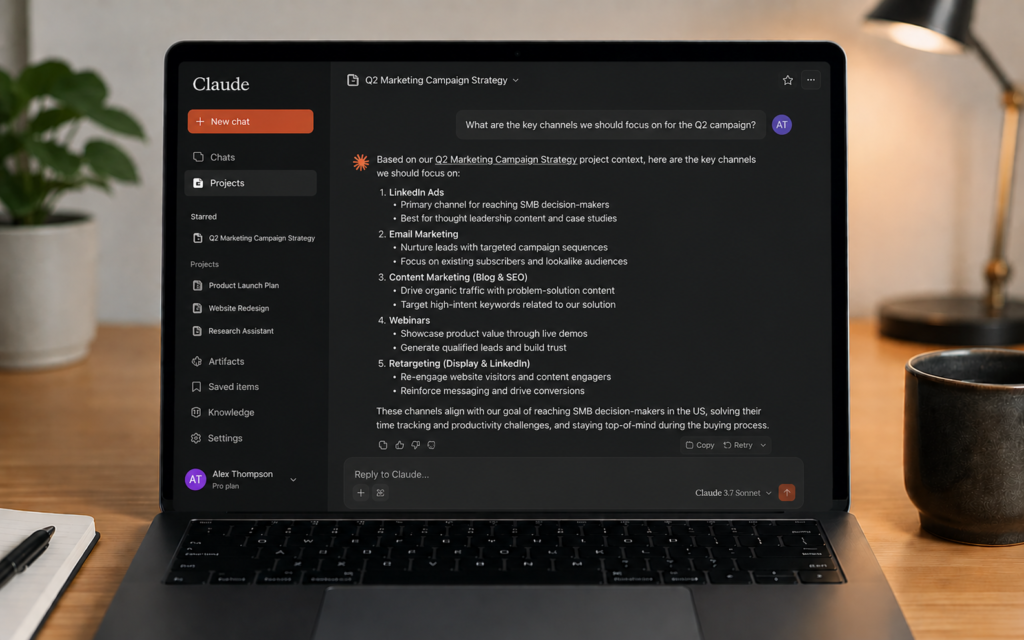
Click Start chat or New conversation inside your project. This opens a chat where Claude already has all your instructions and files loaded. You do not need to explain anything. Just ask your question or give your task directly.
The difference is immediately noticeable. Claude responds in your exact style, references your files, and stays on topic without you having to remind it of anything.
Step 6 — Find past conversations inside the project
Every conversation you have inside a project is saved and organized under that project. Click the project name in the sidebar to see all past chats. No more scrolling through hundreds of random conversations to find that one answer from last week.
10 projects you can create right now
| Project name | What to put inside | Who it is for |
|---|---|---|
| Blog Writing | Style guide, past articles, SEO rules, content calendar | Bloggers and content creators |
| University Thesis | Research papers, notes, chapter drafts, bibliography | Students |
| Client Work | Client brief, brand guide, past deliverables, feedback | Freelancers |
| Job Search | Your CV, cover letter templates, job descriptions, company research | Job seekers |
| Business Planning | Business plan draft, market research, financial projections | Entrepreneurs |
| Book Writing | Plot outline, character profiles, world building notes, chapters | Writers |
| Language Learning | Grammar rules, vocabulary lists, practice conversations | Language learners |
| Code Project | Technical specs, code snippets, documentation, bug reports | Developers |
| Social Media | Brand voice guide, content pillars, past posts, hashtag strategy | Social media managers |
| Personal Finance | Budget spreadsheet, financial goals, spending categories | Anyone managing money |
Claude Projects vs Custom GPTs
| Feature | Claude Projects | Custom GPTs |
|---|---|---|
| Chat history saved | ✅ Yes, per project | ❌ No persistent history |
| File uploads | ✅ Unlimited, 30MB per file | ✅ Up to 20 files |
| Custom instructions | ✅ Yes | ✅ Yes |
| Free plan access | ✅ 5 projects free | ❌ Requires Plus plan |
| Best for | Document-heavy work, ongoing projects | Specialized single-task assistants |
5 power tips for Claude Projects
- One project per area of your life — keep work, studies, personal, and creative projects completely separate so Claude never mixes contexts
- Update files regularly — when your project evolves, upload the new versions of your documents so Claude always has current information
- Be specific in instructions — include your tone, your format, your audience, and explicit rules about what Claude should never do
- Start chats with a task, not context — since Claude already has the context, just say “Write the intro for this week’s article” instead of explaining everything first
- Use it for long-term projects — Projects shine most for work that spans weeks or months, like writing a book, completing a thesis, or managing a client account
Stop starting from zero every day
The best AI assistant is one that already knows your context before you type a single word. Claude Projects makes that possible for free.
Go to claude.ai/projects right now, create your first project, write your instructions, upload your files, and start your first conversation. The difference will be immediate.
Want to go further? Read our next guide: Copilot in Teams: Never Take Meeting Notes Again