
“Wait, what did we decide again?”
Every meeting ends the same way. Someone asks what was decided. Nobody remembers exactly. Action items get lost. Follow-ups fall through the cracks. This “meeting fog” costs teams hours every week.
Microsoft Teams now has Copilot built in, an AI assistant that listens to your meetings, writes the notes, tracks action items, and gives you a full recap automatically. You never have to type a single note again.
This guide shows you exactly how to turn it on and use every feature.
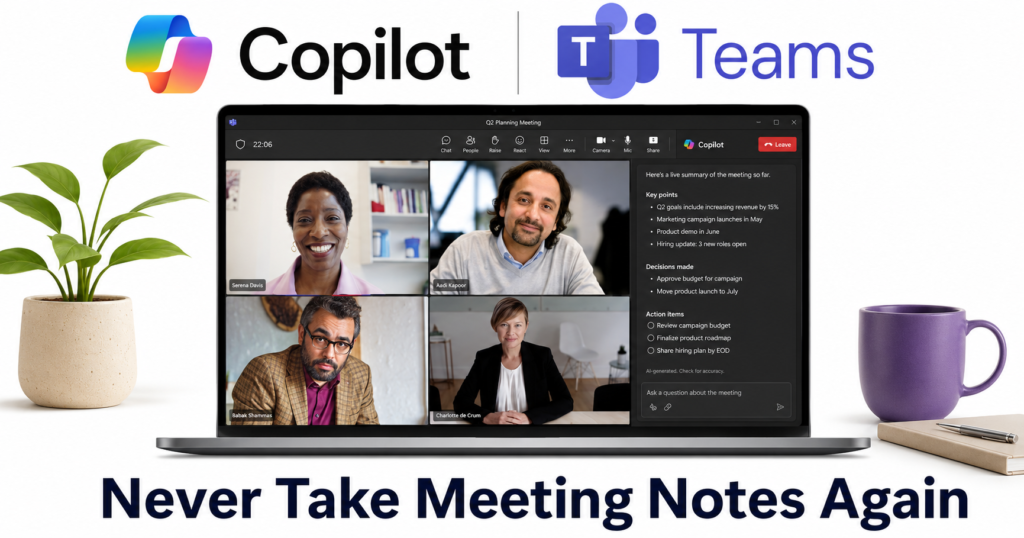
What is Copilot in Microsoft Teams?
Copilot in Teams is your built-in AI assistant in Microsoft 365 designed to bring clarity to meeting notetaking. It listens to your meeting, organizes the discussion, highlights what matters, and turns decisions into tasks, without anyone needing to take notes.
| Feature | What it does |
|---|---|
| Live summaries | Ask “Summarize the meeting so far” anytime during the call |
| Catch-up recap | Join late and get instantly caught up without disrupting the meeting |
| Action items | Automatically lists tasks and who is responsible for each |
| Meeting recap | Full summary posted to the chat after the meeting ends |
| Copilot-only mode | Get notes without recording or transcribing for confidential meetings |
What plan do you need?
Important: To use Copilot, your organization needs a Microsoft 365 subscription that includes the Copilot feature. AI-generated meeting recaps require Teams Premium.
| Plan | Cost | Copilot in Teams |
|---|---|---|
| Microsoft 365 Business Standard | $12.50/user/month | Transcription and live captions |
| Microsoft 365 Copilot add-on | $30/user/month | ✅ Full Copilot features |
| Teams Premium | $7/user/month add-on | ✅ AI-generated meeting recaps |
Tip: If you do not see the Copilot icon in your meeting toolbar, ask your IT admin to confirm Copilot is enabled for your organization.
Step by step: How to use Copilot in a Teams meeting
Step 1 — Turn on Copilot during your meeting
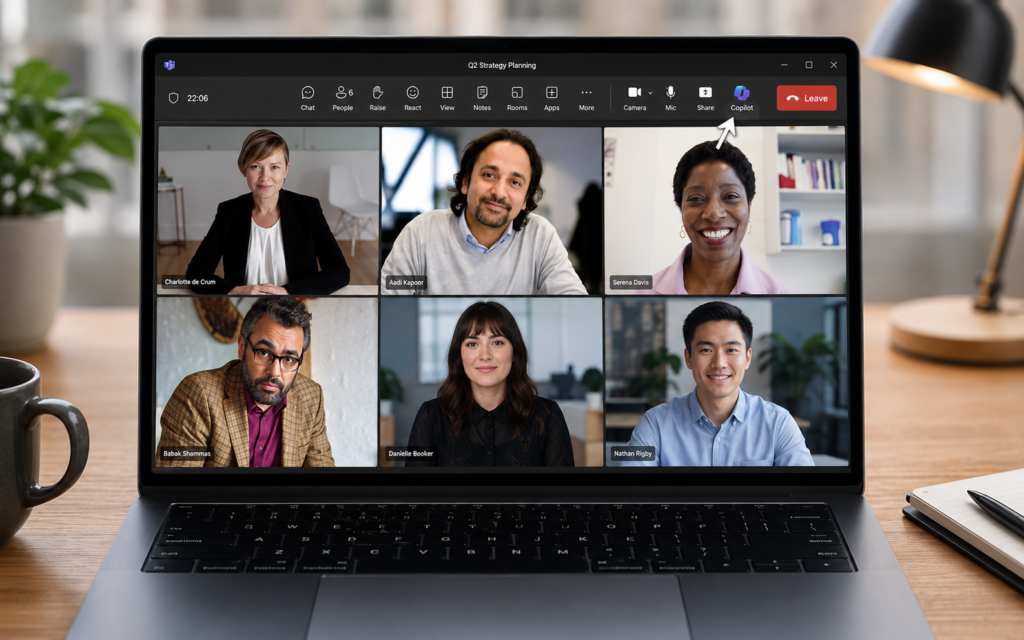
Join or start your Teams meeting as normal. Look at the meeting toolbar at the top of the screen. Click the Copilot icon.
Teams may prompt you to enable transcription. Click Turn on. Transcription is the fuel Copilot uses to understand what is happening in the meeting.
Step 2 — Open the Copilot side panel
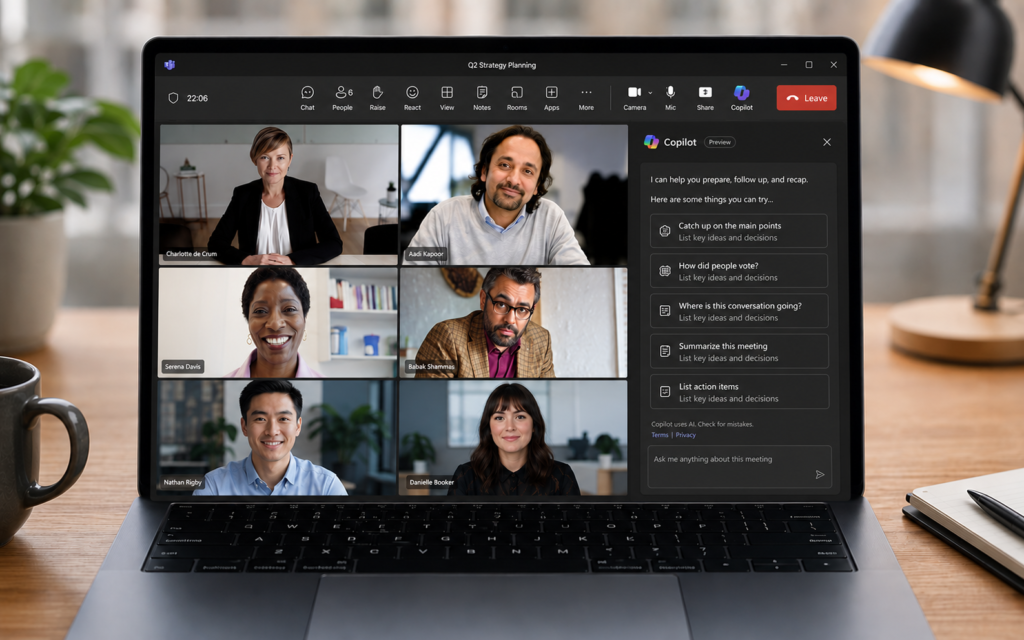
Once turned on, Copilot opens in a side panel next to your meeting video. This panel is where you interact with Copilot during the call.
Click View Prompts to see suggested questions you can ask, or type your own directly.
Step 3 — Ask Copilot questions during the meeting
While the meeting is happening, type questions directly into the Copilot panel. Popular prompts include:
- “Summarize the meeting so far”
- “List the action items discussed”
- “What are the open questions?”
- “Highlight the key decisions made”
- “What did [person’s name] say about the budget?”
Copilot answers instantly based on everything said so far. Other people in the meeting cannot see your conversation with Copilot, it is private to you.
Step 4 — Join late and catch up instantly
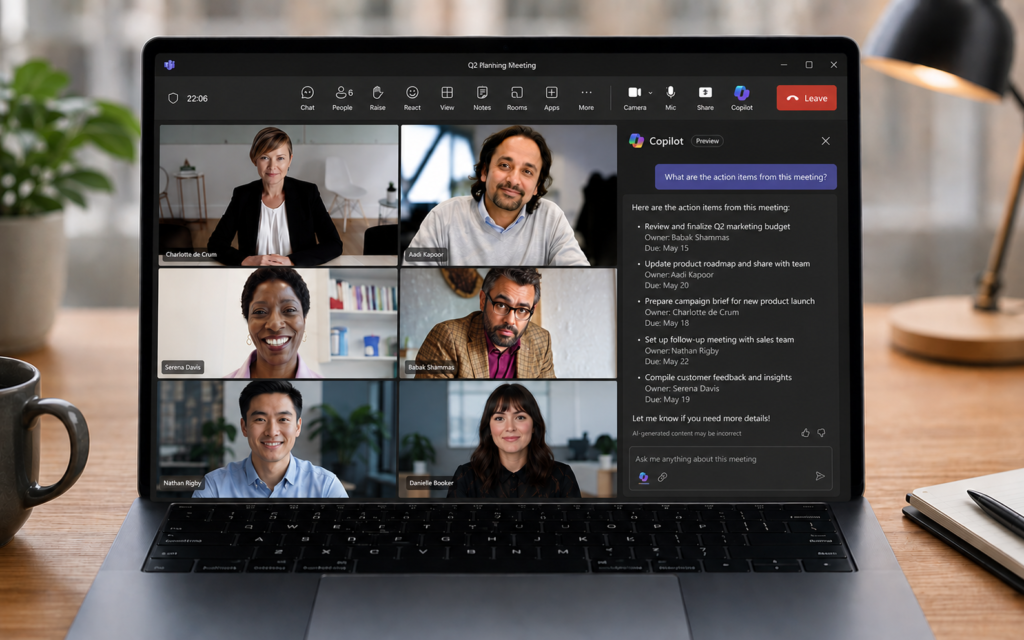
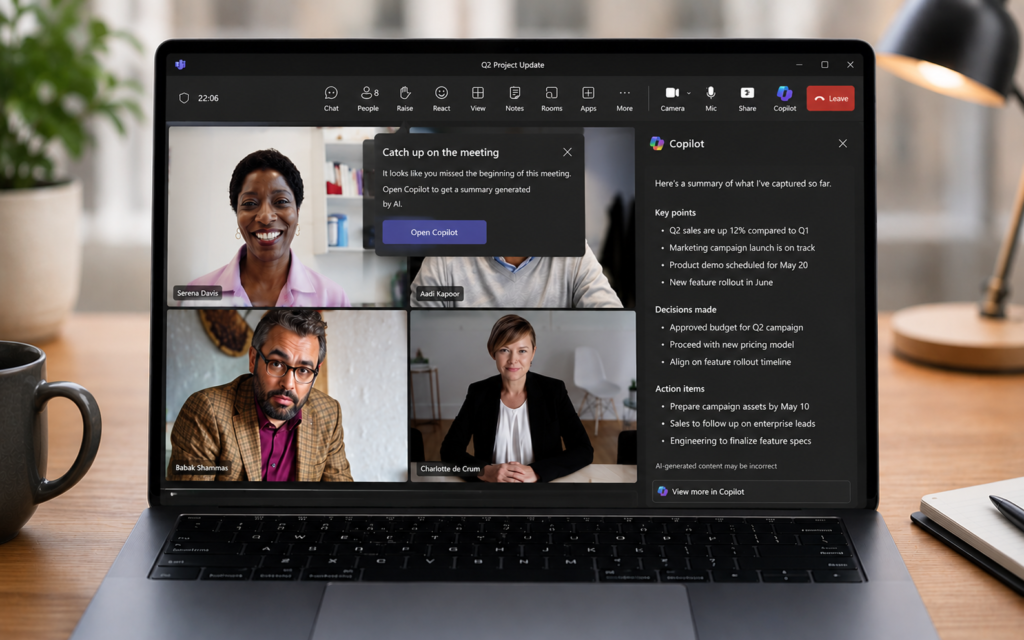
Running a few minutes behind? When you join a meeting late, if Copilot is enabled you will get a prompt to catch up. Click Open Copilot and a meeting summary appears on the right, so you are instantly in the loop without disrupting the meeting flow.
Step 5 — Use Copilot-only mode for confidential meetings
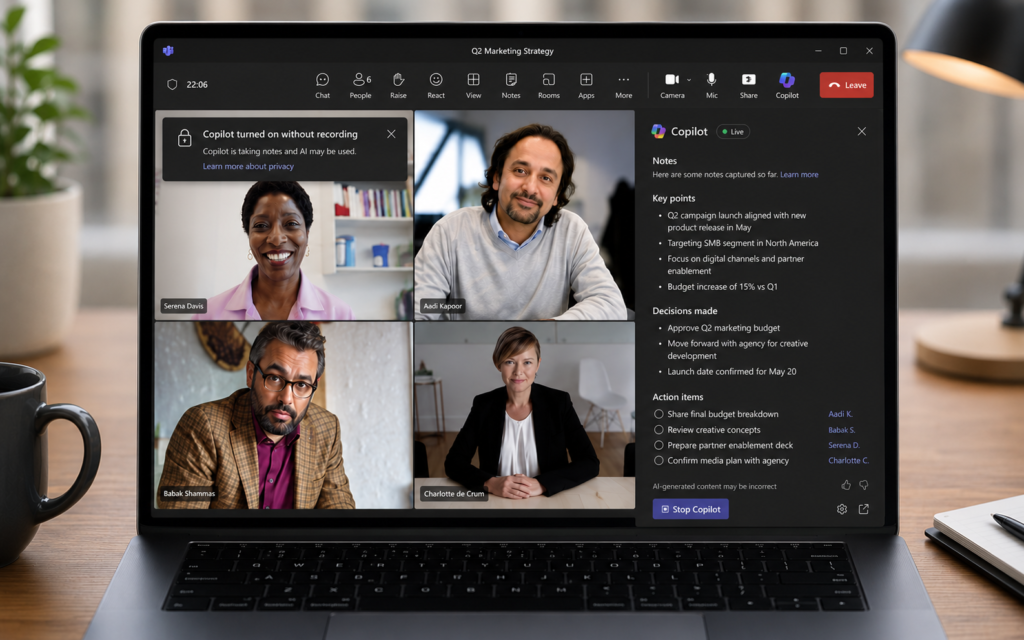
For sensitive discussions where you do not want recording or transcription, use Copilot-only mode. After starting the call, select Copilot in your call controls, then choose Turn on from the notification to open the Copilot pane.
Copilot can generate notes and tasks during the conversation without transcription and recording enabled. This protects confidential information while still giving you organized notes.
Note: To prompt or view Copilot’s conversation after the call ends, you must turn on live transcription before the call ends. Otherwise the Copilot conversation disappears once the call is over.
Step 6 — Get the post-meeting recap
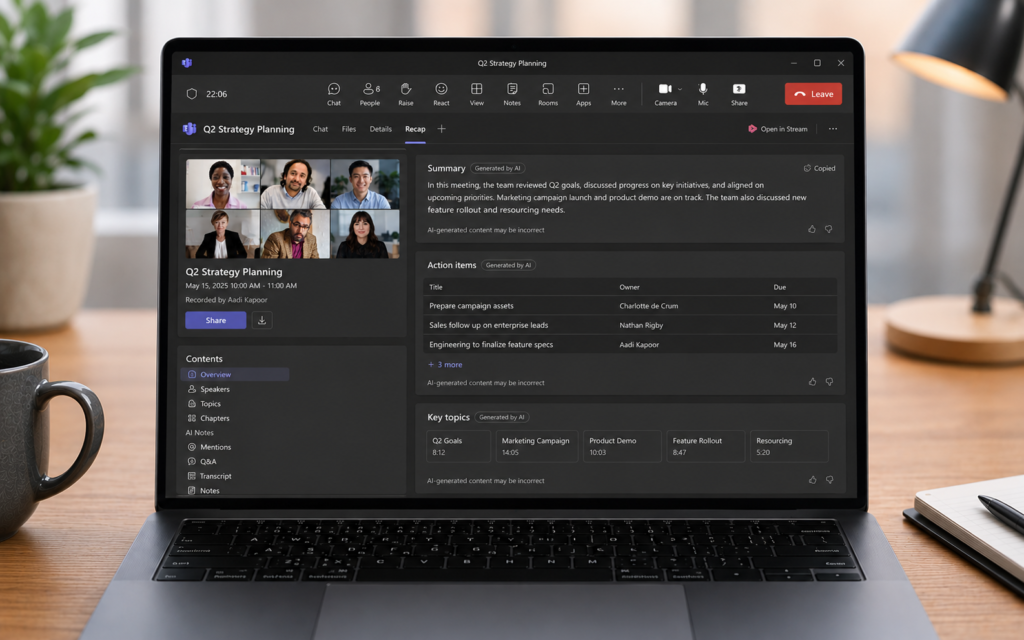
After the meeting ends, Copilot posts a clean recap to the meeting chat. This recap typically includes:
| Recap section | What it shows |
|---|---|
| Summary | Overview of the entire meeting in a few sentences |
| Key topics | Main subjects discussed, organized by theme |
| Action items | Tasks assigned with names attached |
| Decisions made | Final outcomes and agreements |
| Transcript | Full searchable record of everything said |
Find this recap in the meeting’s Recap tab inside Teams, or in the meeting chat.
Step 7 — Use the Facilitator for structured meetings
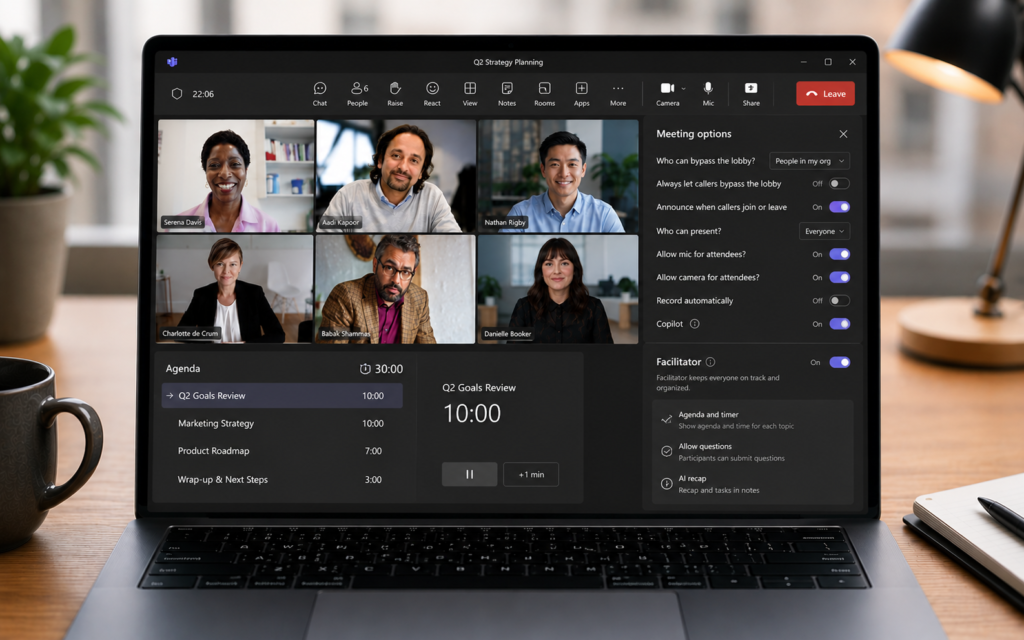
For meetings that need structure, turn on the Facilitator feature. It checks for a meeting agenda from the invite, shares it in the chat so everyone knows the topics, and shows an agenda timer to keep discussions on track. It also alerts participants when the meeting runs over time.
To enable it, go to meeting options, make sure Allow Copilot and Facilitator is set to During the meeting or During and after the meeting, then turn the Facilitator toggle on.
Who is Copilot in Teams for?
| Who | How to use it |
|---|---|
| Managers | Get instant recaps of meetings you could not attend |
| Project teams | Track action items automatically without a dedicated notetaker |
| HR and Legal | Use Copilot-only mode for sensitive discussions without recording |
| Sales teams | Review client call summaries and follow up faster |
| Remote workers | Catch up instantly when joining meetings late across time zones |
5 power tips for Copilot in Teams
- Always enable transcription — Copilot needs the live transcript to generate summaries and recaps. Without it, most features do not work.
- Pop out the Copilot panel — you can pop out the Copilot pane into a new window to take notes or check emails without losing track of the meeting.
- Ask specific questions — “What did Sarah say about the deadline?” gets a better answer than “Summarize the meeting”
- Use Facilitator for recurring meetings — it keeps weekly syncs on time and on topic automatically
- Check the Recap tab after every meeting — even if you attended, the recap often catches details you missed
Copilot in Teams vs manual note-taking
| Task | Manually | With Copilot |
|---|---|---|
| Take notes during a 1-hour meeting | Full attention required, often incomplete | Automatic, complete transcript |
| Write a meeting summary | 15 to 20 minutes after the meeting | Instant, posted to chat automatically |
| Track action items | Easy to miss or forget | Automatically listed with names attached |
| Catch up after joining late | Whisper questions to colleagues | Instant private summary on demand |
Never leave a meeting confused again
Meeting fog is over. Open your next Microsoft Teams meeting, click the Copilot icon in the toolbar, turn on transcription, and let AI handle the notes while you focus on the conversation.
Want to go further with AI agents? Read our next guide: ChatGPT Memory: Train AI to Remember Everything About You