
Tired of reintroducing yourself to ChatGPT every time?
For years, every new chat with ChatGPT felt like meeting someone with amnesia. You explain your job, your projects, your preferences, and your writing style, then close the tab. Next time, you start all over again.
That is over. ChatGPT Memory lets the AI remember facts about you between conversations, your name, your job, your ongoing projects, your tone preferences, and more. It uses this to personalize every future response, without you repeating yourself.
This guide shows you exactly how Memory works, how to control it, and how to use it to get dramatically better answers.
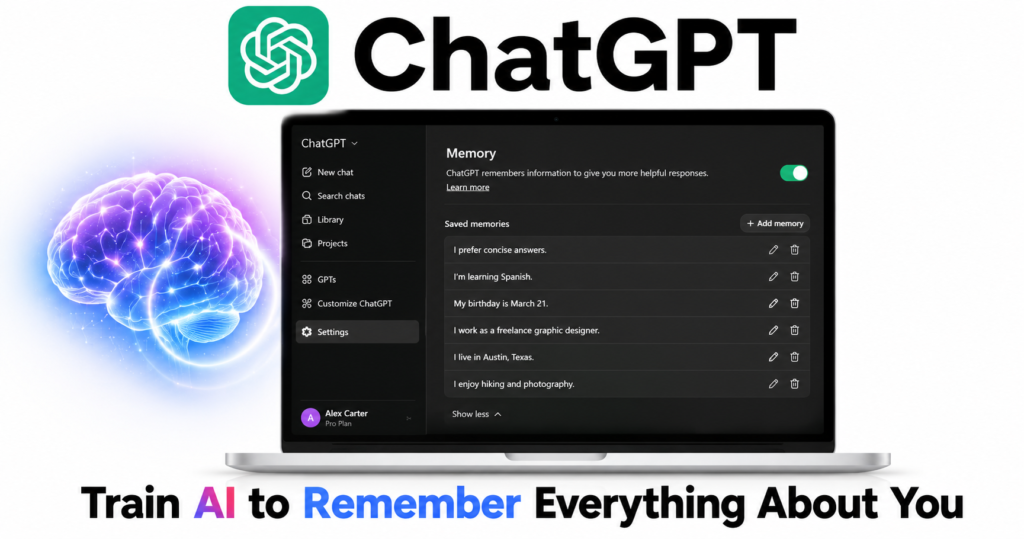
What is ChatGPT Memory?
Memory is a feature that lets ChatGPT save individual facts about you between chats and use them to personalize future replies. When Memory is on, ChatGPT writes a new entry to a Saved Memories list whenever you tell it something durably useful, a preference, an ongoing project, a writing style, your name, your job role, or a recurring constraint.
In 2026, ChatGPT Memory has two parts:
| Memory type | What it does | Can you control it? |
|---|---|---|
| Saved Memories | An explicit, editable list of facts ChatGPT remembers about you | ✅ View, edit, delete each one |
| Reference Chat History | Implicit recall, ChatGPT references your past conversations automatically | ✅ Toggle on or off |
The saved entries persist across sessions, devices, and apps that share your OpenAI account. Memory has no published expiration, it persists until you manually delete it.
What plan do you need?
| Plan | Cost | Memory access |
|---|---|---|
| Free | $0 | Limited or no access to persistent memory |
| Plus | $20/month | ✅ Full memory and automatic synthesis |
| Pro | $200/month | ✅ Full memory plus highest usage limits |
Tip: If you do not see memory options in your settings, check your plan. The full Memory system with automatic profile building is available to Plus and Pro subscribers.
Step by step: How to use ChatGPT Memory
Step 1 — Check if Memory is turned on
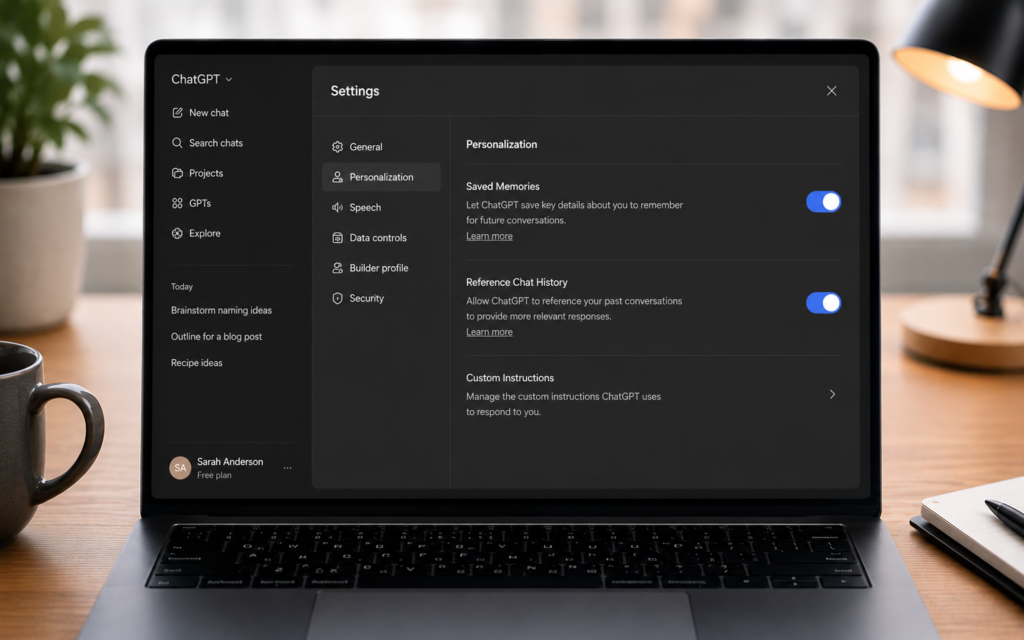
Go to chatgpt.com and click your profile icon in the bottom left corner. Go to Settings, then click Personalization. You will see two toggles:
- Saved Memories — explicit facts ChatGPT remembers
- Reference Chat History — implicit recall from past conversations
Make sure both are switched ON.
Step 2 — Tell ChatGPT what to remember
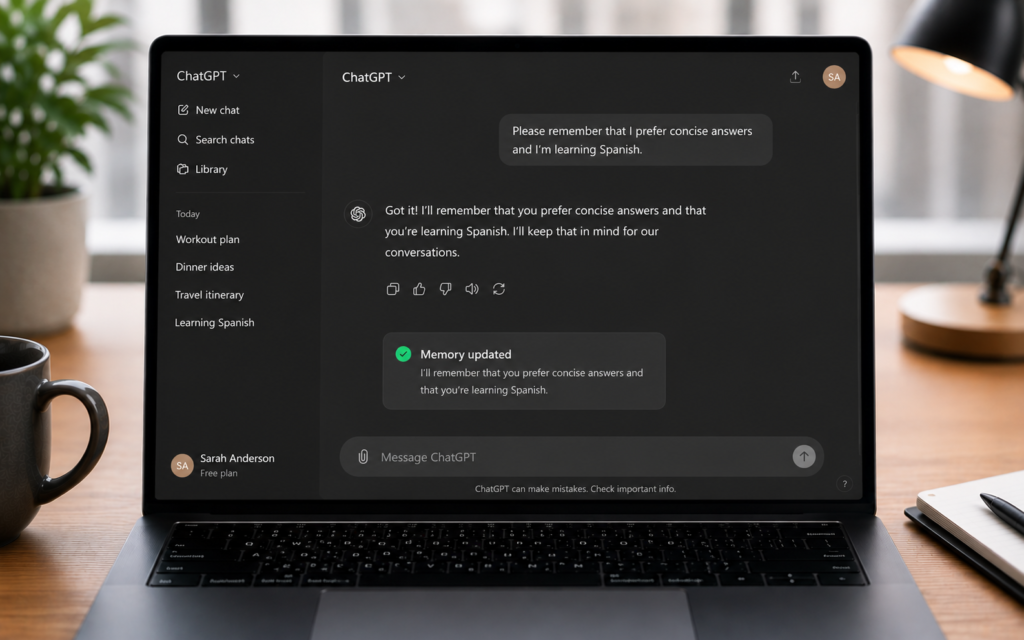
You do not need to do anything special. Just chat normally. When you share something durably useful, ChatGPT automatically saves it. You can also explicitly ask it to remember something.
Examples of what to say:
- “Remember that I am a freelance graphic designer based in Casablanca”
- “Remember that I prefer short, direct answers without long explanations”
- “Remember that I am working on a blog called TicForge about AI tutorials”
- “Remember that I write in French but want responses in English”
ChatGPT will confirm with a small notification that the memory was saved.
Step 3 — View everything ChatGPT remembers about you
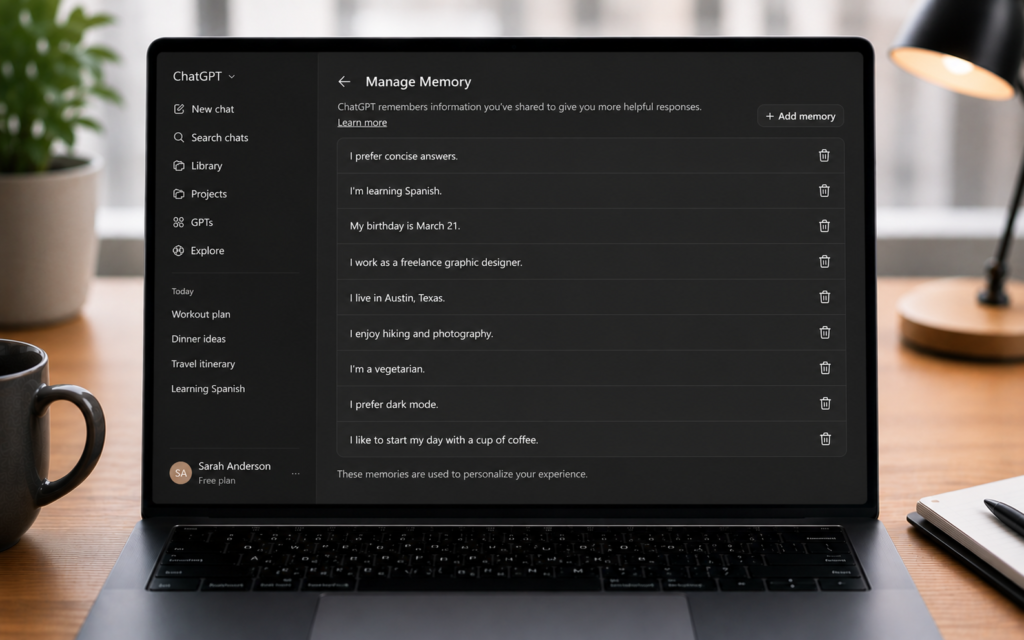
Go to Settings → Personalization → Manage Memory. This opens your full list of saved memories. Each entry is a short fact ChatGPT has learned about you.
You will likely see things like:
- Your name and location
- Your job or profession
- Projects you are working on
- Writing style preferences
- Topics you frequently ask about
Step 4 — Edit or delete specific memories
Review your memory list regularly. Look for:
| Issue | What to do |
|---|---|
| Outdated information | Roles, projects, or tools that no longer apply, delete them |
| Inaccurate captures | Facts ChatGPT got wrong or partially right, delete or correct via chat |
| Irrelevant details | One-time facts that do not need to persist, delete to keep memory clean |
To delete a single memory, click the trash icon next to that entry in Manage Memory. You can also tell ChatGPT directly in a chat: “Forget that I work at my old company” and it will remove that entry.
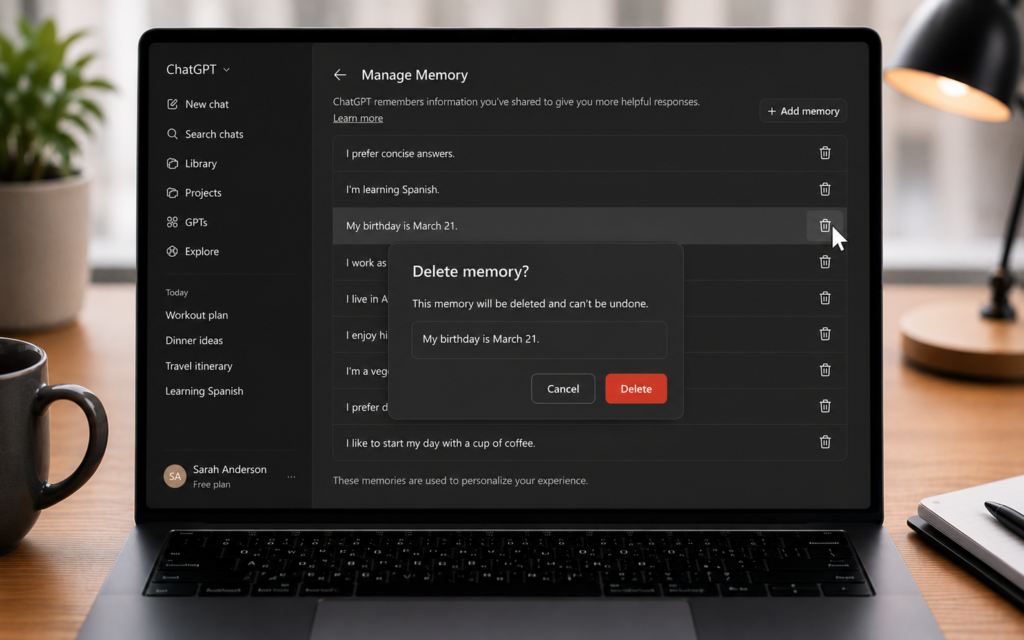
Step 5 — Clear all memories at once
If you want a fresh start, go to Settings → Personalization and click Clear All Memories. This wipes everything ChatGPT has learned about you. Use this if you are switching to a completely different use case, for example moving from personal use to business use.
Note: Clearing memories does not delete your chat history. Your past conversations remain, but ChatGPT will no longer reference the saved facts.
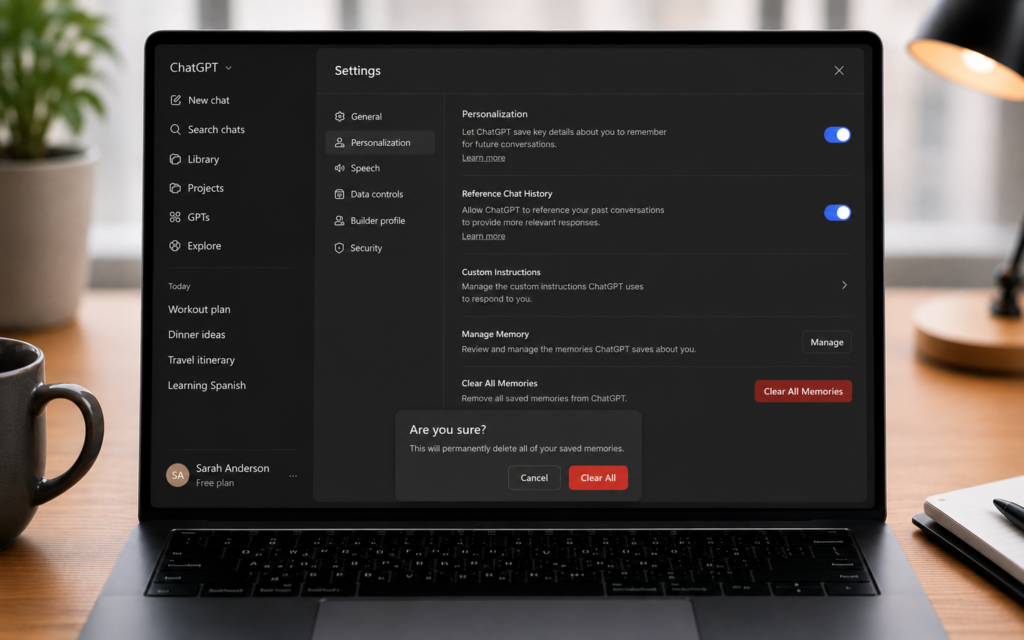
Step 6 — Use Temporary Chat to skip memory
Sometimes you want a conversation that ChatGPT will not remember at all, for example testing something or asking a one-off question unrelated to your normal context. Use Temporary Chat.
Click the icon to start a Temporary Chat. This conversation will not be saved to memory and will not appear in your chat history.
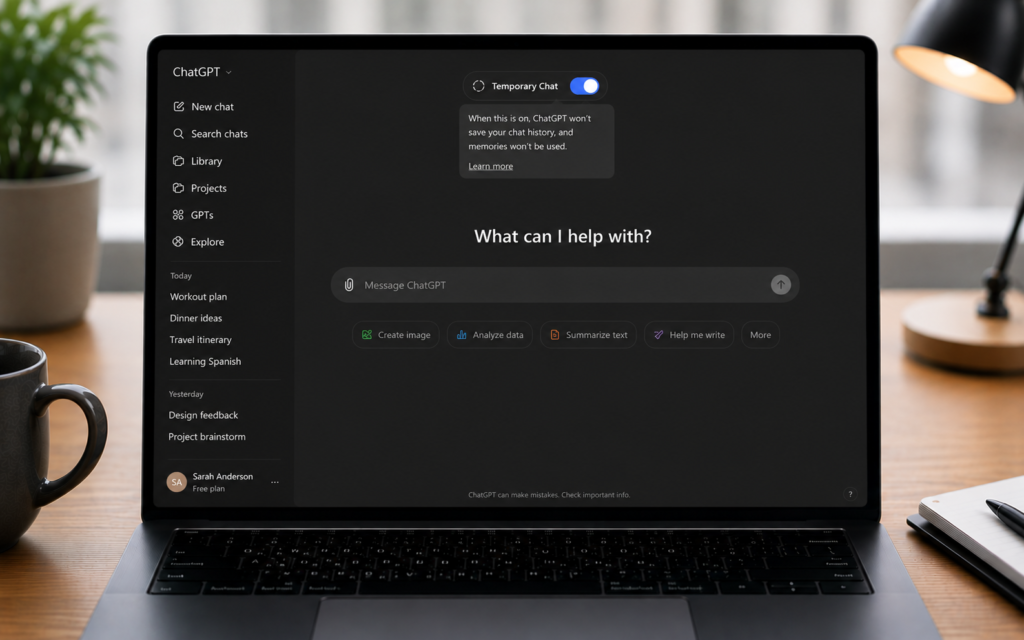
Step 7 — Opt out of using your data for training
If you are concerned about privacy, go to Settings → Data Controls. Here you can toggle off “Improve the model for everyone”. This prevents your conversations from being used to train future ChatGPT models, separate from the Memory feature itself.
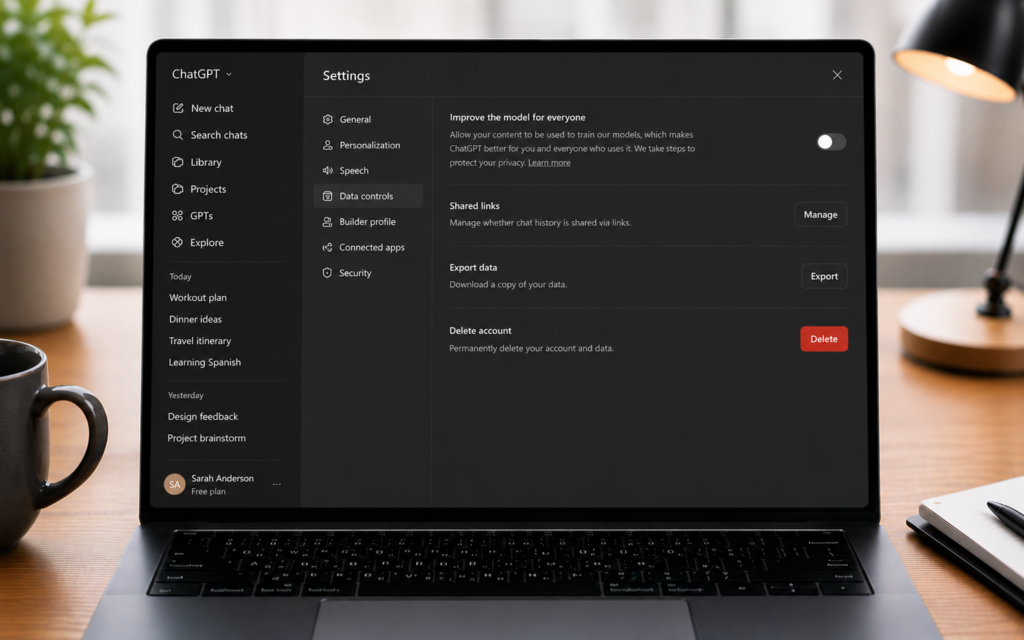
How to make Memory actually useful
| What to tell ChatGPT to remember | Why it helps |
|---|---|
| Your profession and industry | Gets relevant examples and terminology automatically |
| Your writing style preferences | Every draft matches your voice without you specifying each time |
| Ongoing projects | ChatGPT connects new questions to your existing work |
| Tools and software you use | Gets answers tailored to your actual tech stack |
| Your goals | Suggestions align with what you are trying to achieve long term |
5 power tips for ChatGPT Memory
- Review memory monthly — outdated facts lead to outdated answers, clean up regularly
- Be explicit when it matters — do not assume ChatGPT picked up a detail, say “remember this” directly for anything important
- Use Temporary Chat for one-off topics — keep your memory profile focused on things that actually matter long term
- Correct mistakes immediately — if ChatGPT remembers something wrong, say “that is incorrect, forget it” right away
- Separate contexts with Projects — for work that needs completely different context, use Claude or ChatGPT Projects instead of relying only on global memory
Memory vs Custom Instructions vs Projects
| Feature | What it is | Best for |
|---|---|---|
| Memory | Dynamic facts learned automatically over time | General personalization across all chats |
| Custom Instructions | A single static text block applied to every new chat | Fixed rules that never change |
| Projects | Self-contained workspace with its own files and memory scope | Separate contexts for different work areas |
Make ChatGPT actually know you
The amnesiac AI era is over. Go to chatgpt.com, open Settings → Personalization, make sure Memory is on, and start telling ChatGPT what matters about you and your work. Within a few conversations you will notice the difference, responses that actually fit your life.
Want to go further? Read our next guide: Gemini in Google Sheets: Turn Raw Data into Charts Instantly