
What if you never had to write a spreadsheet formula again?
Most people find Google Sheets powerful but frustrating. You know the data is there, you just cannot figure out the right formula to get what you need. VLOOKUP, nested IFs, ARRAYFORMULA — the syntax alone puts people off.
Gemini in Google Sheets changes this completely. You describe what you want in plain English, and Gemini writes the formula, builds the table, creates the chart, and analyzes the data for you. No formula memorization needed.
This guide shows you every feature step by step.
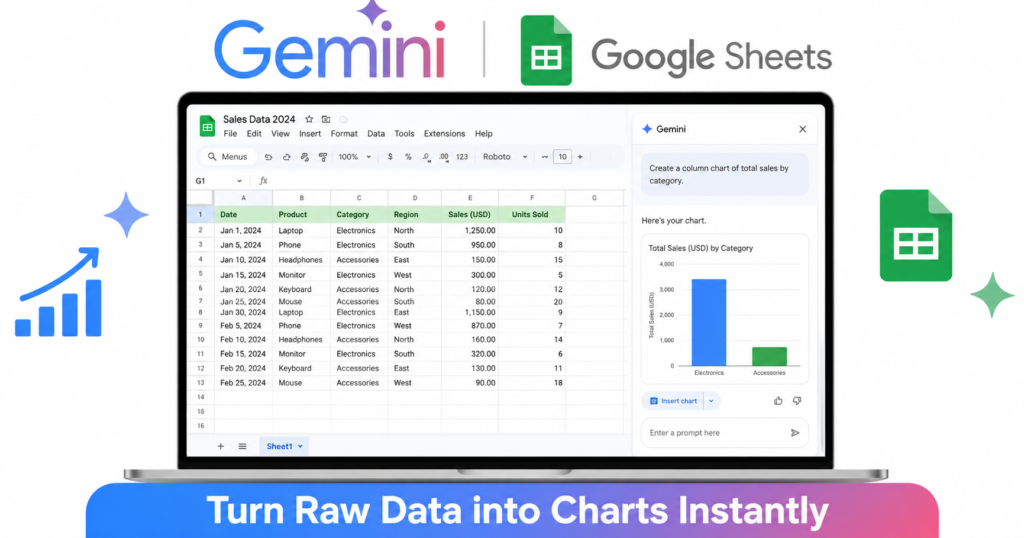
What can Gemini do in Google Sheets?
Eligible users will see the Gemini icon in the Sheets side panel. Simply describe the spreadsheet or edit you need to begin collaborating. In 2026, the March update made Gemini significantly more capable, able to build complete spreadsheets from a single prompt and run end-to-end tasks on existing ones.
| Feature | What it does |
|---|---|
| Formula generator | Describe what you need, Gemini writes the formula |
| Spreadsheet builder | Create a full spreadsheet from one sentence |
| Data analysis | Get instant summaries and insights from your data |
| Chart creation | Generate charts from your data without manual setup |
| Smart fill | Learn patterns from examples and fill columns automatically |
| Table generator | Create structured tables with relevant columns from a prompt |
What plan do you need?
Important: Gemini is currently available only for users on Google Workspace plans. It is not accessible from personal Gmail accounts. You need a paid Workspace account such as Business Standard or Enterprise.
| Plan | Cost | Gemini in Sheets |
|---|---|---|
| Free Gmail | $0 | ❌ Not available |
| Google One AI Premium | $19.99/month | ✅ Full access |
| Google Workspace Business Standard | $12/user/month | ✅ Full access |
Note: Always use Version History before using any Gemini feature. Go to File → Version history → Name current version so you have a reliable rollback point.
Step by step: How to use Gemini in Google Sheets
Step 1 — Open Google Sheets and find Gemini
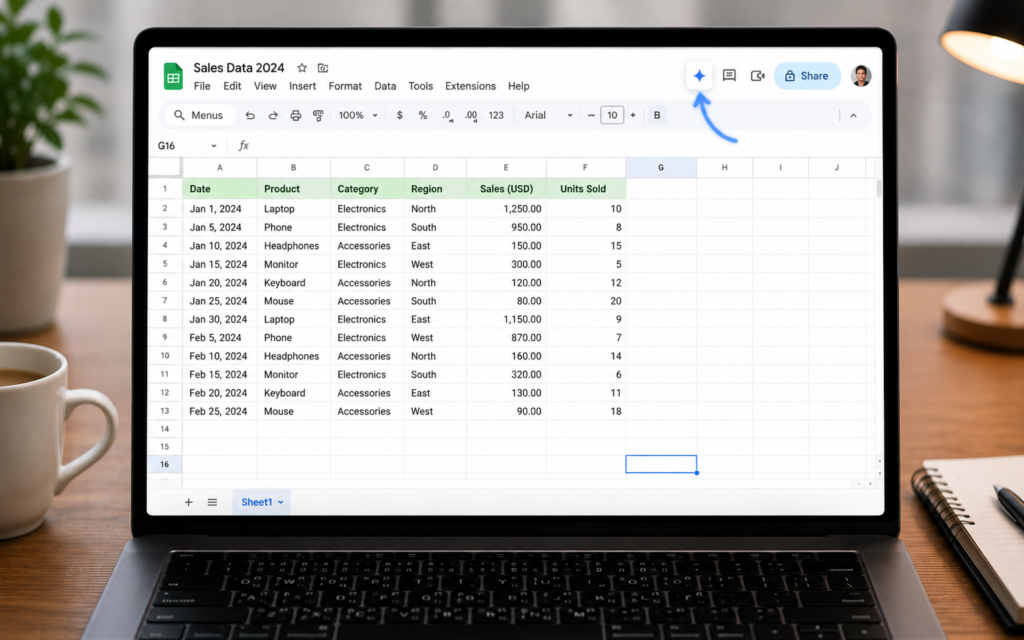
Go to sheets.google.com and open any spreadsheet or create a new one. There are two ways to access Gemini: the “Ask Gemini” sidebar, the sparkle or star icon in the top right corner next to the Share button, which opens a chat-style sidebar for formulas, analysis, and general questions. You can also invoke Gemini by typing = in any cell and then using the Ctrl+Alt+G shortcut.
Tip: If you don’t see Gemini, check with your Workspace admin. It’s not enabled by default for most organizations.
Step 2 — Generate a formula in plain English
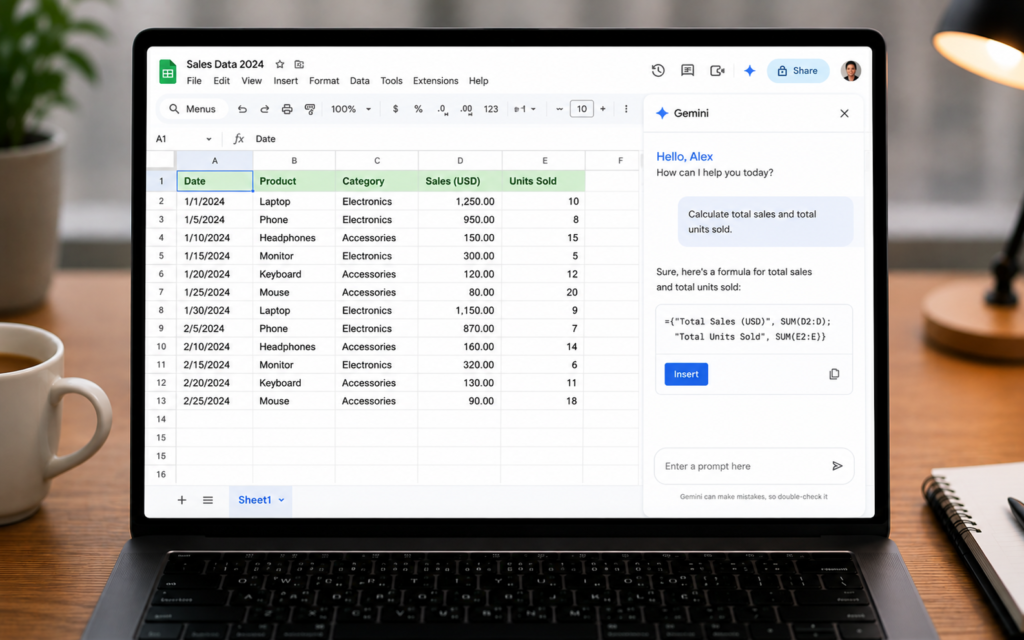
This is the most used feature. Instead of searching for the right formula syntax, describe what you need in plain English and Gemini writes it for you.
Click the Gemini icon and type your request:
- “Calculate the sum of column B where column A equals Sales”
- “Find the average of column C and ignore empty cells”
- “Count how many times the word Completed appears in column D”
- “Look up the price from Sheet2 where the product name matches column A”
Gemini generates the formula and explains how it works, so you learn while you work. Click Insert to drop it directly into your sheet.
Step 3 — Build a complete spreadsheet from scratch
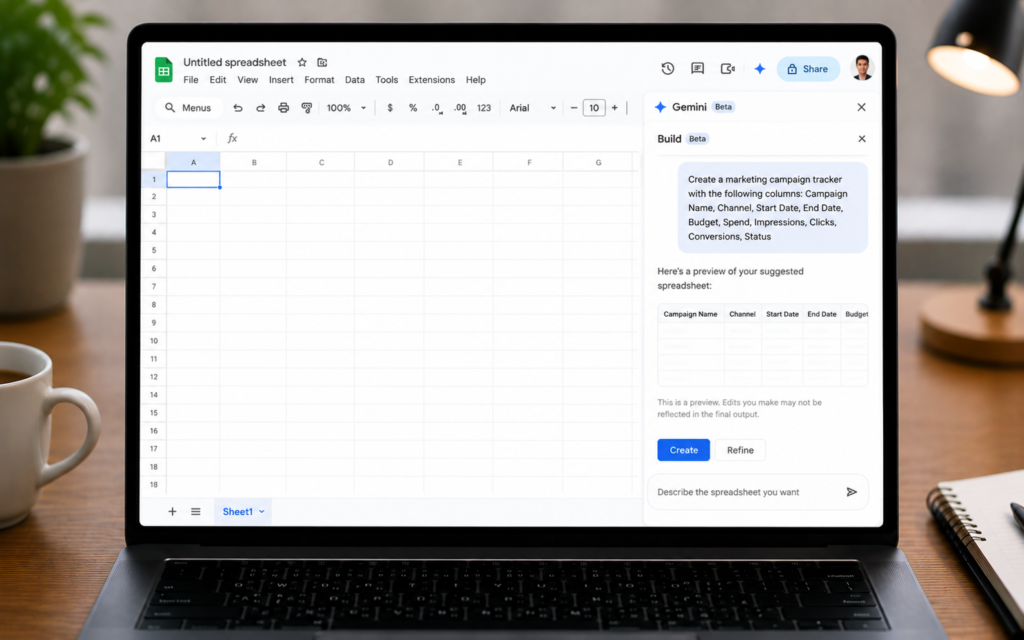
In Google Sheets, you can use Gemini in Sheets to create new sheets and complete end-to-end tasks on existing sheets. On your computer, open Google Sheets. On the right, the side panel automatically opens with Build. To edit or create a spreadsheet, type your prompt.
Example prompts to build complete spreadsheets:
- “Create a monthly budget tracker with income, expenses, and savings columns”
- “Build a project tracker with task name, owner, deadline, status, and priority”
- “Create a sales dashboard with monthly revenue, targets, and variance”
- “Make an inventory sheet with product name, quantity, price, and reorder level”
Gemini builds the entire spreadsheet including headers, sample data, and formatting. Review the plan it shows you, then click Create.
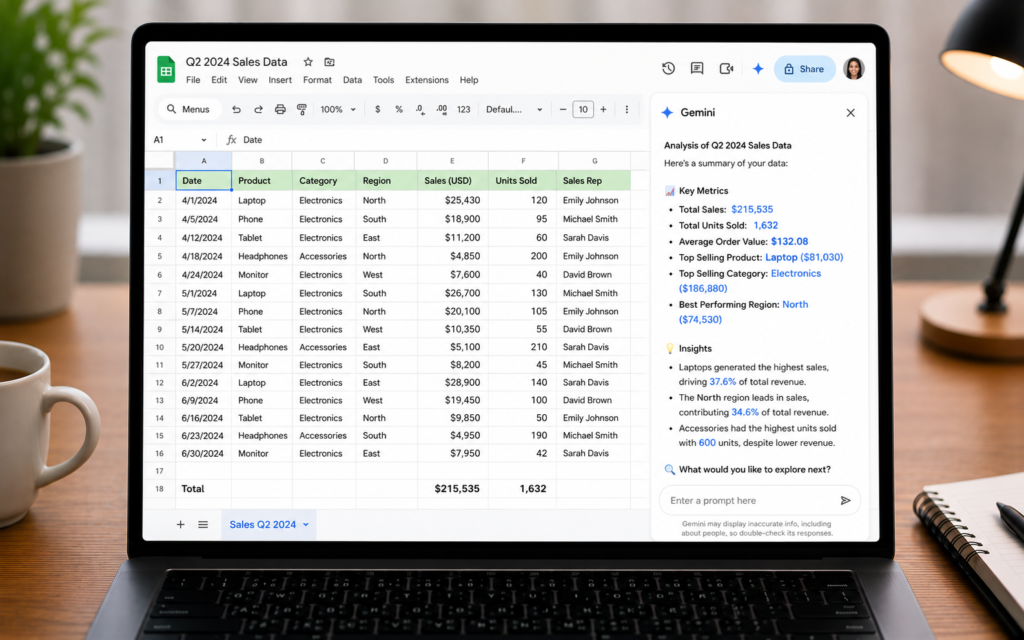
Step 4 — Analyze your existing data
Open a spreadsheet with existing data, click the Gemini icon, and ask questions about your data in plain English. No pivot tables, no complex queries.
Example analysis prompts:
- “What is the total revenue for each product category?”
- “Which month had the highest sales?”
- “Show me the top 5 customers by order value”
- “What percentage of orders were completed versus pending?”
- “Summarize the trends in this data”
Gemini reads your entire sheet and returns a clear summary directly in the side panel.
Step 5 — Create a chart from your data
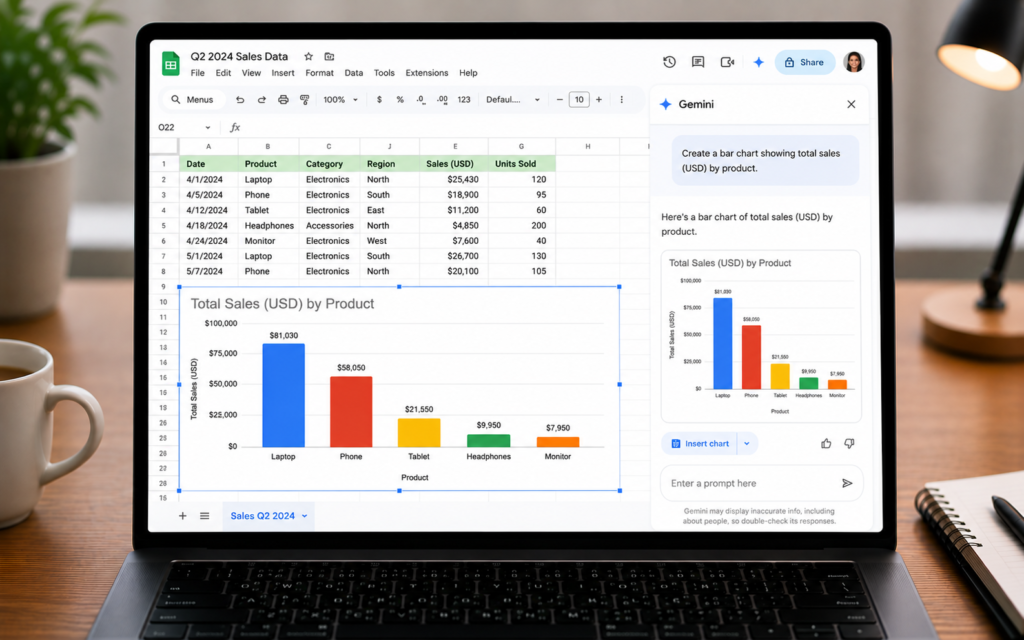
Select any range of data in your sheet, then open the Gemini panel and ask it to visualize your data.
Example chart prompts:
- “Create a bar chart showing monthly revenue by product”
- “Make a pie chart of expenses by category”
- “Show me a line chart of sales trends over the last 12 months”
Gemini generates the chart and inserts it directly into your spreadsheet. You can then move and resize it like any normal Google Sheets chart.
Step 6 — Use Smart Fill to complete columns
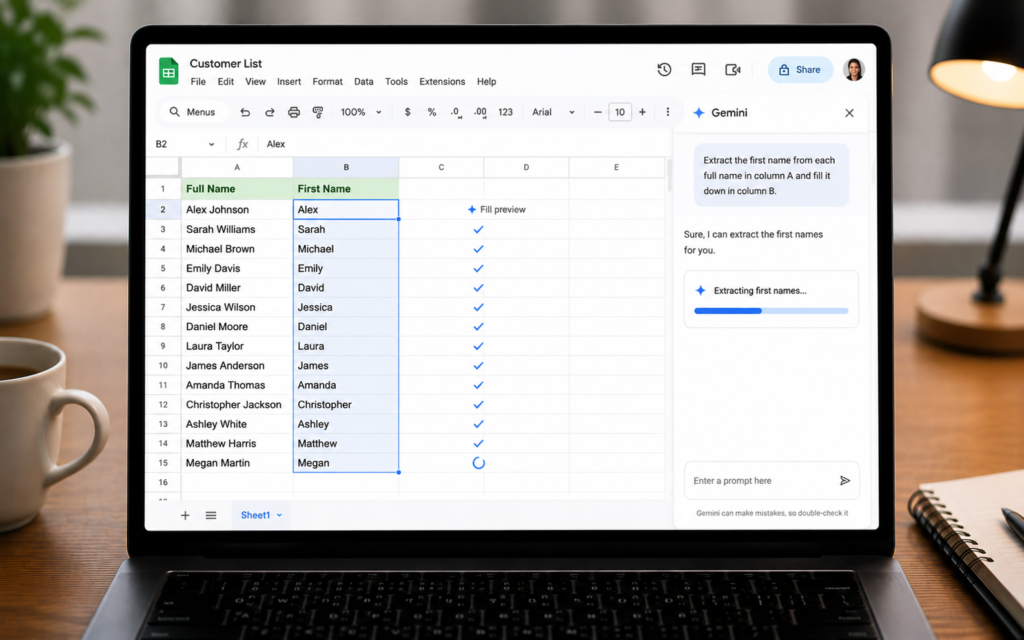
Gemini’s smart fill goes beyond basic autofill. It can learn patterns from examples. Just show it a few examples, and it learns the pattern.
For example, if you have a column of full names and want to extract first names only:
- Type the first name from the first 2 to 3 rows manually
- Select the remaining empty cells in the column
- Open Gemini and ask “Fill this column by extracting first names from column A”
- Gemini fills the entire column instantly
Tip: Smart Fill works for extracting data, reformatting dates, categorizing entries, and cleaning messy data. Any repetitive task that follows a pattern is a perfect candidate.
Step 7 — Use the Help me organize shortcut
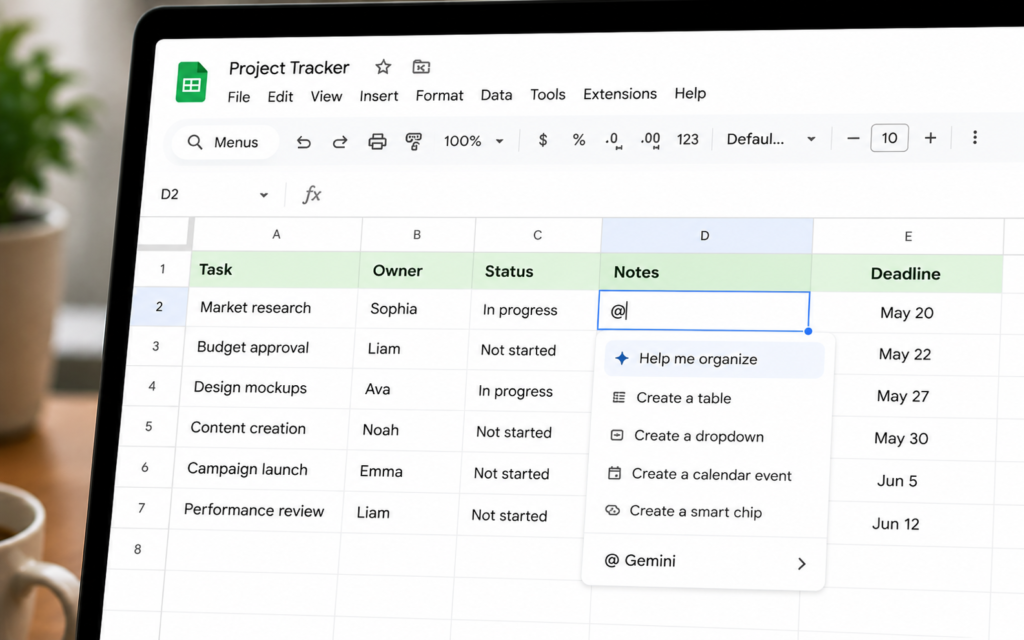
Type @ in any cell and select “Help me organize” to access Gemini directly. This is perfect for quick tasks like creating lists or generating content.
This is the fastest way to use Gemini without opening the full side panel. Type @ directly in a cell, choose your action, and the result appears instantly in the sheet.
Who is Gemini in Google Sheets for?
| Who | How to use it |
|---|---|
| Small business owners | Build financial trackers, inventory sheets, and sales dashboards without hiring an analyst |
| Students | Analyze research data, build grade trackers, and generate charts for presentations |
| Freelancers | Create client invoices, project trackers, and time logs automatically |
| Marketing teams | Analyze campaign performance data and generate visual reports |
| Anyone with a spreadsheet | Get formulas, summaries, and charts without knowing any spreadsheet syntax |
5 power tips for Gemini in Google Sheets
- Always save a version first — before any major Gemini action go to File → Version History → Name current version so you can roll back if needed
- Be specific about your data structure — say “column A has dates, column B has sales amounts” so Gemini understands your layout before generating formulas
- Ask for explanations — after Gemini generates a formula say “explain how this formula works” and it teaches you what it built
- Use it to clean messy data — paste unstructured data and ask Gemini to organize it into proper columns and rows
- Convert Excel files first — this feature works best with native Google Sheets files. To use Gemini features in an Excel file, select File → Save as Google Sheets first.
Gemini in Sheets vs writing formulas manually
| Task | Manually | With Gemini |
|---|---|---|
| Write a VLOOKUP formula | 5 to 15 minutes searching and debugging | 10 seconds from a plain English description |
| Build a full budget tracker | 30 to 60 minutes designing from scratch | 1 to 2 minutes from one prompt |
| Analyze 500 rows of sales data | 20 to 30 minutes building pivot tables | 30 seconds asking a question |
| Create a chart | 5 to 10 minutes selecting ranges and options | 10 seconds from a description |
Stop fighting with formulas
The hardest part of Google Sheets has always been knowing which formula to use. Gemini removes that barrier completely. Open sheets.google.com, click the Gemini icon, and describe what you need in plain English.
Your data will never just sit there unused again.
Want to go further with AI agents? Read our next guide: ChatGPT vs Gemini vs Claude: Which One Should You Use in 2026