
You need to make a flyer, a social post, or a presentation. You open Canva. And then you stare at a blank page.
Most people waste 20 minutes just trying to figure out what to write. Magic Write fixes that.
It is Canva’s built-in AI writing tool. You type a short idea. It writes the text for you, right inside your design. No copying from another app. No switching tabs.
This tutorial shows you exactly how to use it, step by step.
Tip: Magic Write Works on Free and Paid Plans Canva Free users get a limited number of Magic Write uses per month. Canva Pro users get unlimited access. You can start today without paying anything.
What Is Canva Magic Write?
Magic Write is an AI text generator built directly into Canva. It lives inside the Canva editor. You do not need to leave your design to use it.
You give it a short prompt. It writes a caption, headline, description, or any other text you need. You can then edit it, regenerate it, or drop it straight into your design.
It works for social media posts, presentations, flyers, resumes, invitations, and more.
What Can Magic Write Do?
| Task | Example Prompt | What You Get |
|---|---|---|
| Social media caption | “Write a caption for a coffee shop Instagram post” | 3 to 5 sentence caption with hashtag ideas |
| Presentation slide text | “Write 3 bullet points about remote work benefits” | Clean, punchy bullet points ready to paste |
| Flyer headline | “Write a catchy headline for a yoga class flyer” | Bold short headline options to choose from |
| Event description | “Write a description for a birthday party invitation” | Friendly paragraph with time, vibe, and call to action |
| Product description | “Describe a handmade candle for an Etsy shop” | Short paragraph highlighting features and feel |
| Email subject line | “Write 5 subject lines for a Black Friday sale” | Five options you can test |
What You Need Before You Start
- A free Canva account at canva.com
- Any device: computer, tablet, or phone
- A design open in the Canva editor
That is it. No plugins, no downloads, no technical setup.
How to Use Magic Write in Canva: Step by Step
STEP 1
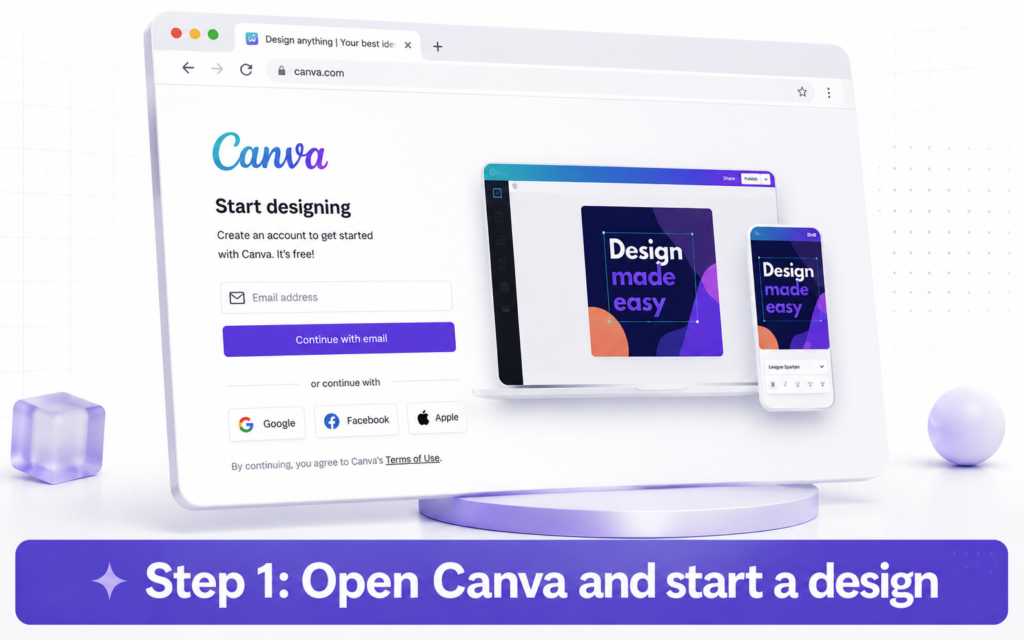
Open a Design in Canva
Go to canva.com and log in to your account. Click the purple “Create a design” button in the top right corner.
Choose what you want to make. For example, pick “Instagram Post”, “Presentation”, or “Flyer”. A blank canvas will open in the editor.
STEP 2
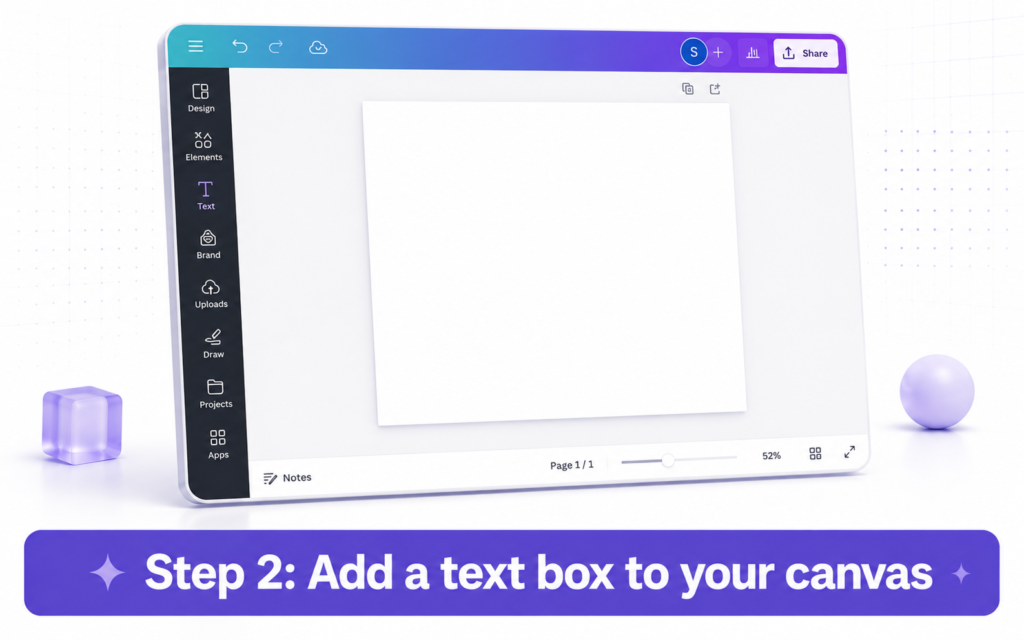
Add a Text Box to Your Design
Click the “Text” option in the left sidebar. Then click “Add a text box” or choose one of the heading styles. A text box will appear on your canvas.
Click inside the text box so your cursor is active inside it. This is where Magic Write will drop its output.
Tip: You Can Also Use Magic Write in an Empty Doc If you open a Canva Doc instead of a design, Magic Write works the same way. It is great for drafting longer content like blog posts or meeting agendas.
STEP 3
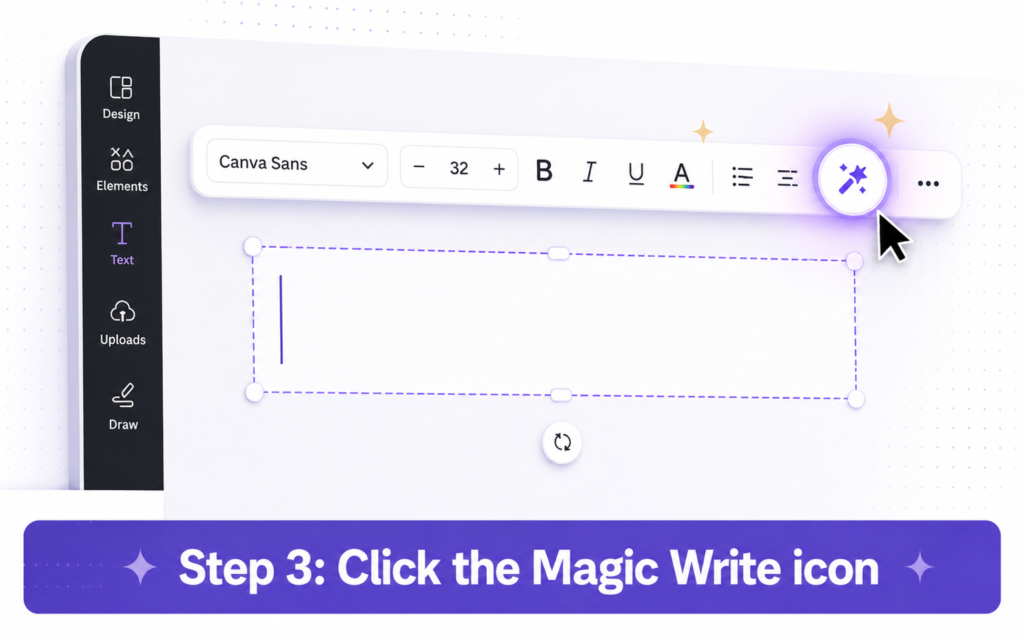
Open Magic Write
With your cursor inside the text box, look for the small AI icon that appears near the toolbar. It looks like a small sparkle or star symbol.
Click it. A small Magic Write panel will open. You will see a text field where you can type your prompt.
Alternatively, type a forward slash “/” inside any text box. A menu will pop up. Select “Magic Write” from the list.
STEP 4
Type Your Prompt
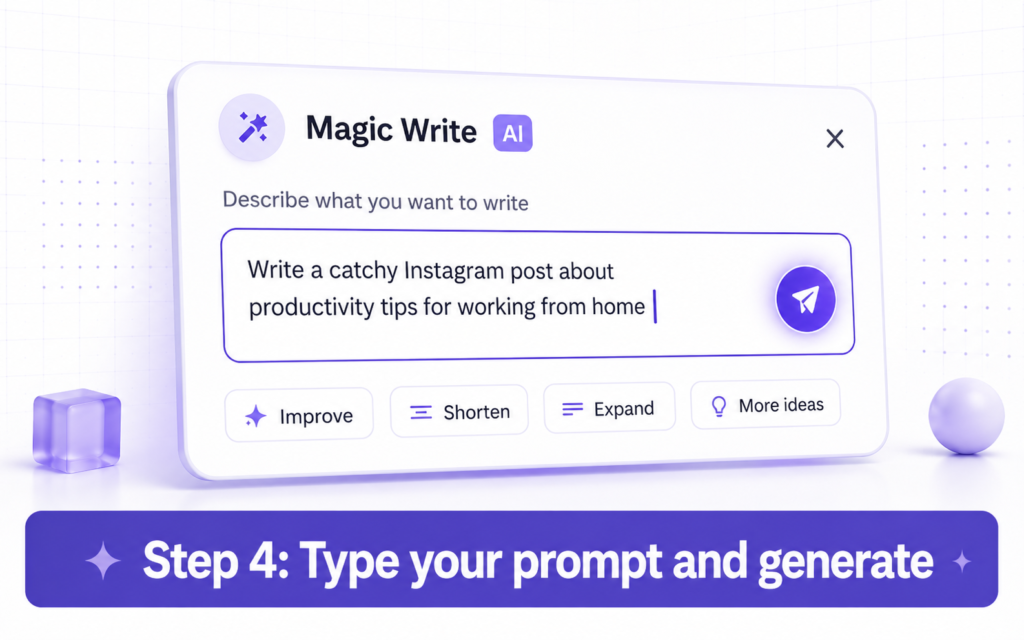
In the Magic Write input field, type what you want it to write. Be specific. The more detail you give, the better the result.
Here are some examples of good prompts:
- “Write a short Instagram caption for a bakery selling sourdough bread. Friendly tone.”
- “Write 4 bullet points for a slide about the benefits of drinking more water.”
- “Write a headline for a summer sale flyer. Keep it under 8 words.”
- “Write a welcome message for a yoga studio newsletter.”
Then press Enter or click the generate button.
STEP 5
Review and Use the Result
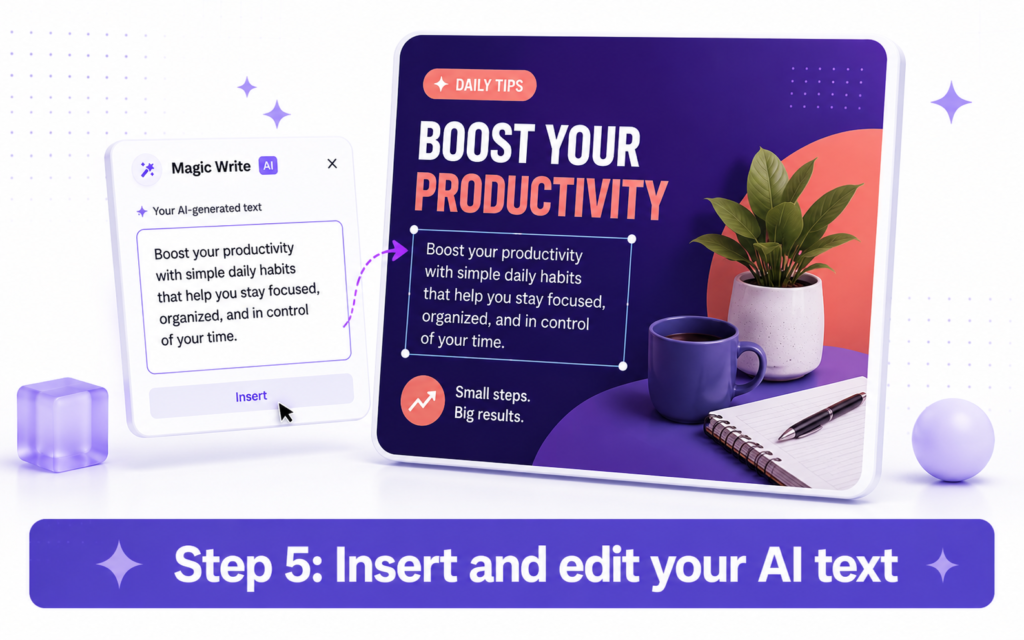
Magic Write will generate text in a few seconds. The result appears directly in your text box or in a preview panel next to your canvas.
Read through the result. If you like it, click “Insert” or “Use this” to drop it into your design. If you want something different, click “Regenerate” to try again.
You can also edit the text manually after it is inserted. Treat the AI output as a strong first draft, not a finished product.
Warning: Always Edit AI Text Before Publishing Magic Write sometimes produces generic phrases or slightly awkward sentences. Always read the output carefully. Change anything that does not sound like your brand or voice.
STEP 6
Adjust Tone and Length
Magic Write lets you adjust two things before you generate: tone and length.
Tone options include: Informative, Exciting, Funny, Persuasive, Dramatic, and Formal. Pick the one that matches your content.
Length options let you choose between Short, Medium, and Long output. For a social media caption, choose Short. For a presentation slide, Medium usually works well.
| Tone Option | Best For |
|---|---|
| Informative | Explainer content, how-to posts, educational slides |
| Exciting | Product launches, event announcements, sales promotions |
| Funny | Meme-style content, casual brand social media, party invites |
| Persuasive | Ads, calls to action, pitches, landing page copy |
| Formal | Business presentations, professional proposals, reports |
| Dramatic | Storytelling posts, emotional appeals, charity content |

How to Use Magic Write for Presentations
Magic Write is especially useful when you are building a presentation with multiple slides.
Instead of writing each slide manually, you can use Magic Write to generate text for every slide in seconds.
Here is a simple workflow:
- Open a Canva Presentation template.
- Click into the first slide text box.
- Type a prompt like: “Write a slide title and 3 bullet points about time management for remote workers.”
- Insert the result and move to the next slide.
- Repeat for each slide with a different prompt.
A 10-slide presentation that used to take an hour can be drafted in under 10 minutes.
Tip: Use the Same Topic in Every Prompt Keep your topic consistent across all your slide prompts. This ensures the tone and content stay aligned throughout your presentation.
Magic Write vs Typing It Yourself: Is It Worth It?
| Scenario | Without Magic Write | With Magic Write |
|---|---|---|
| Instagram caption | 10 to 15 minutes | Under 1 minute |
| 10-slide presentation | 60 to 90 minutes | 10 to 15 minutes |
| Flyer headline and body text | 20 minutes | 2 to 3 minutes |
| Event invitation copy | 15 to 20 minutes | Under 2 minutes |
| Product description for a shop | 10 to 15 minutes | Under 1 minute |
The time savings are real, especially if writing is not your strength or English is not your first language.
Free Plan vs Canva Pro: What Is the Difference?
| Feature | Canva Free | Canva Pro ($15/month) |
|---|---|---|
| Magic Write access | Yes, limited uses per month | Yes, unlimited |
| AI image generation | Limited | Included |
| Magic Design (full AI layouts) | Limited | Unlimited |
| Brand Kit (fonts, colors, logos) | No | Yes |
| Background Remover | No | Yes |
| Premium templates | No | Yes, 100+ million |
Warning: Free Plan Uses Run Out Quickly Canva Free gives you a small number of Magic Write uses per month. If you use it daily, you will hit the limit fast. Consider upgrading to Pro if you use Canva for work or content creation.
5 Prompts to Try Right Now
Not sure what to type? Start with one of these:
- For a social post: “Write a short caption for a Monday motivation post. Keep it positive and under 50 words.”
- For a business flyer: “Write a headline and two sentences for a plumber offering emergency call-out services.”
- For a presentation: “Write a slide with 4 bullet points explaining why small businesses need social media.”
- For an invitation: “Write the text for a birthday party invitation for a 30th birthday. Fun and casual tone.”
- For a product: “Write a short description for a handmade soy wax candle with lavender scent. Friendly and warm.”
Tip: Add Context for Better Results The more detail you add to your prompt, the better the output. Include the tone, the audience, and the goal. For example: “Write for a busy mum audience, friendly tone, under 30 words.”
What Magic Write Cannot Do
Magic Write is helpful. But it has limits. Here is what it cannot do:
- It cannot search the web for current facts or news.
- It cannot write in your exact personal style without guidance.
- It may produce generic results if your prompt is too vague.
- It cannot guarantee factual accuracy for statistics or dates.
- It does not remember previous conversations or past designs.
Think of it as a very fast first draft tool. You still need to review and personalise the output.
Quick Summary: How to Use Canva Magic Write
| Step | What to Do |
|---|---|
| 1 | Open Canva and start or open a design |
| 2 | Add a text box and click inside it |
| 3 | Click the sparkle AI icon or type “/” and select Magic Write |
| 4 | Type your prompt, choose tone and length |
| 5 | Click generate and review the output |
| 6 | Insert it into your design and edit as needed |
Next up on TicForge:Meta AI on WhatsApp: Your Free AI Assistant Already Installed →