
You already have WhatsApp on your phone. And there is a good chance you already have Meta AI inside it too.
Meta added its AI assistant directly into WhatsApp. You do not need to download anything. You do not need to pay for anything. It is just there, waiting to be used.
This article shows you exactly what Meta AI can do inside WhatsApp, and how to start using it in the next five minutes.
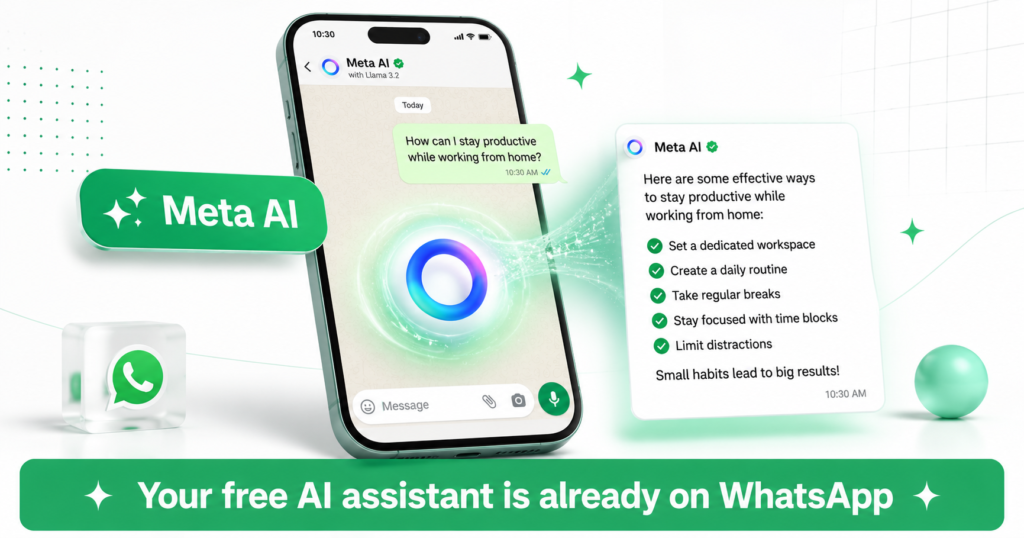
Tip: Meta AI is Free and Built Into WhatsApp You do not need a Meta account or a Facebook profile to use Meta AI on WhatsApp. It works on iPhone and Android. Just update your WhatsApp app to the latest version.
What Is Meta AI on WhatsApp?
Meta AI is an AI assistant made by Meta, the company behind Facebook, Instagram, and WhatsApp. It uses a model called Llama, which Meta built and trains itself.
Inside WhatsApp, Meta AI works like a smart contact you can message any time. You ask it a question. It answers. You can ask it to write something, explain something, search the web, or create an image.
It is available in a dedicated chat and also works inside your existing group chats.
What Can Meta AI Do on WhatsApp?
| Task | Example Message to Send | What You Get Back |
|---|---|---|
| Answer questions | “What is the capital of Australia?” | Direct, clear answer in seconds |
| Write text for you | “Write a birthday message for my friend Sarah” | A warm, ready-to-send message |
| Explain something | “Explain how a mortgage works in simple terms” | A plain-English explanation with no jargon |
| Search the web | “What are the best restaurants in Edinburgh right now?” | Current results pulled from the web |
| Generate an image | “Imagine a sunset over a city skyline” | An AI-generated image sent right in the chat |
| Translate text | “Translate ‘thank you very much’ into Spanish” | Instant translation with pronunciation tip |
| Plan and brainstorm | “Give me 5 ideas for a weekend trip with kids” | A numbered list of ideas you can act on |
| Help in group chats | Type @Meta AI in any group chat | AI joins your group to help everyone |
How to Find Meta AI on WhatsApp
STEP 1
Update WhatsApp to the Latest Version
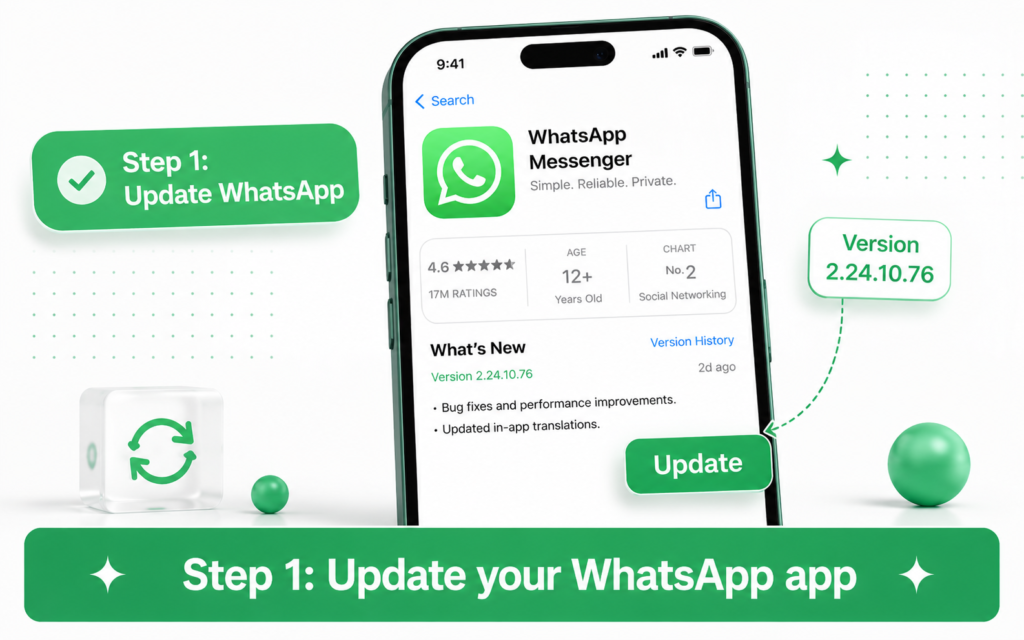
Open your phone’s app store. Search for WhatsApp and tap Update if one is available. Meta AI requires a recent version of the app.
On iPhone, go to the App Store. On Android, go to the Google Play Store.
STEP 2
Open WhatsApp and Look for the Meta AI Button
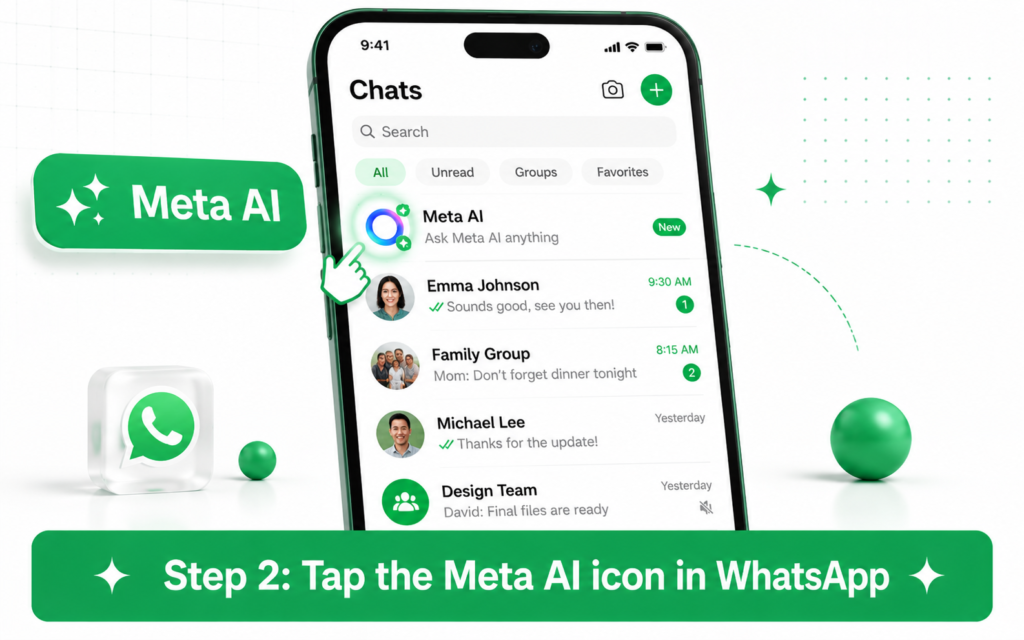
Once updated, open WhatsApp. Look for one of these signs that Meta AI is available:
- A blue circle icon with a sparkle at the bottom of your chats screen
- A “Meta AI” option in your search bar at the top
- A dedicated Meta AI chat at the top of your chat list
Tap any of these to open the Meta AI chat.
Tip: Not Seeing Meta AI Yet? Meta AI is rolling out gradually. If you do not see it, make sure WhatsApp is fully updated. It may also not yet be available in all regions. Check back after your next app update.
STEP 3
Send Your First Message
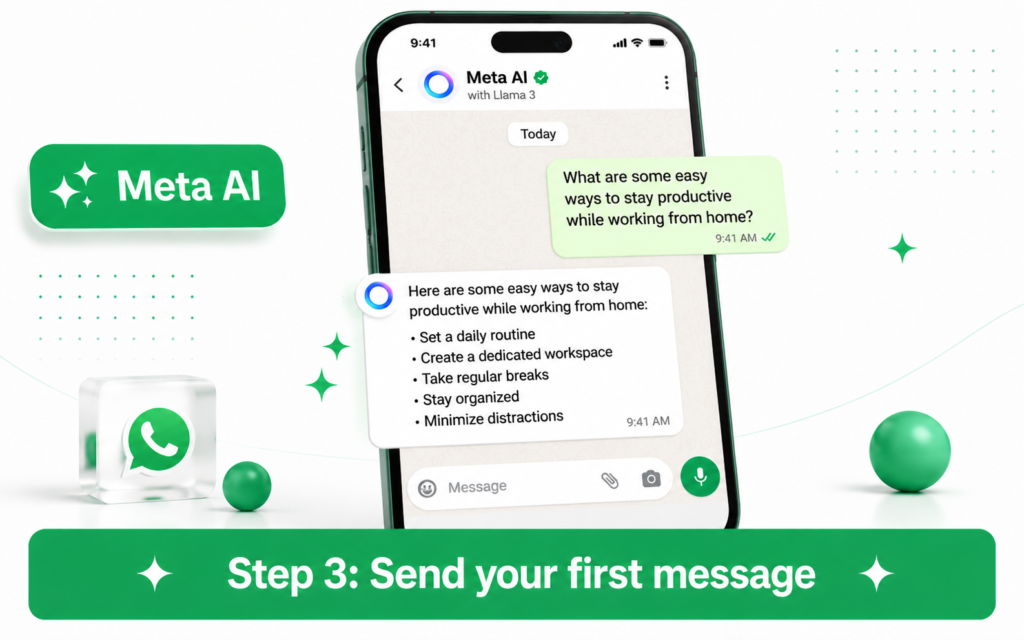
Tap the Meta AI chat. You will see a welcome screen with some suggested prompts. You can tap one of those or type your own message.
Type anything you want to know or do. For example:
- “Help me write a thank-you note to my boss”
- “What should I cook for dinner with chicken and rice?”
- “Give me a quick workout I can do at home in 20 minutes”
Press send and Meta AI will reply within seconds.
STEP 4
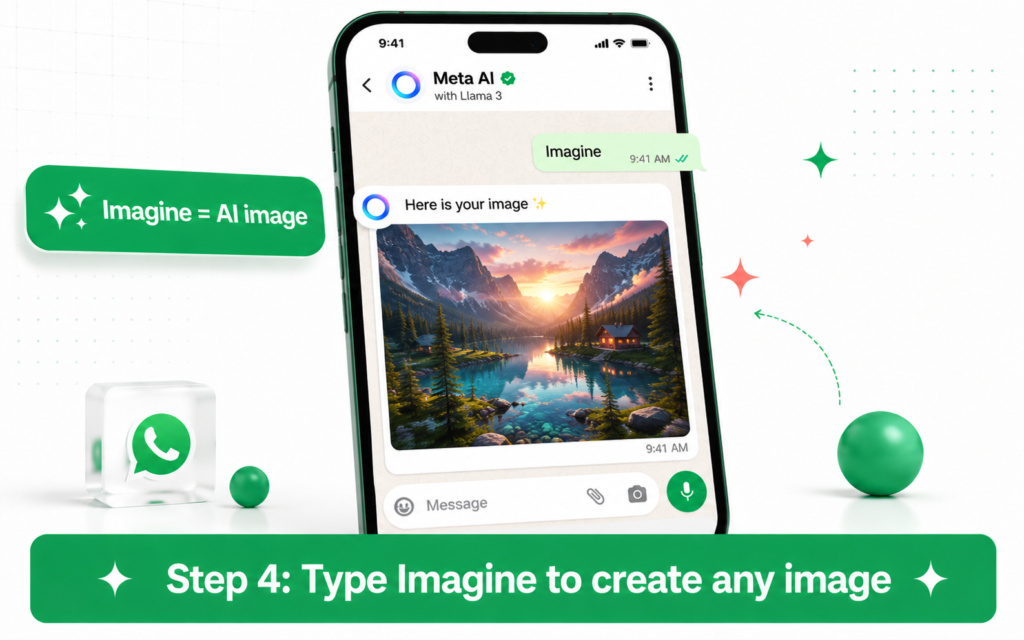
Generate an Image with the Word “Imagine”
Meta AI can create images right inside your WhatsApp chat. This is one of its most impressive features.
To generate an image, start your message with the word Imagine followed by a description. For example:
- “Imagine a golden retriever sitting in a flower field”
- “Imagine a futuristic city at night with neon lights”
- “Imagine a cosy coffee shop on a rainy day”
Meta AI will generate the image and send it back to you in the chat. You can save it to your phone like any other image.
Warning: Image Generation Has Content Rules Meta AI will not generate images of real people, violent content, or anything that breaks its community guidelines. If your prompt is refused, try rephrasing it as a general scene or object.
STEP 5
Use Meta AI in a Group Chat
You can also bring Meta AI into any existing group chat. This is useful when your group is trying to make a decision or plan something together.
Inside any group chat, type @Meta AI followed by your question. For example:
- “@Meta AI what are good team lunch spots near central London?”
- “@Meta AI give us three options for a group holiday destination in Europe”
- “@Meta AI help us write an agenda for our meeting tomorrow”
Meta AI will reply directly in the group. Everyone in the group can see the reply and continue the conversation.
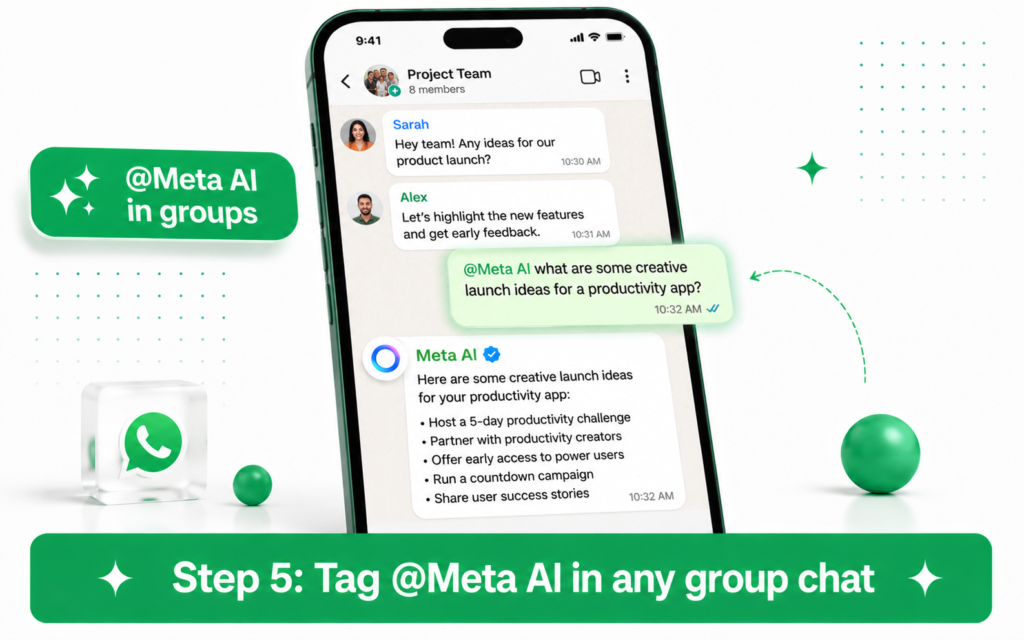
Tip: Meta AI Remembers the Group Context When you use @Meta AI in a group, it can see the recent messages in that conversation. This means it can give relevant answers based on what your group has been discussing.
Meta AI vs Other AI Tools on WhatsApp
There are other ways to use AI on WhatsApp. Here is how they compare.
| Feature | Meta AI (Built-in) | ChatGPT on WhatsApp | Other AI Bots |
|---|---|---|---|
| Setup required | None, already there | Save a contact number | Save a contact number |
| Cost | Free | Free (with limits) | Varies |
| Image generation | Yes, with “Imagine” | No | Rarely |
| Works in group chats | Yes, with @Meta AI | No | No |
| Web search | Yes | Limited | Varies |
| Built into the app | Yes | No | No |
Meta AI wins on convenience. Nothing beats an AI assistant that requires zero setup and is already in an app you use every day.
Smart Ways to Use Meta AI on WhatsApp Every Day
Here are practical uses that fit into daily life naturally.
| Situation | What to Ask Meta AI |
|---|---|
| You need to reply to a difficult message | “Help me reply to this in a polite but firm way: [paste the message]” |
| You are at the supermarket and need recipe ideas | “I have eggs, tomatoes, and pasta. What can I make for dinner?” |
| Your group chat is planning a trip | “@Meta AI compare flights vs train from Manchester to Paris” |
| You need a quick fact checked | “Is it true that humans only use 10% of their brain?” |
| You want to learn something fast | “Explain compound interest in 3 sentences like I am 12” |
| You need a fun image for a group chat | “Imagine our group as superheroes in a comic book style” |
What Meta AI Cannot Do on WhatsApp
Meta AI is powerful but it has limits. Here is what it cannot do:
- It cannot send messages or make calls on your behalf.
- It cannot read your private chats or past conversations.
- It cannot set reminders or add events to your calendar.
- It cannot browse your contacts or personal files.
- It cannot remember things between separate conversations.
Warning: Do Not Share Sensitive Personal Information Avoid sending private details like passwords, bank account numbers, or medical information to Meta AI. Treat it like any messaging service. Only share what you are comfortable with.
Is Meta AI Private? What Does Meta Do with Your Chats?
This is a fair question. When you chat with Meta AI on WhatsApp, your messages are used by Meta to improve its AI systems. This is similar to how other AI tools like ChatGPT handle your inputs.
Your conversations with Meta AI are separate from your personal WhatsApp chats. End-to-end encryption does not apply to your Meta AI chats because the AI needs to process your messages to respond.
If privacy is a top priority for you, keep sensitive topics out of the Meta AI chat.
Quick Summary: Getting Started with Meta AI on WhatsApp
| Step | What to Do |
|---|---|
| 1 | Update WhatsApp to the latest version |
| 2 | Look for the Meta AI icon or chat at the top of your list |
| 3 | Tap it and send your first message |
| 4 | Type “Imagine” followed by a description to create an image |
| 5 | In any group chat, type @Meta AI to bring it in |
Next up on TicForge:7 ChatGPT Prompts That Actually Save You Hours Every Week →