
The blank page problem is over
Every writer, student, and professional knows the feeling. You open a new Google Doc, stare at the empty page, and spend 20 minutes writing nothing. Gemini, Google’s built-in AI assistant, solves this completely.
Type one sentence describing what you need and Gemini writes the full document for you, formatted, structured, and ready to edit. It can also rewrite weak sections, summarize long files, and pull context directly from your Gmail and Google Drive.
This guide shows you every feature step by step.
What is Gemini in Google Docs?
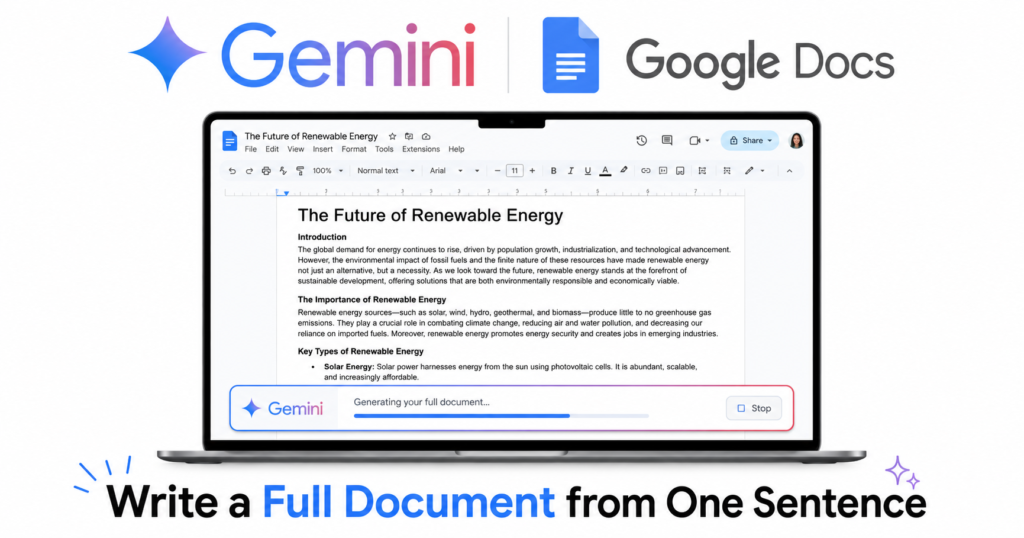
Google Docs now offers a centralized place to generate, write, and refine your documents with Gemini. Powered by Workspace Intelligence, Gemini leverages data across Drive, Gmail, Chat, and the web to provide personalized, context-aware assistance.
In simple terms, Gemini sits inside every Google Doc as a writing partner. It generates full drafts, rewrites sections, adjusts tone, summarizes content, and pulls information from your other Google files, all without you leaving the document.
What plan do you need?
Important: Gemini in Google Docs requires a paid Google plan. It is not available on free Google accounts.
| Plan | Cost | Gemini in Docs |
|---|---|---|
| Google Free | $0 | ❌ Not available |
| Google AI Pro | $19.99/month | ✅ Full access |
| Google Workspace Business | From $6/user/month | ✅ Full access |
Tip: Google AI Pro at $19.99/month includes Gemini in Docs, Gmail, Sheets, Slides, and Drive plus 2TB storage. If you use Google apps daily it pays for itself quickly.
Step by step: How to use Gemini in Google Docs
Step 1 — Open Google Docs and find the Gemini bar
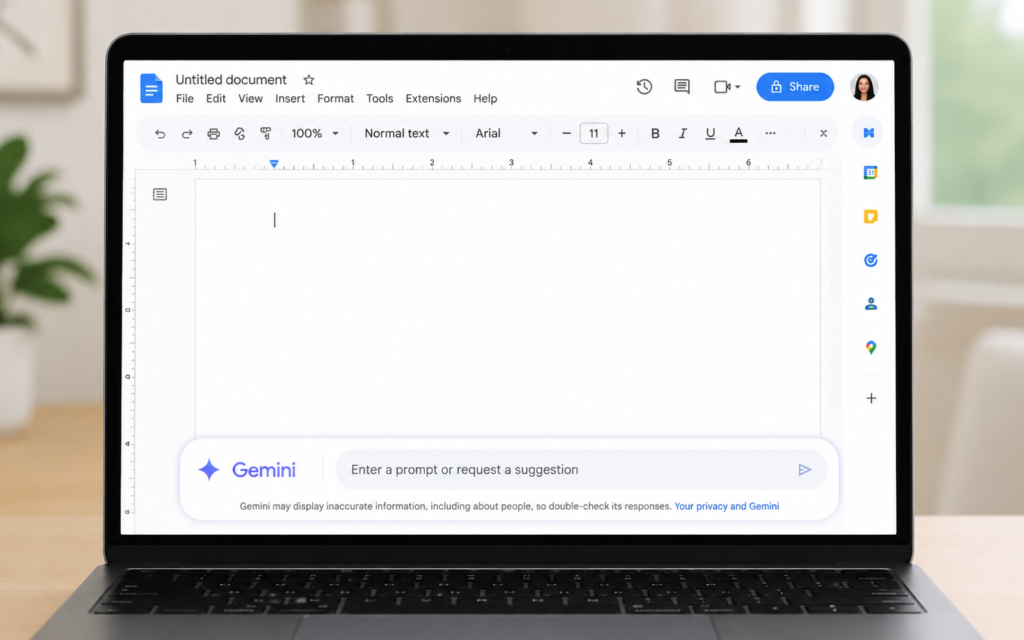
Go to docs.google.com and open any document or create a new one. At the bottom of the page you will see the Gemini bar, a text input bar with the Gemini sparkle icon. This is where you type all your instructions.
You can also access Gemini from the top right corner by clicking the Ask Gemini sparkle icon to open the side panel.
Step 2 — Generate a full document from scratch
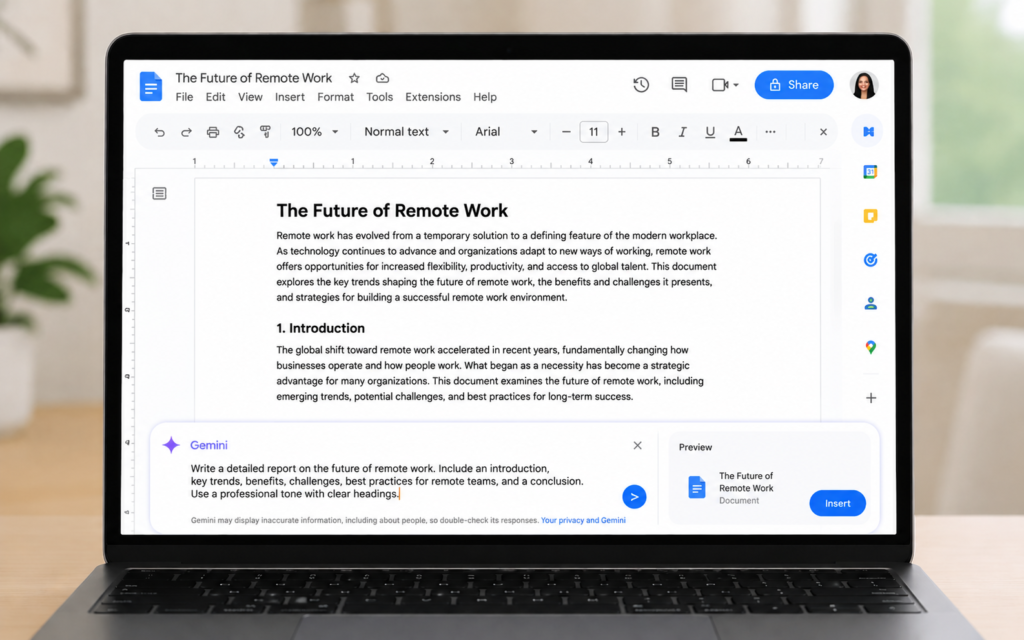
Click inside the Gemini bar and type what you want to create. Type a description and Gemini generates a full draft. What makes this powerful since March 2026 is context-pulling, Gemini can now draft full documents by pulling context from your Gmail and Drive.
Example prompts to generate full documents:
- “Write a project proposal for a social media marketing campaign for a coffee brand”
- “Create a 500-word blog post about the benefits of remote work”
- “Write a professional cover letter for a marketing manager position”
- “Create a meeting agenda for a product launch review with 5 agenda items”
Press Enter. Gemini generates the full formatted document in seconds. Click Insert to add it to your Doc.
Step 3 — Rewrite or improve a section
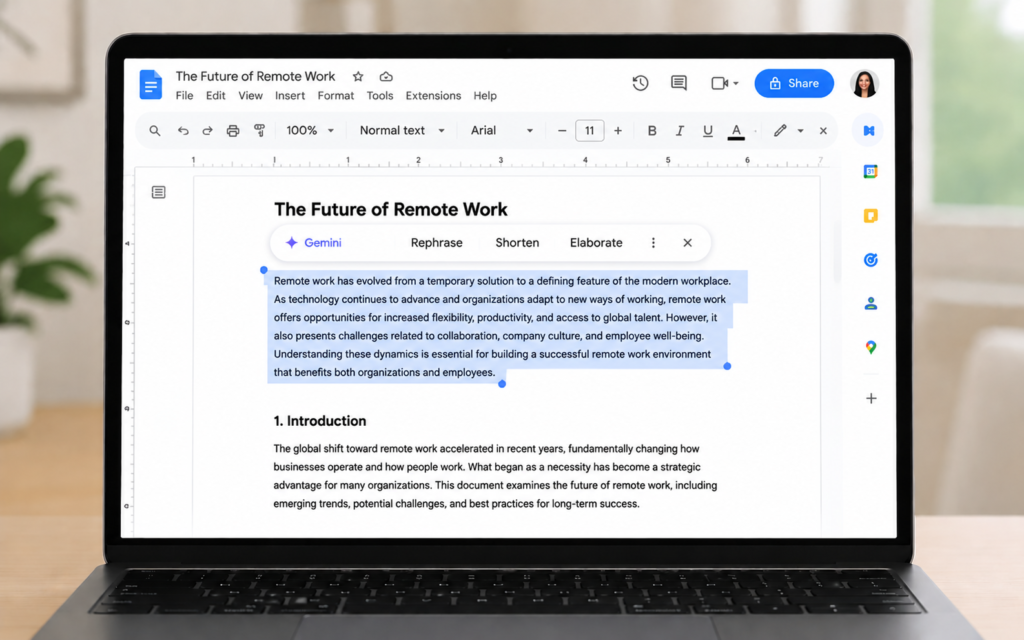
Highlight any text in your document. A small Gemini toolbar appears above the selected text. Click it to get options like:
- Rephrase — rewrite the selected text in a different way
- Shorten — make the selected text more concise
- Elaborate — expand the selected text with more detail
- Adjust tone — make it more formal, casual, or confident
Step 4 — Summarize a long document
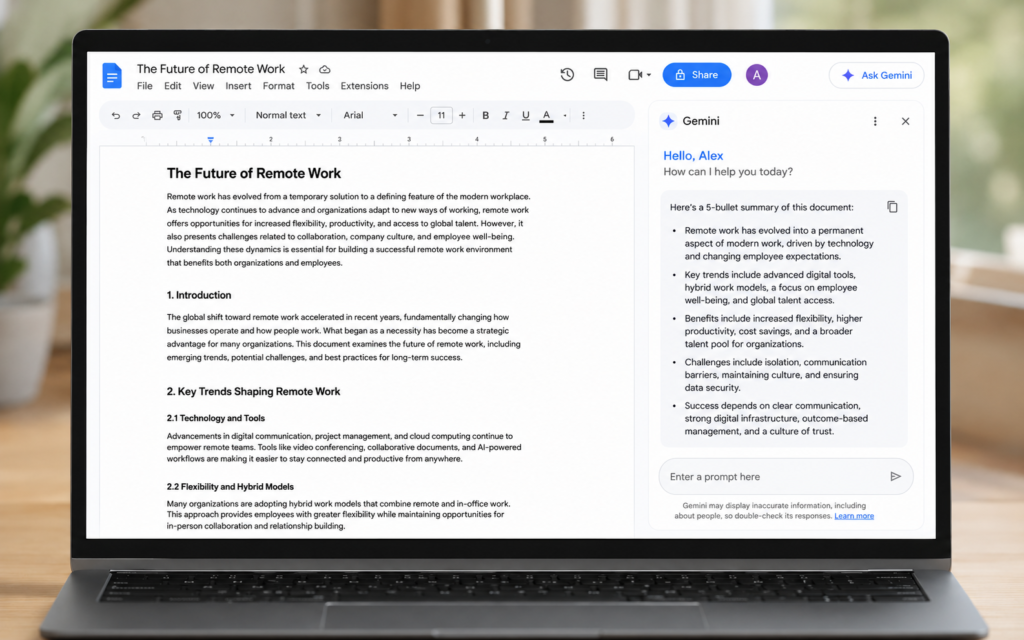
Open any long document in Google Docs. Click the Ask Gemini icon at the top right to open the side panel. Type:
“Summarize this document in 5 bullet points”
Gemini reads the entire document and returns a clean summary in the side panel. You can then insert it at the top of the document as an executive summary.
Step 5 — Pull context from Gmail and Drive
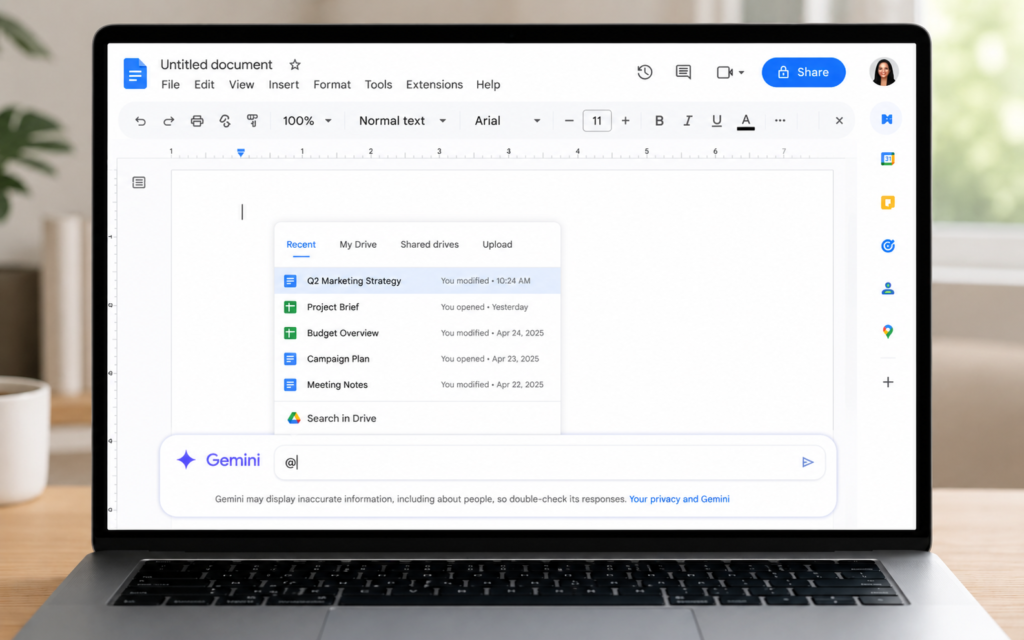
This is the most powerful feature. Gemini can read your Gmail emails and Google Drive files to write documents grounded in your actual data.
In the Gemini bar, type @ to reference a file from Drive or an email from Gmail. Then describe what you need.
Example prompts:
- “@meeting-notes.doc Write a summary report based on these meeting notes”
- “@project-brief.pdf Create a timeline based on this project brief”
- “Using my latest emails about the client proposal, write a follow-up document”
Tip: Be specific in prompts. “Write a blog post” gives generic output. “Write a 500-word blog post about hybrid work policies for a tech company” gets much better results.
Step 6 — Match the style of an existing document
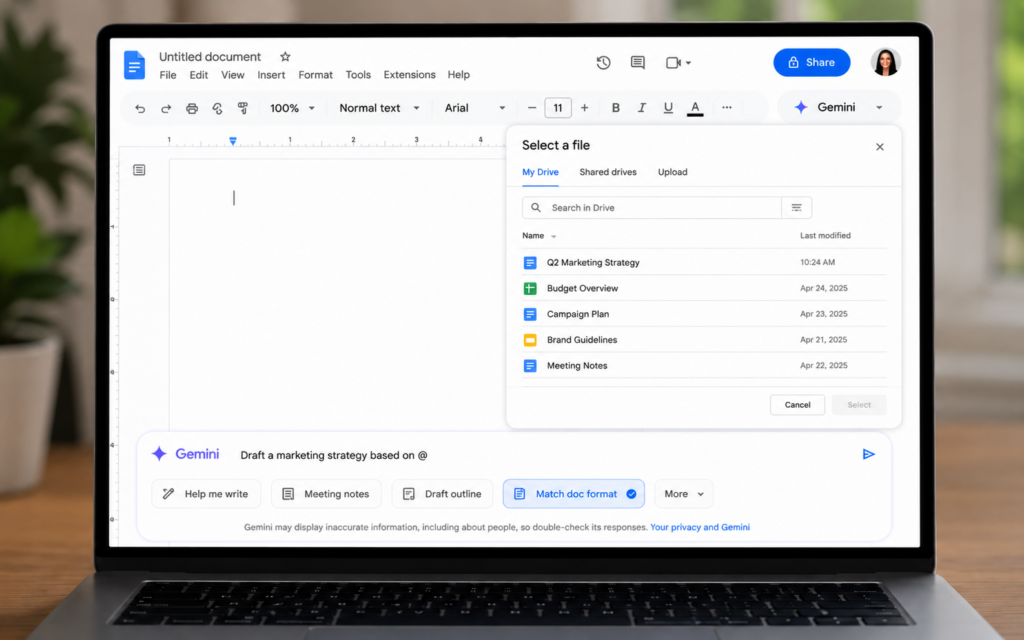
If you have a document template or a writing style you want to match, Gemini can replicate it. You can use a Google Doc as a template for Gemini to generate content that matches its layout, style, and structure. On an empty Google Doc tab, above the bottom bar, select Match doc format, then select the file you want to use and enter a prompt that describes the document.
This is perfect for keeping consistent formatting across reports, proposals, and team documents.
Step 7 — Generate images inside your document
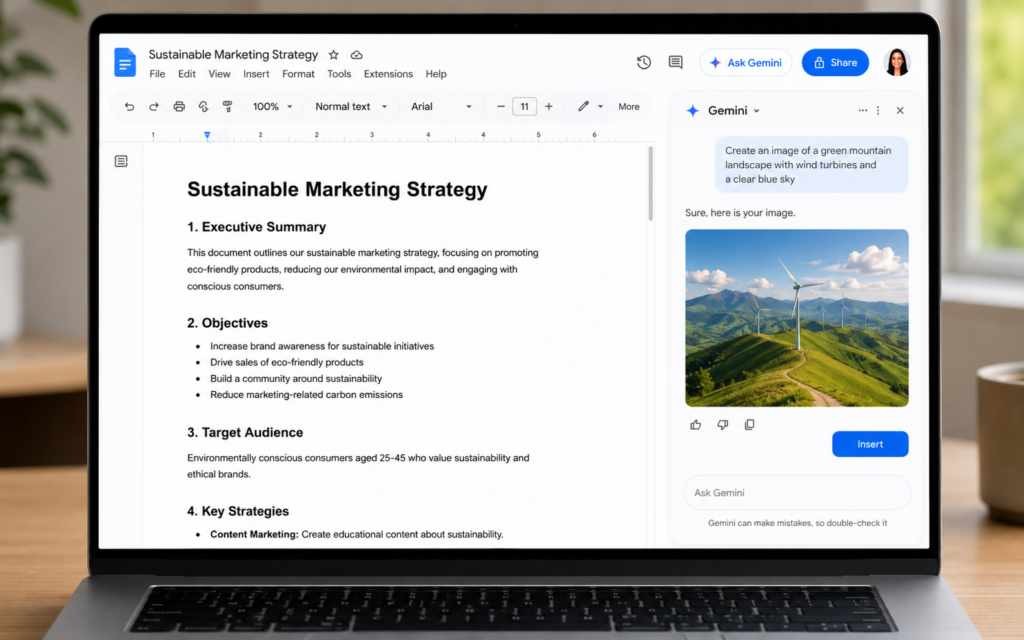
Gemini can also generate images directly inside Google Docs. In the side panel type a description of the image you need and it creates it inline.
Example:
“Generate a professional banner image for this report, blue and white, corporate style”
Who is Gemini in Google Docs for?
| Who | How to use it |
|---|---|
| Students | Generate essay outlines, summarize research papers, improve writing |
| Professionals | Draft reports, proposals, and meeting summaries in minutes |
| Content creators | Write blog posts, scripts, and social media content faster |
| Business owners | Create proposals, contracts, and client documents without writers |
| Teachers | Build lesson plans, quizzes, and course materials quickly |
5 power tips for Gemini in Google Docs
- Always give context — “Write a proposal for a 3-month SEO campaign for a Morocco-based e-commerce brand” beats “Write a proposal”
- Use it to fix weak writing — highlight any paragraph and ask Gemini to make it more compelling or clearer
- Reference your own files — use @ to pull in your actual data, emails, and documents for grounded output
- Ask for multiple versions — “Give me 3 different introductions for this document” then pick the best one
- Move the bar to the side panel — you can move the bottom bar to the side panel for a larger response display and improved readability
Gemini in Docs vs writing manually
| Task | Manually | With Gemini |
|---|---|---|
| Write a 500-word report | 45 to 60 minutes | 2 to 3 minutes |
| Summarize a 20-page document | 30 to 45 minutes | 30 seconds |
| Rewrite a weak paragraph | 5 to 10 minutes | 10 seconds |
| Create a meeting agenda | 15 to 20 minutes | 1 minute |
Never stare at a blank page again
The blank page problem is solved. Open Google Docs, click the Gemini bar at the bottom, and type one sentence describing what you need. Your first draft will be ready before you finish your coffee.
Want to go further with Google AI? Read our next guide: Custom GPTs: Build Your Own AI Assistant in 10 Minutes