
Making a video used to take hours. You needed a script, footage, a voiceover, and editing skills. Most people gave up before they started.
Google Vids changes that. It is a free AI-powered video creator built right into Google. You type what you want, and it builds the whole video for you. No camera. No editing software. No experience required.
As of April 2026, Google Vids is open to anyone with a free Google account. You get 10 AI-generated video clips per month at no cost. This tutorial shows you exactly how to use it.
What Is Google Vids?
Google Vids is Google’s AI video creation tool. It lives at vids.new and works entirely in your browser. Think of it like Google Docs, but instead of writing a document, you are building a video.
You describe what you want. Gemini AI writes the script, organizes scenes, picks stock footage, and adds a narration. You can edit anything you do not like. Then you share or download the finished video.
It is designed for beginners. You do not need to know anything about video editing to use it.
Who Is It For?
Google Vids is a great fit for anyone who wants to make videos without complicated software. Here are the most common uses:
| Use Case | Example |
|---|---|
| Work presentations | Turn a quarterly report into a short video for your team |
| Training and explainers | Create an onboarding video for new employees |
| Social media content | Make a short tutorial or product video for Instagram or LinkedIn |
| Personal projects | Build a birthday video, event recap, or travel highlight reel |
| Education | Summarize a lesson or assignment in video format |
Free vs Paid: What Do You Get?
Here is a quick breakdown of what each plan includes:
| Feature | Free (Google Account) | Google AI Pro ($19.99/mo) | Google AI Ultra ($249.99/mo) |
|---|---|---|---|
| AI video clips (Veo 3.1) | 10 per month | 50 per month | 1,000 per month |
| AI voiceovers | Yes | Yes | Yes |
| Stock media library | Yes | Yes | Yes |
| AI music generation (Lyria 3) | No | Yes | Yes |
| Directable AI avatars | No | Yes | Yes |
| “Made with Veo” watermark | Yes | Yes | Removed (where permitted) |
| Max video length | 10 minutes | 10 minutes | 10 minutes |
How to Use Google Vids: Step-by-Step Tutorial
This tutorial covers everything from opening Google Vids to exporting your finished video. Follow along one step at a time.
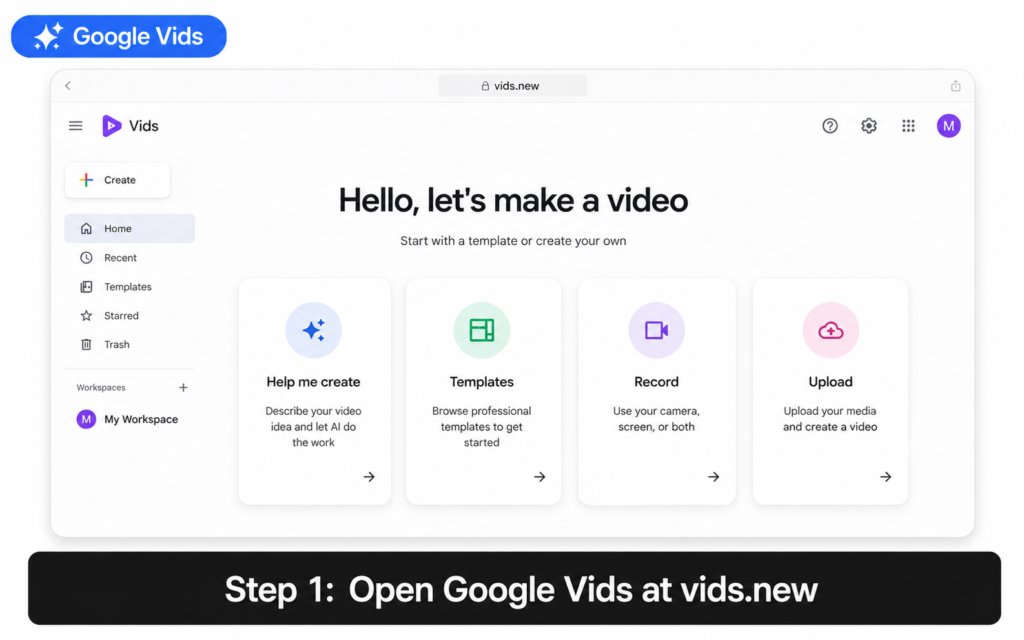
Step 1 Open Google Vids
Open your browser and go to vids.new. Sign in with your Google account if prompted. You do not need a paid subscription to get started.
You will land on the Google Vids home screen. This is where you choose how to start your video.
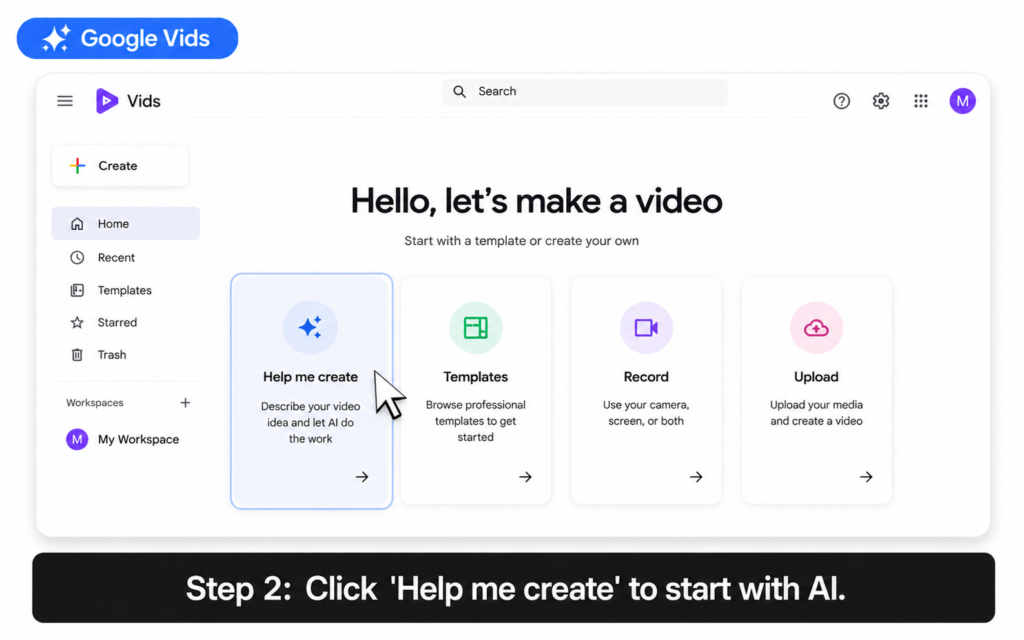
Step 2 Choose “Help me create”
Click the Help me create option. This is the AI-powered path. It uses Gemini to build your video from a text description.
You will see a prompt box appear. This is where you describe your video in plain language.
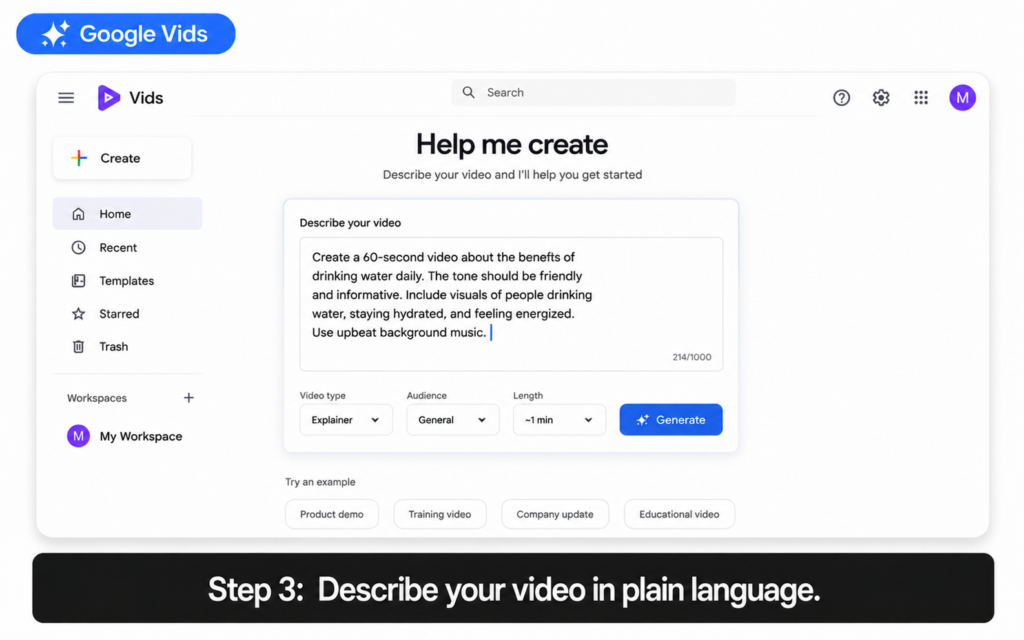
Step 3 Describe your video in the prompt box
Type a description of the video you want. Be specific. The more detail you give, the better the result.
Here is an example prompt you can use:
“Create a 60-second video explaining the benefits of drinking more water every day. The tone should be friendly and motivating. The audience is busy adults who want quick health tips.”
You can also attach a Google Doc or Drive file using the @ symbol. This is useful if you already have a document with the content you want to turn into a video.
When you are ready, click Generate.
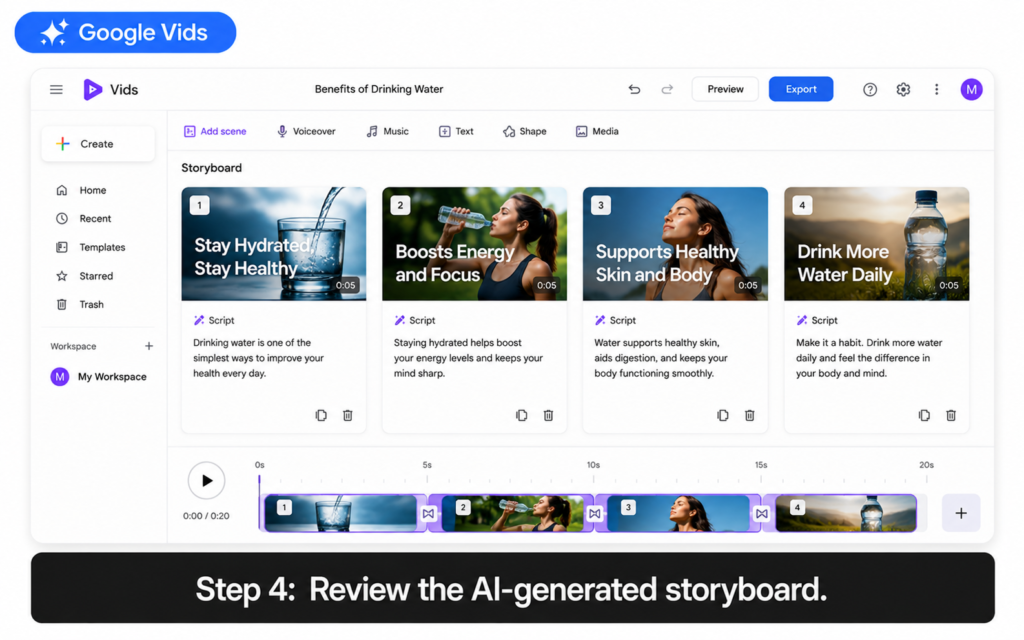
Step 4 Review the AI-generated storyboard
Gemini builds a full video storyboard in seconds. Each scene has suggested text, stock footage or images, and a script for the voiceover.
Scroll through the scenes. You will see:
- A suggested headline or text for each scene
- A stock image or video placeholder
- A voiceover script underneath each scene
- Background music selected automatically
You can accept the whole storyboard or change individual scenes. Nothing is locked in yet.
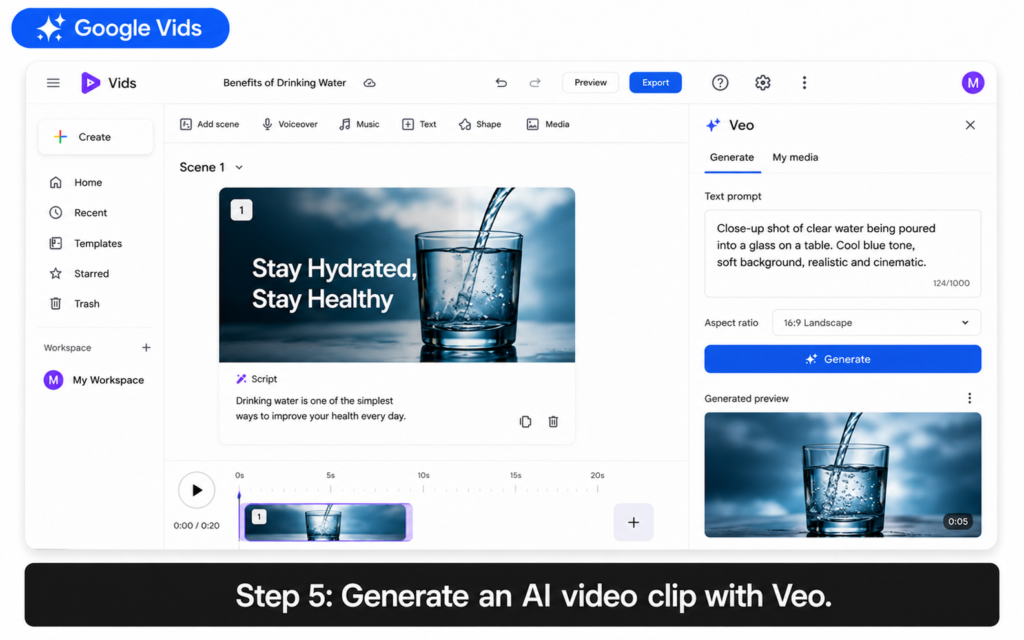
Step 5 Generate an AI video clip with Veo 3.1
This is where Google Vids gets really powerful. You can replace any stock image placeholder with a real AI-generated video clip.
Here is how:
- Click on a scene in the storyboard.
- On the right panel, click the Veo icon (a small video generation button).
- Type a prompt describing the clip you want. For example: “A person filling a glass of water at a kitchen sink, natural lighting, close-up shot.”
- Click Generate.
- Wait a few seconds. Vids generates an 8-second AI video clip.
- Click Insert to add it to your scene.
You can generate up to 10 clips per month on the free plan. Use them on your most important scenes.
Step 6 Add an AI voiceover
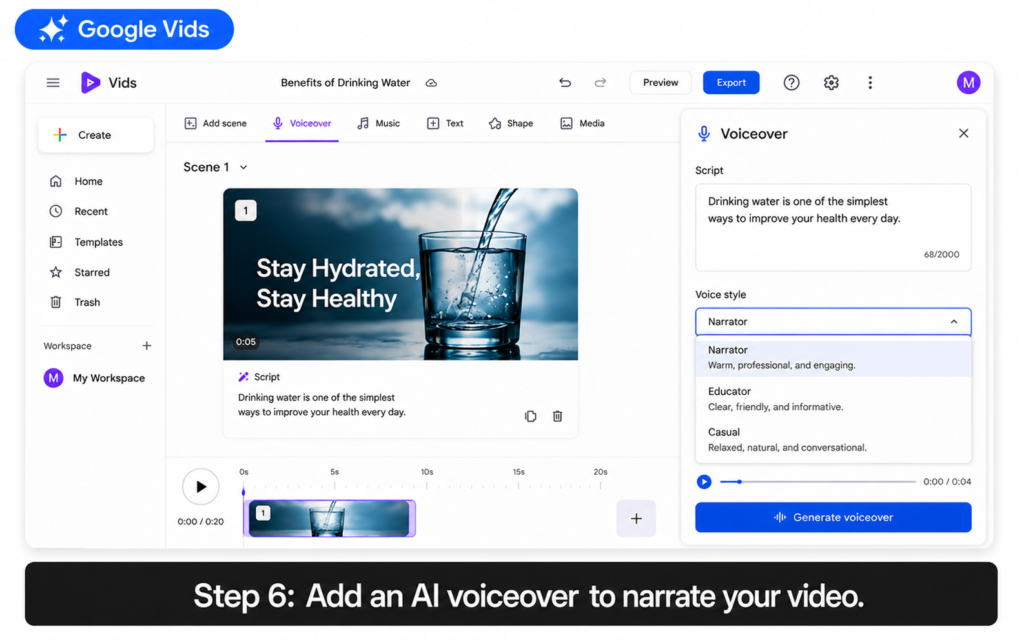
Google Vids can narrate your video automatically. When Gemini generates the storyboard, it creates a script for each scene. You can turn that script into a spoken voiceover in seconds.
Here is how to add or edit the voiceover:
- Click on a scene.
- In the right panel, click Voiceover.
- You will see the generated script for that scene. Edit the text if needed.
- Choose a voice style. Options include narrator, educator, coach, and more.
- Click Generate voiceover.
- The AI reads the script aloud and syncs it to the scene timing.
You can apply voiceovers to all scenes at once or customize each scene separately.
Step 7 Edit and customize your video
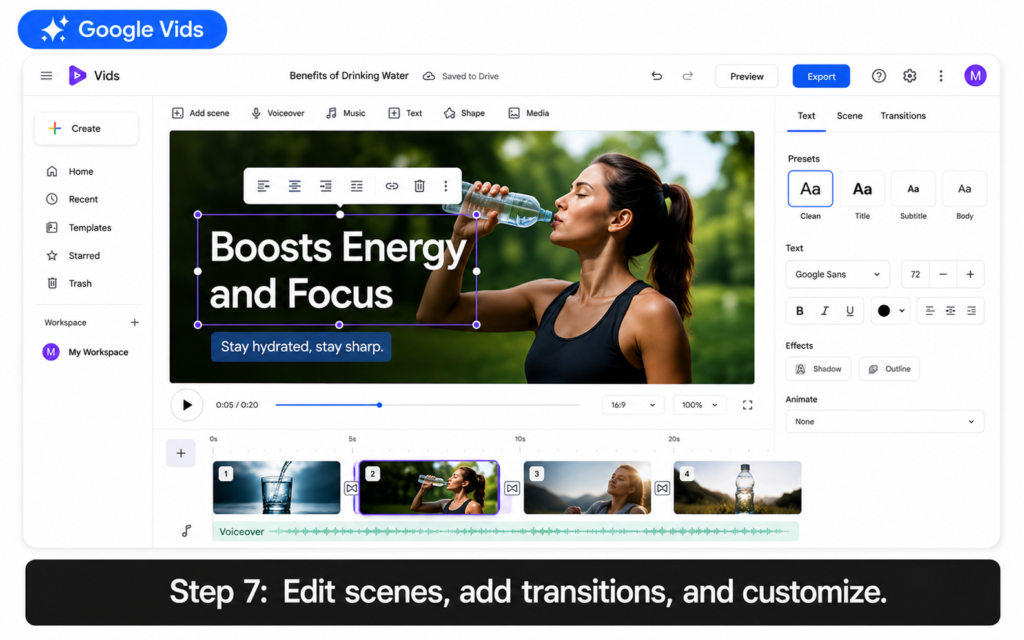
Now you polish your video. Google Vids gives you several ways to customize each scene:
| What You Can Edit | How to Do It |
|---|---|
| Change stock footage | Click a scene and choose a different image or video from the content library |
| Add your own photos or videos | Click Insert and upload from your device or pull from Google Drive or Google Photos |
| Edit text overlays | Double-click any text on the canvas to edit it directly |
| Add transitions | Click between two scenes in the timeline and select a transition style |
| Add animations | Select a text or image element and choose from pulse, bounce, spin, and more |
| Change background music | Open the Audio panel and browse or search the stock music library |
| Reorder scenes | Drag scenes left or right in the timeline at the bottom of the editor |
Step 8 Share or download your video
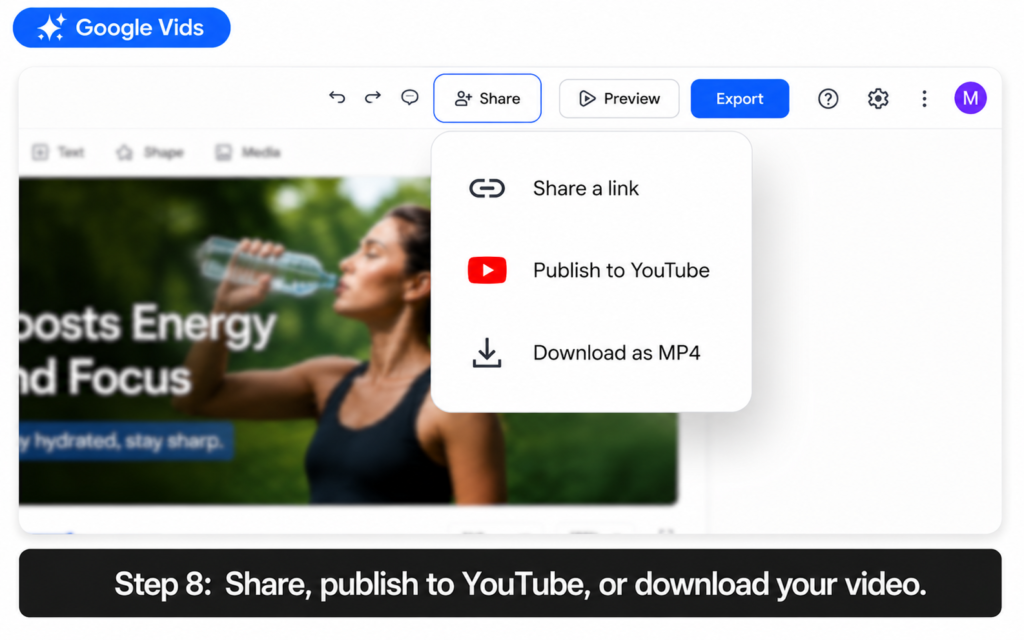
When your video is ready, you have a few options for getting it out into the world.
Option A: Share a link
Click the Share button in the top right. You can send a view-only link, just like sharing a Google Doc. The viewer watches it directly in their browser. No download needed.
Option B: Publish to YouTube
Click Share, then select Publish to YouTube. Your video uploads directly to your YouTube channel. It defaults to private, so you can review it before making it public.
Option C: Download as MP4
Click the menu icon at the top, then Download. Your video saves as an MP4 file you can use anywhere.
Bonus: Record Your Screen Directly in Google Vids
You do not always need AI to generate footage. Google Vids has a built-in screen recorder. Use it to capture your screen, webcam, or both at the same time.
This is perfect for software tutorials, product demos, or step-by-step how-to videos.
Here is how to use it:
- In the Google Vids home screen, click Record.
- Choose what to record: your screen, your camera, or both.
- Click Start recording. A countdown appears.
- Do your demo or walkthrough.
- Click Stop recording when you are done.
- The recording drops into your Vids project automatically. You can trim and edit it like any other scene.
You can also install the Google Vids Screen Recorder Chrome extension to capture your screen from any tab in the browser and send the recording straight to Vids.
5 Tips for Better Google Vids Results
These tips will help you get better videos from your very first project.
1. Start with a clear purpose. Before you open Google Vids, decide one thing: who is this video for and what do you want them to do after watching? That clarity makes your prompt much stronger.
2. Use short prompts for each scene. If you let Gemini write the script, keep each scene to one idea. Long scenes with too much information feel rushed when narrated.
3. Add your own photos when you can. AI-generated footage is good, but your own images or screen recordings make the video more personal and trustworthy.
4. Preview before sharing. Always watch the full video in preview mode before sharing. Check that the voiceover matches the visuals and that transitions feel smooth.
5. Save your Veo credits for key moments. You only get 10 free AI clip generations per month. Use them on your most impactful scenes, not on every slide.
How Google Vids Compares to Other Tools
| Tool | Free Plan | AI Video Generation | Best For |
|---|---|---|---|
| Google Vids | Yes (10 clips/month) | Yes (Veo 3.1) | Work videos, presentations, social content |
| Canva Video | Yes (limited) | Limited | Social media graphics with motion |
| CapCut | Yes | Yes (limited) | Short-form social videos |
| Synthesia | No (paid only) | Yes (avatars) | Corporate training with AI presenters |
| Runway | Yes (very limited) | Yes | Creative and cinematic AI video |
For most beginners, Google Vids is the easiest starting point. It is free, browser-based, and connected to tools you probably already use, like Google Drive and Gmail.
If you use Google apps at work, you might also enjoy our guide on using Gemini in Gmail to write and reply to emails automatically. And if you are building automated workflows beyond video, check out how Make.com lets you automate your entire workflow without writing code. For a deeper look at Google’s AI assistant, our article on Gemini in Google Sheets shows how the same AI can turn raw data into charts with a single sentence.
Start Making Videos Today
You do not need a studio, a camera, or video editing skills to make a great video. Google Vids handles the hard parts for you.
Type what you want. Gemini writes the script. Veo generates the footage. An AI narrator reads it all out loud. You review, tweak, and share.
Go to vids.new right now and try it with a simple idea. A 60-second explainer, a short product intro, or even a welcome message for your team. Your first video takes about 10 minutes. The result will surprise you.
Up Next: Gemini in Google Meet: Get Full Meeting Summaries Without Taking Notes