
Most people accept repetitive work as part of the job. Copy data from one app to another. Send the same message every time something happens. Check the same thing over and over, manually.
Make.com exists to end all of that. It connects your apps and automates the work between them, visually, without any coding required.
This guide shows you exactly how Make.com works and how to build your first real automation in under 15 minutes.
What Is Make.com?
Make.com (formerly called Integromat) is a visual automation platform. It lets you connect your apps and create automated workflows, called scenarios, using a drag-and-drop interface.
Instead of switching between apps and doing things manually, you build a scenario once. Make runs it automatically, every time the right trigger happens.
It connects with over 3,000 apps including Gmail, Google Sheets, Slack, Notion, Airtable, Trello, Typeform, and hundreds more. If your team uses it, Make almost certainly supports it.
Both tools automate workflows between apps. Make is more visual and more powerful for complex multi-step automations. Zapier is simpler and faster to set up for basic two-step tasks. If you want more control over your workflow logic, Make is the better choice.
Key Terms You Need to Know
| Term | What It Means | Example |
|---|---|---|
| Scenario | Your complete automated workflow | When a form is submitted, add a row to a spreadsheet and send a Slack message |
| Module | A single action or trigger inside a scenario | Watch for new Gmail emails, or add a row to Google Sheets |
| Trigger | The event that starts your scenario | A new form submission, a new email, a new row in a sheet |
| Action | What Make does after the trigger fires | Send a message, create a record, update a file |
| Credit | The billing unit, one credit per module action | A scenario with 4 modules uses 4 credits per run |
| Router | Splits a scenario into multiple branches | Send to Slack if urgent, send to email if normal |
Make.com Plans and Pricing
Make uses a credit-based system. Each module action in your scenario uses one credit. Here is what each plan includes:
| Plan | Price | Credits/Month | Active Scenarios | Best For |
|---|---|---|---|---|
| Free | $0 | 1,000 | 2 | Testing and learning |
| Core | $12/month | 10,000 | Unlimited | Freelancers and solo users |
| Pro | $21/month | 10,000 | Unlimited | Power users who need priority execution |
| Teams | $38/month | 10,000 | Unlimited | Teams collaborating on shared automations |
| Enterprise | Custom | Custom | Unlimited | Large organizations with advanced security needs |
The free plan limits you to 2 active scenarios and runs every 15 minutes at minimum. It is good for learning but not for real daily workflows. If you plan to use Make seriously, the Core plan at $12/month is the right starting point. For current prices, check the official Make.com pricing page.
What You Will Build in This Tutorial
You will create a scenario that does this:
When someone submits a Google Form, Make automatically adds their response to a Google Sheet and sends you an email notification.
This is a practical workflow for collecting leads, feedback, applications, or any kind of form data, with no manual copying required.
You need:
- A free Make.com account (make.com)
- A Google account with access to Google Forms and Google Sheets
- A Gmail account for the email notification
Step-by-Step: Build Your First Make.com Scenario
Create a Free Make.com Account
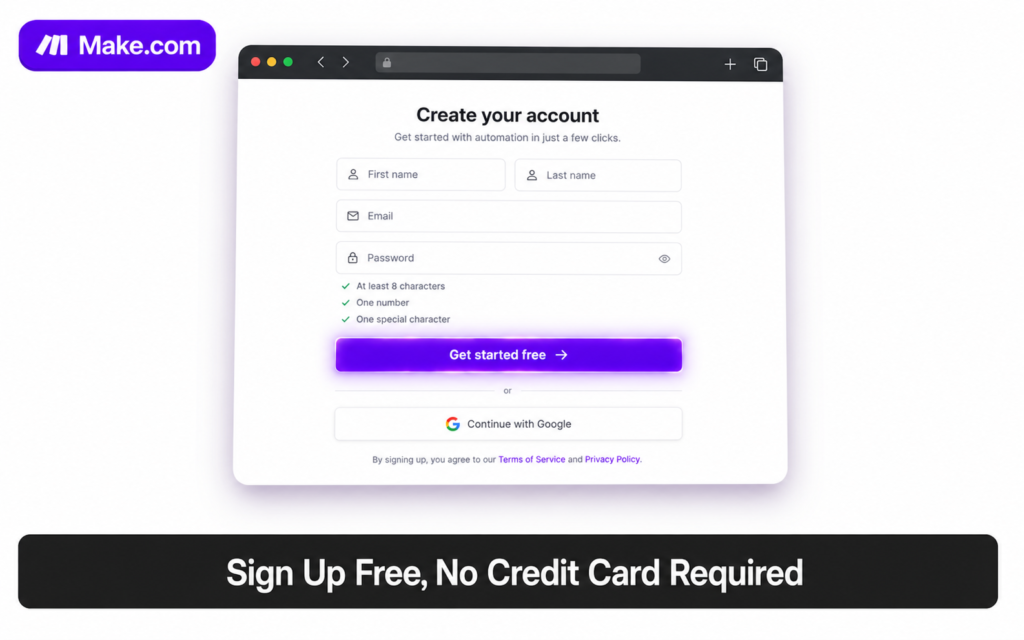
Go to make.com and click Get started free. Sign up with your Google account for the fastest setup. No credit card required.
Once logged in, you will land on the Make dashboard. This is where all your scenarios live.
Create a New Scenario
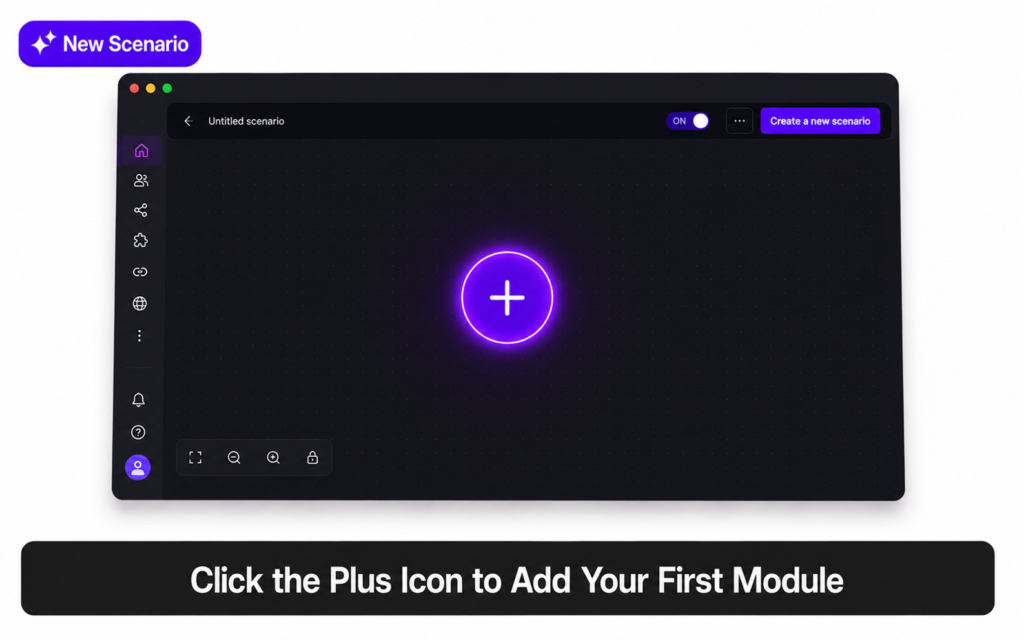
From the dashboard, click the Create a new scenario button in the top right corner. You will see an empty visual canvas with a large plus (+) icon in the center.
This canvas is where you build your workflow by adding and connecting modules.
Add Google Forms as Your Trigger
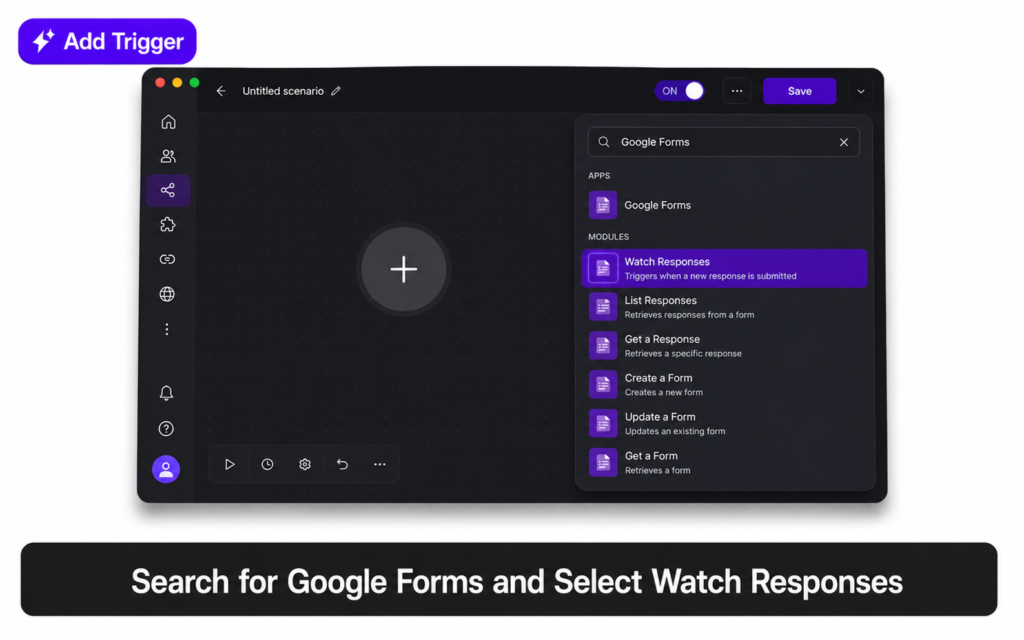
Click the large plus (+) icon in the center of the canvas. A search box opens. Type Google Forms and select it from the list.
Choose the trigger module: Watch Responses. This tells Make to watch your Google Form and start the scenario every time someone submits a new response.
Connect your Google account when prompted. Then select the specific form you want to watch.
Create your Google Form before setting up Make. Have it open in another tab so you can easily find and select it during setup. Make will ask you to choose the form from your Google Drive.
Add Google Sheets as Your First Action
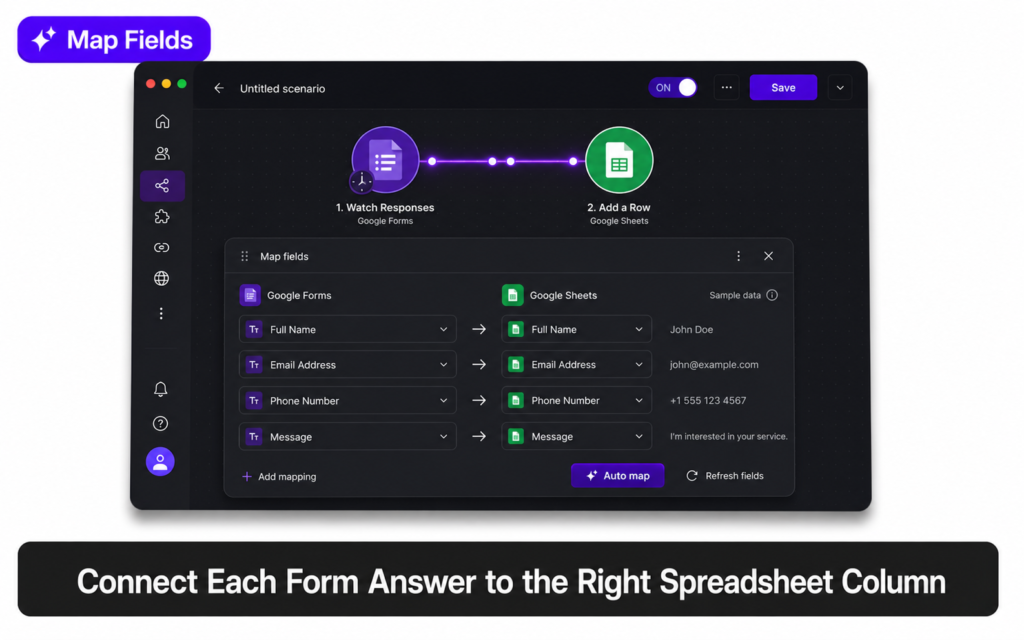
Click the small circle that appears on the right side of your Google Forms module. This adds a new module connected to the trigger.
Search for Google Sheets and select it. Choose the action: Add a Row.
Connect your Google account, then select your spreadsheet and the specific sheet (tab) where you want responses to be saved.
Map each form field to the correct column in your sheet. For example:
| Google Sheets Column | Data from Google Forms |
|---|---|
| Column A: Name | Question 1 answer (name field) |
| Column B: Email | Question 2 answer (email field) |
| Column C: Message | Question 3 answer (message field) |
| Column D: Submitted At | Response date and time |
Add Gmail as Your Second Action
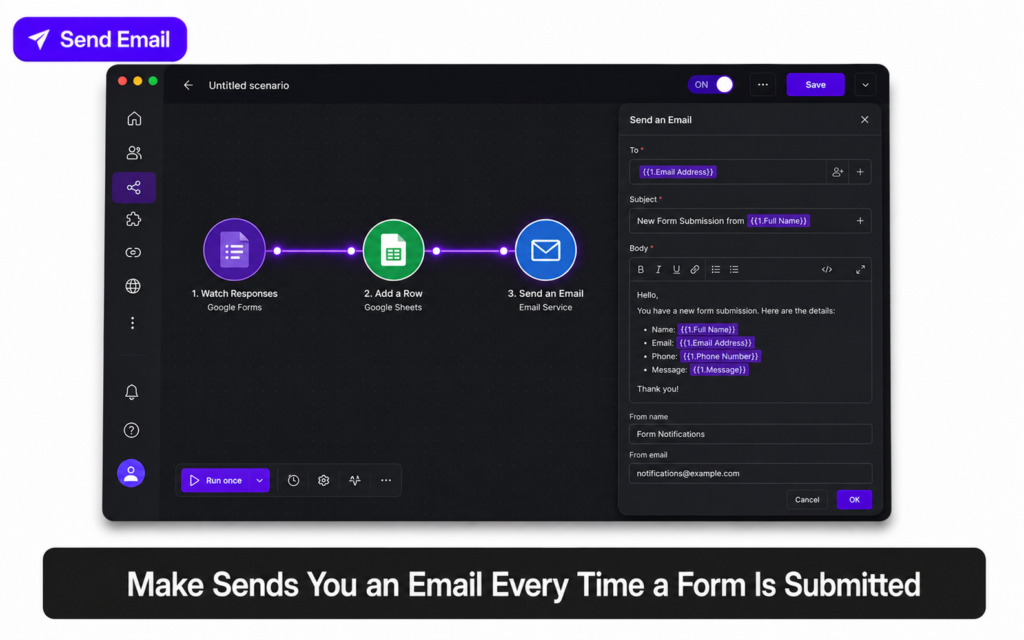
Click the circle on the right side of the Google Sheets module to add another action. Search for Gmail and select it. Choose Send an Email.
Fill in the email details using data from the form response:
- To: Your own email address
- Subject: “New Form Submission from [Name]”
- Content: “Name: [Name], Email: [Email], Message: [Message]”
You can insert the form field values directly into the email by clicking the field mapping icons next to each input box.
Run a Test
Click Run once at the bottom left of the canvas. Make will look for the most recent form response and process it through your scenario.
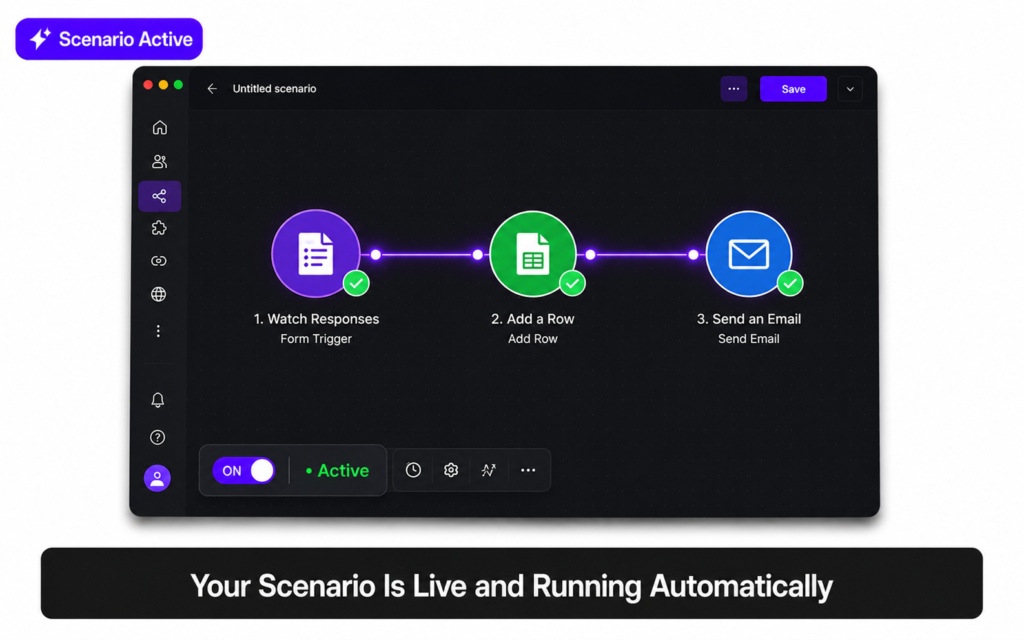
If everything works, you will see green checkmarks on each module and a count of how many items were processed. A new row should appear in your Google Sheet and you should receive the email notification.
If anything fails, click the orange bubble on the failed module to see the error message and fix it.
Submit a test response to your Google Form before running the test in Make. This gives Make a real response to process and makes it easier to verify that everything mapped correctly.
Turn Your Scenario On
Click the ON/OFF toggle at the bottom left of the canvas to activate your scenario. It will now run automatically every time a new form response comes in.
You can also set the schedule, for example every 15 minutes on the free plan, or every minute on paid plans.
What Makes Make.com Different from Zapier
| Feature | Make.com | Zapier |
|---|---|---|
| Interface | Visual canvas, drag and drop | Linear step-by-step builder |
| Complex logic | Routers, filters, loops, branches | Basic filters and paths |
| Pricing model | Credit-based (per module action) | Task-based (per completed Zap run) |
| Free plan | 1,000 credits, 2 scenarios | 100 tasks, 5 Zaps |
| Best for | Complex multi-step workflows | Simple two-step automations |
| Learning curve | Moderate, visual but detailed | Easy, very beginner-friendly |
10 Real Workflows You Can Build with Make.com
| Trigger | Actions | Who It Helps |
|---|---|---|
| New Google Form response | Add to Sheets + send email | Anyone collecting leads or feedback |
| New email with attachment | Save attachment to Google Drive | Freelancers managing client files |
| New Typeform submission | Add to Notion database + send Slack alert | Teams managing applications or intake forms |
| New Airtable record | Send a welcome email via Gmail | Small businesses onboarding new clients |
| New RSS feed item | Post summary to Slack channel | Content teams tracking industry news |
| New row added to Google Sheets | Create a Trello card + notify via email | Project managers tracking tasks |
| New Stripe payment | Add customer to Mailchimp list | Online store owners building email lists |
| Scheduled daily trigger | Pull weather data + send morning briefing email | Anyone who wants a daily digest |
| New Calendly booking | Add to Google Sheets + send confirmation email | Consultants and coaches managing appointments |
| New Instagram post | Save to Google Drive + post to Twitter | Content creators managing multiple platforms |
Make.com AI Features
Make now includes built-in AI tools you can add to any scenario:
| AI Feature | What It Does |
|---|---|
| Make AI Toolkit | Add text generation, translation, or sentiment analysis to any workflow |
| Make AI Agents | Build autonomous agents that make decisions and take action across apps |
| AI Content Extractor | Pull structured text and data from files automatically inside a scenario |
| 350+ AI app integrations | Connect OpenAI, Anthropic Claude, Google Gemini, and more directly in your scenarios |
These features turn Make from a simple connector into a true AI-powered automation platform. You can, for example, build a scenario that receives a customer email, uses AI to classify the topic, and then routes it to the right team automatically, all without any human involvement.
If you are already using Claude Projects or ChatGPT Memory to manage your AI workflows, Make can connect those tools into larger automated pipelines.
Frequently Asked Questions
Is Make.com really free to start?
Yes. The free plan requires no credit card and includes 1,000 credits per month, which is enough to test and learn the platform. You can upgrade when you are ready to automate real workflows.
What happens when I run out of credits?
Your scenarios stop running until credits reset at the start of your next billing cycle. Make will notify you by email when you reach 75% and 90% of your credit limit. You can also buy extra credits or upgrade your plan at any time.
Does Make work on mobile?
The scenario builder works best on desktop. Make does not have a dedicated mobile app for building scenarios, but your automations run in the cloud and work 24/7 regardless of whether you are online or not.
How is Make different from hiring a virtual assistant?
A virtual assistant needs instructions, works certain hours, and costs money every month regardless of task volume. Make runs every task instantly, around the clock, at a fixed low cost. For repetitive rule-based tasks, Make is more reliable and much cheaper.
Start with One Workflow
You don’t need to automate everything at once. Pick one task you repeat every day or every week. Build a scenario for it. Watch it run for a few days. Then add the next one.
The most effective Make users start small, get comfortable with the canvas, and gradually build a library of scenarios that run their business in the background. Get started at make.com.