
Most people open a blank Word document and stare at it. They know what they want to say. Getting it out is the hard part.
Copilot in Microsoft Word changes that. It writes your first draft, rewrites sections you don’t like, summarizes long documents in seconds, and helps you adjust the tone of anything you type.
This guide shows you exactly how to use Copilot in Word, step by step, with no technical skills needed.
What Is Copilot in Word?
Copilot is Microsoft’s AI assistant. It is built directly into Microsoft Word. You don’t download anything extra. If you have the right Microsoft 365 plan, it is already there.
Copilot in Word can do three main things:
| Feature | What It Does | Example |
|---|---|---|
| Draft | Writes a document from scratch based on your prompt | “Write a project proposal for a new website redesign” |
| Rewrite | Rewrites selected text in a different tone or style | “Make this paragraph more professional” |
| Summarize | Pulls key points from a long document instantly | “Summarize the main decisions in this report” |
If you also use Copilot in Microsoft Teams, you already know how powerful this AI assistant is across the Microsoft 365 suite. Word takes it even further.
Do You Have Copilot in Word?
Copilot in Word requires a Microsoft 365 subscription that includes Copilot. Here is what each plan includes:
| Plan | Cost | Copilot in Word |
|---|---|---|
| Microsoft 365 Personal / Family | From $9.99/month | Yes, included |
| Microsoft 365 Copilot Chat (Business) | Included with eligible M365 | Limited access |
| Microsoft 365 Copilot Business | From $18/user/month (add-on) | Full access, Work IQ grounding |
| Microsoft 365 Copilot Enterprise | $30/user/month (add-on) | Full access, org-wide data |
Important Copilot in Word is not available on the free version of Microsoft Word or on older Office 2019 or Office 2021 licenses. You need an active Microsoft 365 subscription. Check Microsoft’s official Copilot pricing page to find the right plan for you.
To check if you have it, open Word and look for a Copilot icon in the top right area of the ribbon or a “Draft with Copilot” prompt when you open a blank document.
Step-by-Step: How to Use Copilot in Word
Step 1
Open a Blank Document in Word
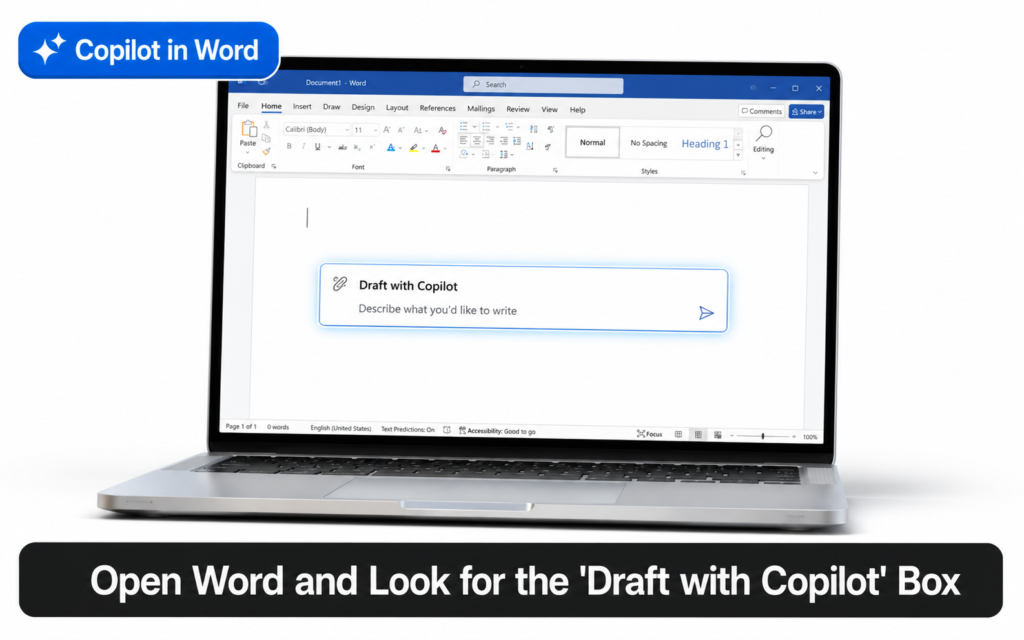
Open Microsoft Word and create a new blank document. If Copilot is active on your account, you will see a Draft with Copilot box appear near the top of the empty page. This is your starting point.
If you don’t see it, look for the Copilot icon in the Home tab in the ribbon at the top of the screen. Click it to open the Copilot side panel.
Step 2
Write Your First Draft Using Copilot
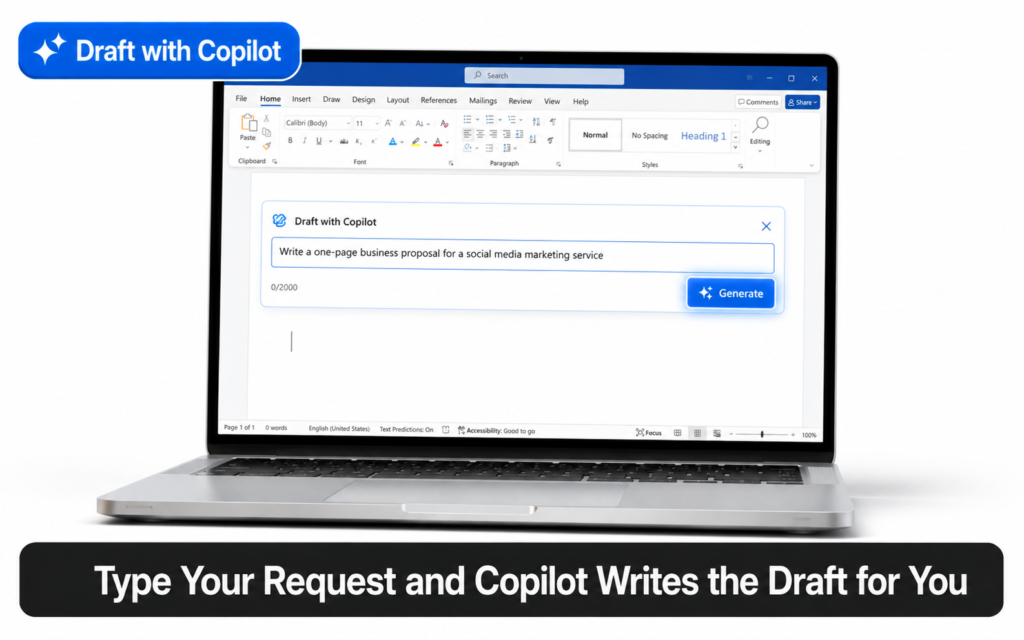
Click the Draft with Copilot box and type what you want to create. Be as specific as possible. Here are examples of prompts that work well:
- “Write a one-page business proposal for a social media marketing service targeting small restaurants.”
- “Create a meeting agenda for a 30-minute team kickoff on a new product launch.”
- “Write a professional email template for following up after a job interview.”
- “Draft a two-paragraph introduction for a report on remote work trends.”
Click Generate or press Enter. Copilot writes the draft directly into your document within seconds.
Tip The more detail you give, the better the output. Instead of “write a proposal,” say “write a one-page proposal for a website redesign project, targeting a retail client, with a professional and confident tone.”
Step 3
Review and Refine the Draft
After Copilot generates the draft, you have four options at the bottom of the output:
| Button | What It Does |
|---|---|
| Keep it | Accepts the draft and inserts it into your document |
| Regenerate | Generates a new version of the draft |
| Discard | Deletes the draft and starts over |
| Refine (text box) | Type an instruction to adjust the draft, like “make it shorter” or “add a bullet point list” |
You can go back and forth as many times as you need. Copilot keeps refining until you are happy with the result.
Step 4
Rewrite Any Section of Your Document
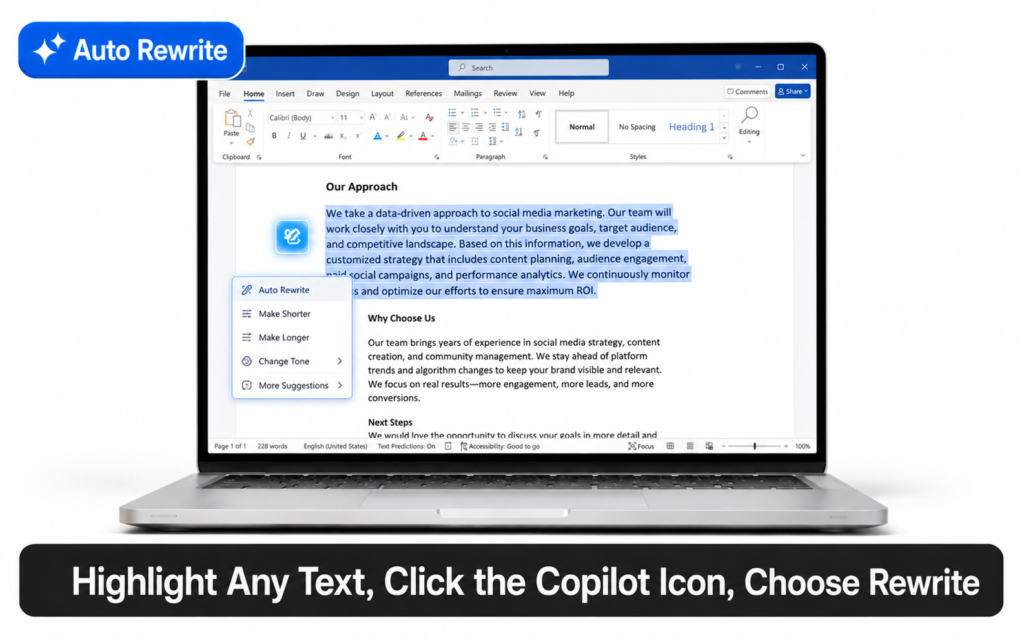
Already have text in your document that needs improving? Highlight any sentence or paragraph. A small Copilot icon appears in the left margin next to your selection.
Click it and choose Auto Rewrite. Copilot offers you several rewritten versions. Pick the one you like, or type a custom instruction like:
- “Make this more concise”
- “Change the tone to be more friendly”
- “Rewrite this for a non-technical audience”
- “Make this sound more confident”
Tip Use the rewrite feature to fix tone mismatches. Write naturally first, then ask Copilot to make it more formal, shorter, or clearer. It is much faster than editing word by word yourself.
Step 5
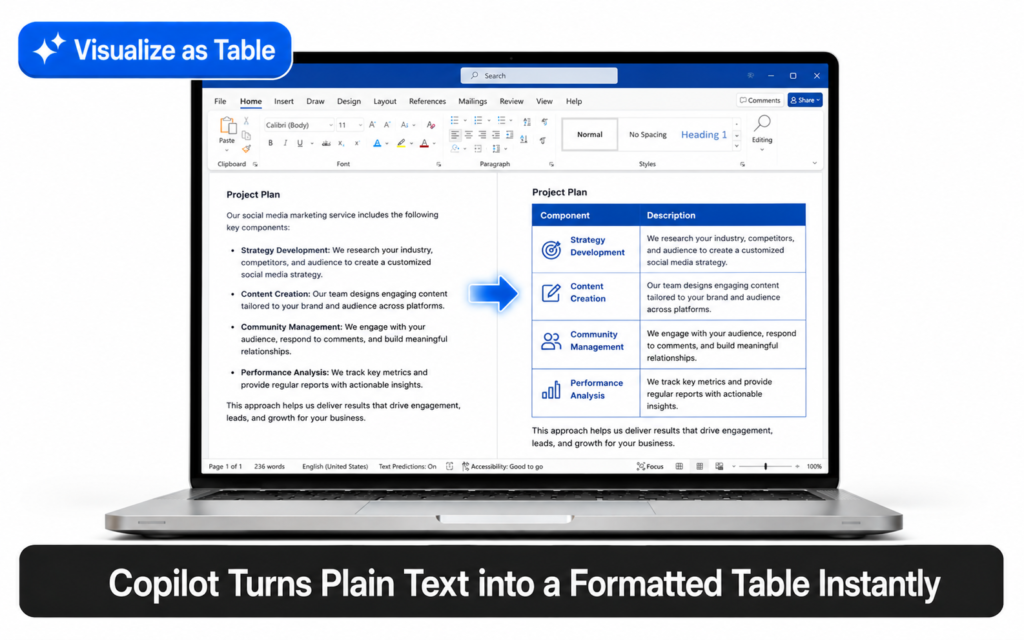
Turn Text into a Table
Copilot can convert any chunk of text into a formatted table automatically. This is useful when you have a list of items, a comparison, or any information that would be clearer in rows and columns.
Highlight the text you want to convert. Click the Copilot icon in the left margin. Choose Visualize as a table. Copilot instantly transforms the text into a clean, formatted table.
You can then ask Copilot to adjust it, for example “add a third column for notes” or “sort alphabetically.”
Step 6
Summarize a Long Document
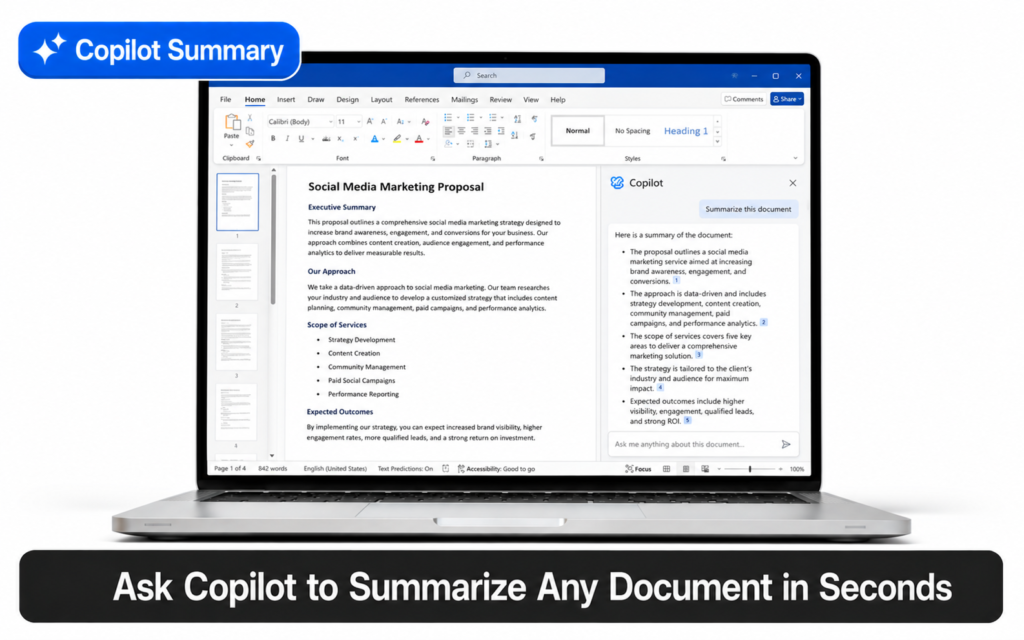
Open any existing Word document, even a long one. Click the Copilot icon in the Home ribbon to open the side panel. Type:
“Summarize this document in 5 bullet points.”
Or try:
- “What are the key decisions in this document?”
- “List all the action items mentioned.”
- “What does this document say about the budget?”
- “Give me a one-paragraph overview of the main topic.”
Copilot reads the entire document and answers instantly. It even shows citations pointing to the exact section where it found the information.
This is one of the most useful features for anyone who works with long documents and needs to save time reviewing them.
Important Copilot summaries are very accurate but not perfect. Always read the full document yourself before making important decisions based on the summary. Use Copilot as a first pass, not a final answer.
Step 7
Use the Inspire Me Button
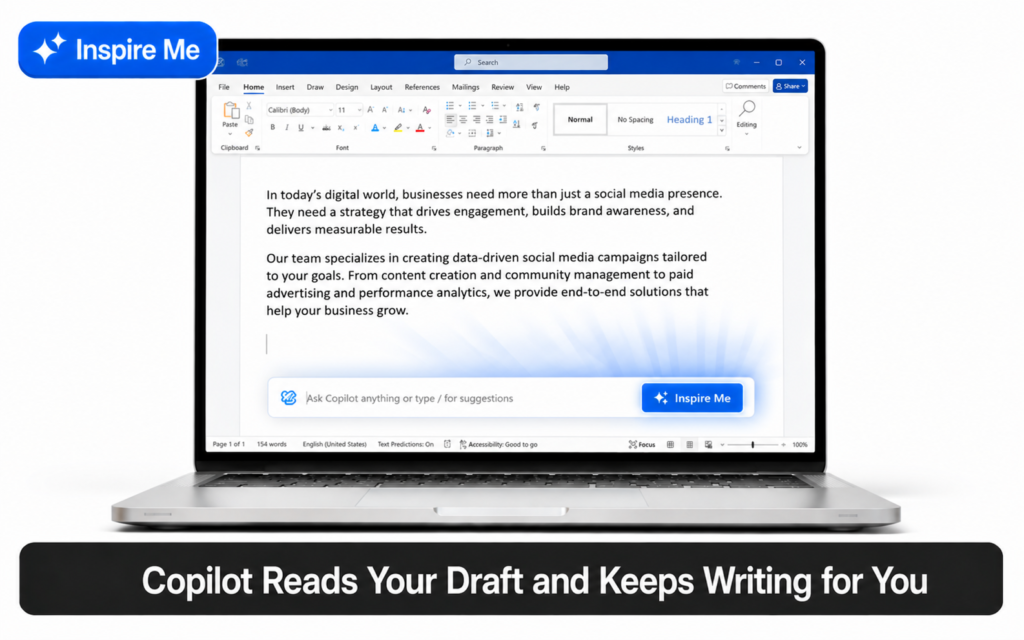
If you have already written some content and want Copilot to keep writing for you, use the Inspire Me button. It appears inside the Draft with Copilot box when your document already has text.
Click it, and Copilot reads what you have written and continues the document in the same tone and style. This is great for breaking through writer’s block mid-document.
Tip Write your first few sentences manually to set the tone, then click Inspire Me to let Copilot continue. This gives you more control over the style while still saving time.
What Copilot in Word Can and Cannot Do
| Copilot Can Do | Copilot Cannot Do |
|---|---|
| Write a full document from a prompt | Read documents not already in the file |
| Rewrite text in a different tone or style | Search the internet for real-time information |
| Summarize long documents instantly | Guarantee 100% accurate facts in every draft |
| Convert text to a formatted table | Replace your own review and editing |
| Continue writing from where you stopped | Format complex documents with SmartArt or charts |
| Answer questions about a document’s content | Work without an active Microsoft 365 subscription |
Copilot in Word vs Writing Manually
| Task | Writing Manually | With Copilot in Word |
|---|---|---|
| Write a one-page proposal | 45 to 90 minutes | Under 2 minutes |
| Summarize a 20-page report | 30 to 60 minutes | Under 30 seconds |
| Rewrite a paragraph for tone | 10 to 20 minutes | Under 10 seconds |
| Turn a list into a table | 5 to 10 minutes | Under 5 seconds |
Best Prompts to Use in Copilot for Word
These prompts work well for most common writing tasks:
| Task | Prompt to Use |
|---|---|
| Business proposal | “Write a one-page proposal for [project name], targeting [audience], professional tone.” |
| Meeting agenda | “Create a meeting agenda for a [duration] meeting about [topic] with [attendees].” |
| Email template | “Write a professional email for [situation], friendly but direct, under 150 words.” |
| Summary | “Summarize this document in 5 bullet points. List any action items separately.” |
| Rewrite for tone | “Rewrite this paragraph to sound more [formal / casual / confident / simple].” |
| Expand content | “Expand this paragraph into three paragraphs with more detail and examples.” |
Tip Save your best prompts in a separate text file. Reuse them every time you face the same writing task. Over time, you will build a personal prompt library that saves hours every week. You can also use well-crafted prompts as a starting point and adapt them for Word.
Frequently Asked Questions
Does Copilot in Word work on the web version?
Yes. Copilot works in Word for the web, on the desktop app for Windows and Mac, and on the iPad app. Features may vary slightly depending on the version.
Can Copilot reference files I have saved in OneDrive?
Yes, with a Microsoft 365 Copilot Business or Enterprise license. You can type “/” followed by a file name in the prompt box to reference up to three of your OneDrive files. Copilot uses those files to ground its output.
Does Copilot share my document with Microsoft?
No. Copilot uses the same security and privacy controls as Microsoft 365. It only accesses files you explicitly share with it. Your documents are not used to train the AI model.
What if the draft Copilot writes is not what I wanted?
Click Regenerate for a new version, or type a refinement instruction in the Copilot box. You can also highlight any section and ask Copilot to rewrite just that part.
Who Should Use Copilot in Word?
| Who | How Copilot in Word Helps |
|---|---|
| Office workers | Draft reports, emails, and proposals in minutes instead of hours |
| Students | Get a first draft started, then edit and expand it yourself |
| Freelancers | Write client proposals, briefs, and project updates faster |
| Managers | Summarize long documents and reports without reading every line |
| Business owners | Create professional documents without needing a copywriter |
If you already use AI tools like Claude Projects to organize your ongoing work, adding Copilot in Word gives you a powerful AI writing partner directly inside your documents.
Start with One Document Today
You don’t need to change how you work overnight. Open Word right now. Create a blank document. Type a simple prompt into the Draft with Copilot box.
See what it produces in 30 seconds. Edit it, refine it, make it yours. That one experiment is enough to understand why so many people now use Copilot as their default first step for any writing task.
For full details on everything Copilot can do in Word, visit the official Microsoft support page for Copilot in Word.