
You use a dozen apps every day. Gmail, Slack, Google Sheets, Notion, Trello, and more. But these apps don’t talk to each other. You copy and paste. You switch tabs. You do the same small task over and over.
Zapier fixes that. And its new AI features make it even easier to set up.
This guide shows you how to automate your first real workflow using Zapier AI, with no coding required and no technical experience needed.
What Is Zapier?
Zapier is an automation tool. It connects your apps and moves information between them automatically.
Instead of copying a new Gmail attachment to Google Drive by hand every time, Zapier does it the moment the email arrives. Instead of manually adding form responses to a spreadsheet, Zapier adds each row instantly.
You set it up once. Then it runs in the background, forever.
Each automation is called a Zap. A Zap has two parts:
| Part | What It Is | Example |
|---|---|---|
| Trigger | The event that starts the Zap | You receive a new email |
| Action | What Zapier does next | It saves the attachment to Google Drive |
Zapier connects with over 7,000 apps. If you use it, Zapier probably supports it.
What Is Zapier AI?
Zapier AI is a feature inside Zapier. Instead of building a Zap step by step, you describe what you want in plain English. Zapier AI builds the automation for you.
You type something like: “When I get a new lead in my contact form, add it to my Google Sheet and send me a Slack message.”
Zapier AI reads that sentence and creates the Zap automatically.
Tip You don’t need to know how Zapier works to use Zapier AI. Just describe the task you want automated. The AI handles the rest.
Zapier Free vs Paid: What You Need to Know
| Feature | Free Plan | Starter ($19.99/month) | Professional ($49/month) |
|---|---|---|---|
| Zaps (automations) | 5 Zaps | 20 Zaps | Unlimited |
| Tasks per month | 100 | 750 | 2,000+ |
| AI Zap builder | Yes | Yes | Yes |
| Multi-step Zaps | No | Yes | Yes |
| Update frequency | Every 15 minutes | Every 2 minutes | Every 1 minute |
| Zapier AI features | Basic | Full access | Full access |
Important The free plan limits you to 100 tasks per month. One task equals one action completed. If your Zap runs 100 times, that uses 100 tasks. Start with the free plan to test things, then upgrade if you need more.
What You Will Build in This Tutorial
You will create a Zap that does this:
When you star an email in Gmail, Zapier automatically adds the subject line and sender to a Google Sheet.
This is a simple but genuinely useful workflow. You can use it to track important emails, log client messages, or build an inbox archive, without touching a single formula.
You need:
- A free Zapier account (zapier.com)
- A Gmail account
- A Google Sheets file (any blank sheet works)
Step-by-Step: Build Your First Zap with AI
Step 1
Create a Free Zapier Account
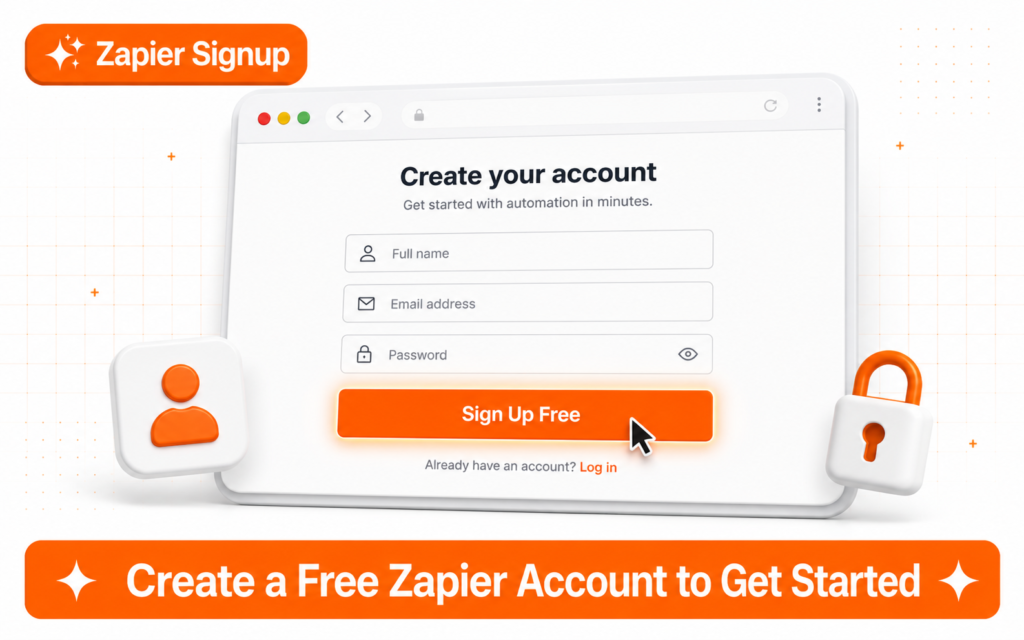
Go to zapier.com and click Sign Up Free. You can sign up with your Google account to connect Gmail and Sheets faster later.
Step 2
Open the AI Zap Builder
Once you are logged in, look for the Create Zap button at the top left. Click it.
You will see two options. Choose Start with AI. This opens a text box where you describe your automation in plain English.

Step 3
Describe Your Automation in Plain English
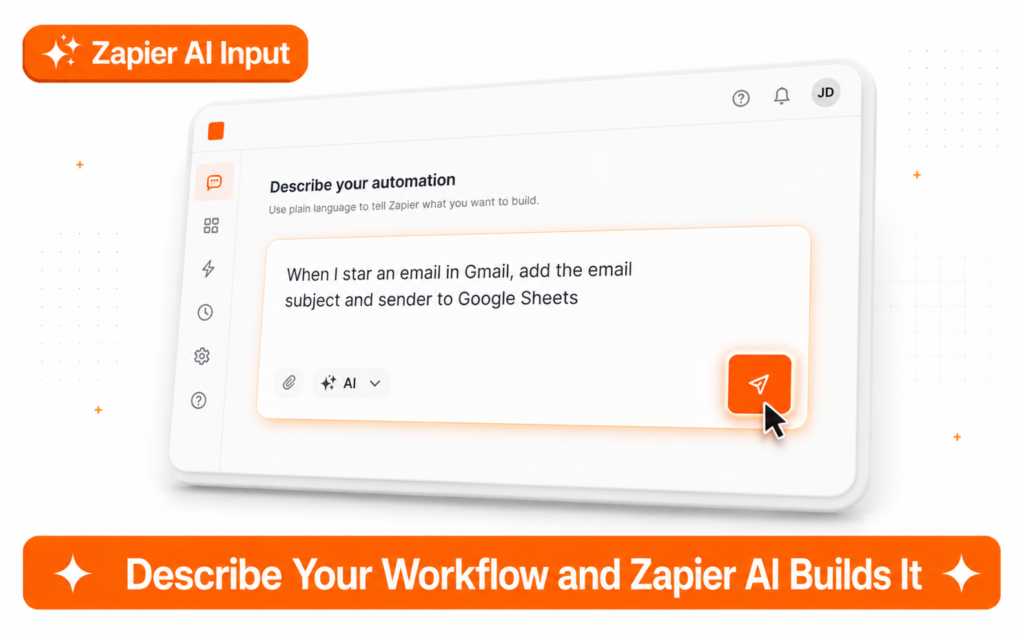
In the text box, type this:
“When I star an email in Gmail, add the email subject and sender name to a Google Sheet.”
Then press Enter or click the arrow button. Zapier AI reads your sentence and builds the Zap structure automatically.
Tip Be specific in your description. Include the trigger app (Gmail), the trigger event (starring an email), the action app (Google Sheets), and what information you want moved (subject and sender).
Step 4
Review the Zap Zapier AI Built
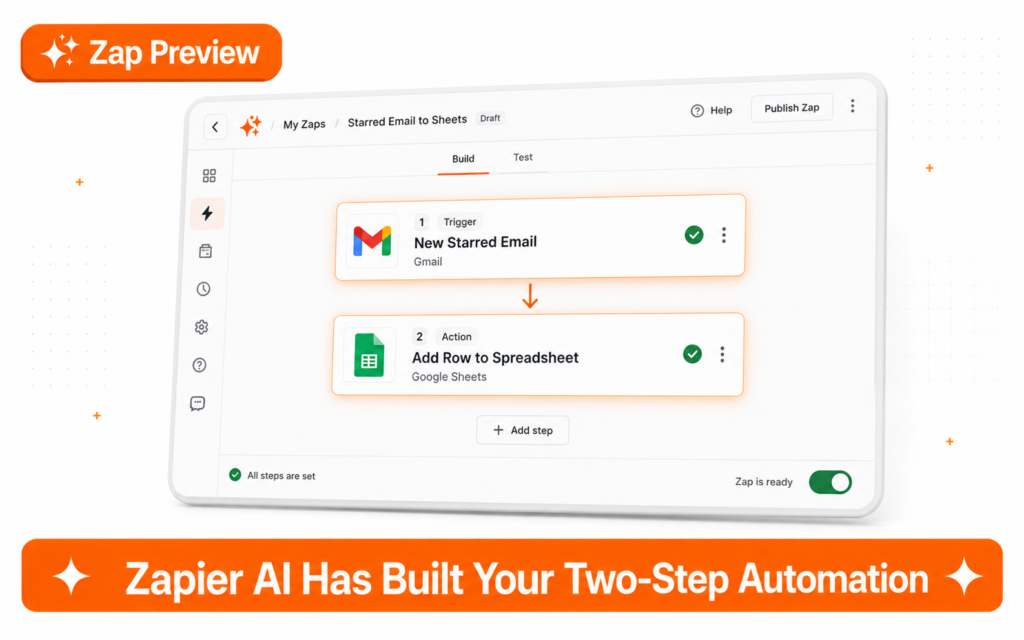
Zapier AI generates your Zap with two steps already filled in:
- Trigger: Gmail, New Starred Email
- Action: Google Sheets, Create Spreadsheet Row
Review the setup. If anything looks wrong, you can adjust it here. If it looks right, move to the next step.
Step 5
Connect Your Gmail Account
Click on the Gmail trigger step. Zapier asks you to connect your Gmail account. Click Sign in to Gmail and follow the prompts. You only do this once.
After connecting, choose New Starred Email as the trigger event if it isn’t already selected. Click Continue.
Important Zapier asks for permission to read your Gmail. This is required for the automation to detect starred emails. Zapier uses this access only to watch for the trigger you define. It does not read or store your other emails.
Step 6
Connect Your Google Sheets Account
Click on the Google Sheets action step. Connect your Google account the same way. Then select the spreadsheet and the specific sheet (tab) where you want new rows to appear.
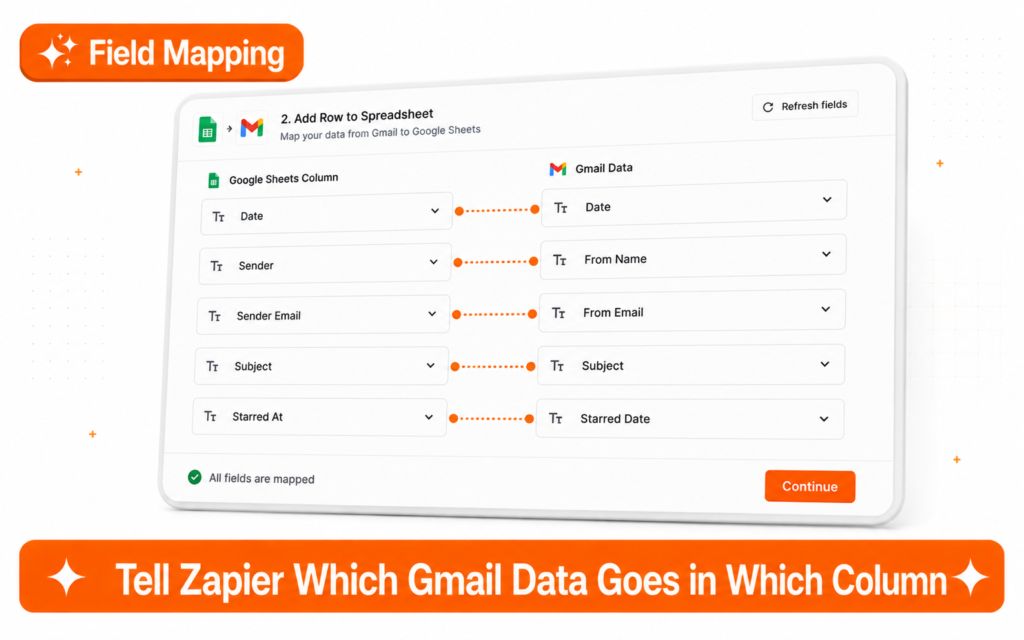
Map the fields like this:
| Google Sheets Column | Data to Pull from Gmail |
|---|---|
| Column A (e.g. “Subject”) | Subject |
| Column B (e.g. “Sender”) | From Name |
| Column C (e.g. “Date”) | Date (optional) |
Tip Set up your Google Sheet with column headers first (Subject, Sender, Date in row 1) before connecting it in Zapier. This makes the field mapping much easier to see.
Step 7
Test Your Zap
Click Test Step at the bottom. Zapier will look for a recently starred Gmail email and try to add it to your sheet.
If the test passes, you will see a green success message and a new row will appear in your Google Sheet.
If you don’t have a starred email yet, go to Gmail, star any email, then come back and test again.
Step 8
Turn Your Zap On
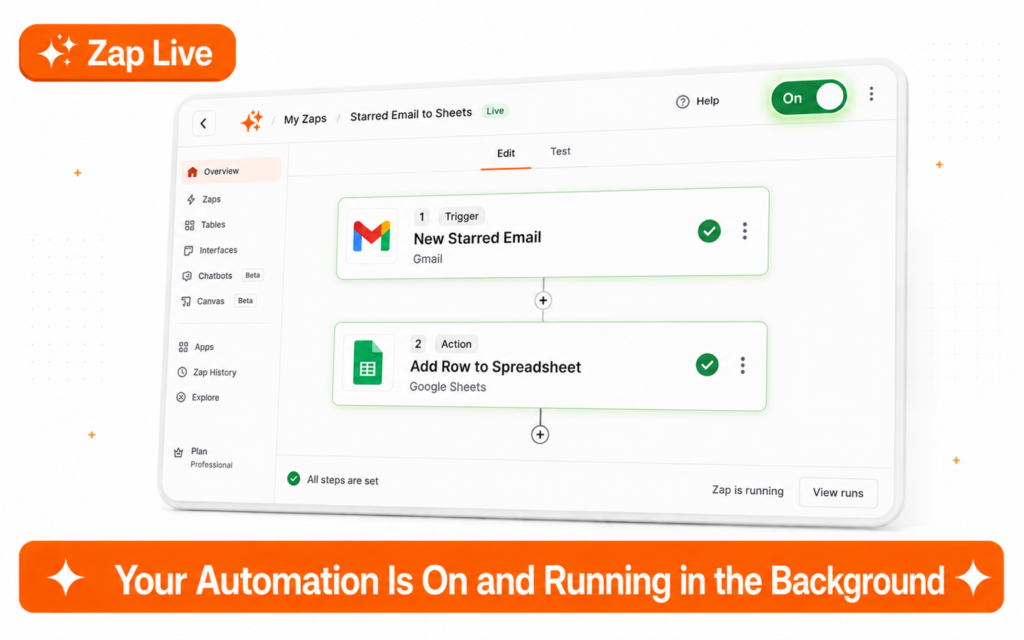
Click Publish Zap in the top right corner. Your Zap is now live.
From this point, every time you star an email in Gmail, a new row appears in your Google Sheet automatically. No clicking. No copying. No effort.
More Zap Ideas You Can Build with AI
Once you have your first Zap running, try describing these to Zapier AI:
| What You Describe | What It Does |
|---|---|
| “When I add a card to Trello, send me a Slack message” | Keeps your team updated on new tasks automatically |
| “When someone fills out my Typeform, add them to Mailchimp” | Grows your email list without manual imports |
| “When I save something to Pocket, add the link to Notion” | Builds a reading list in your Notion workspace |
| “When I post on Instagram, share it to Twitter too” | Cross-posts your content with one step |
| “When a new row is added to Google Sheets, send an email” | Automates order confirmations, alerts, or reports |
Tip If Zapier AI doesn’t build exactly the right Zap, edit it manually after. The AI gets you 90% of the way there in seconds. You fine-tune the last 10%.
What Zapier AI Can and Cannot Do
| Zapier AI Can Do | Zapier AI Cannot Do |
|---|---|
| Build a Zap from a plain English description | Understand very vague instructions |
| Connect two or more apps automatically | Access apps not in Zapier’s library |
| Suggest the right trigger and action | Test or publish the Zap on your behalf |
| Map data fields between apps | Make real-time decisions based on content |
| Speed up automation setup for beginners | Replace complex logic or conditional workflows |
Zapier AI vs Building a Zap Manually
| Method | Time to Build | Best For |
|---|---|---|
| Zapier AI | Under 2 minutes | Beginners, simple workflows, fast setup |
| Manual Builder | 5 to 15 minutes | Complex Zaps, custom logic, multi-step flows |
Frequently Asked Questions
Is Zapier safe to connect to my Gmail?
Yes. Zapier is a widely used and trusted platform. It uses secure OAuth connections, so it never stores your password. You can disconnect any app at any time from your Zapier account settings.
What happens if a Zap fails?
Zapier sends you an email notification when a Zap fails. You can check the error log inside your Zapier dashboard and re-run the Zap once the issue is fixed.
Can I edit a Zap after turning it on?
Yes. Go to your Zaps list, click the Zap you want to change, and edit any step. Turn the Zap off while editing, then turn it back on when done.
Does the free plan have a time limit?
No. The free plan does not expire. It runs as long as your account is active, within the 5 Zap and 100 task limits.
Quick Wins You Can Automate This Week
You don’t need to automate everything at once. Start with one task that you repeat every day. Build a Zap for it. Let it run for a week. Then add another.
Here are three good first Zaps to build:
- Save starred Gmail emails to a Google Sheet
- Get a Slack message when a new Google Form is submitted
- Add new Gmail contacts to a Google Contacts list automatically
Each one takes less than five minutes to set up with Zapier AI.
Up Next on TicForgeCopilot in Word: Write, Rewrite and Summarize Any Document, where we show you how Microsoft’s AI assistant can draft and edit Word documents from scratch.